

Broadcast Software Integration
ScoreBird + Boxcast
Native IntegrationBoxcast is a live streaming platform purpose-built for sports organizations, schools, and houses of worship, offering managed streaming with branded player pages and audience analytics. ScoreBird's native Boxcast integration embeds live score overlays directly into your Boxcast stream, with NeST pulling data from your scoreboard so scores update automatically from tip-off to final buzzer.
How It Works
Native Integration — ScoreBird overlays are embedded directly in the Boxcast stream
No separate broadcast software required — Boxcast handles the stream and the overlay
Automatic score updates from your scoreboard via NeST — no manual entry
Sport-specific overlay templates for basketball, football, soccer, volleyball, and more
Simple setup designed for school and athletic department staff, not engineers
Scores appear on every viewer's stream without any production switcher needed
Setup Guide
Boxcast Integration Setup
ScoreBird connects natively to Boxcast — configure it once through the ScoreBird Admin app and your overlays appear automatically on your Boxcast streams.
Requirements
- A Boxcast account with API access (Client ID and Client Secret from Boxcast Dashboard)
- A ScoreBird account with an active NeST device
- The ScoreBird Admin mobile app (iOS or Android)
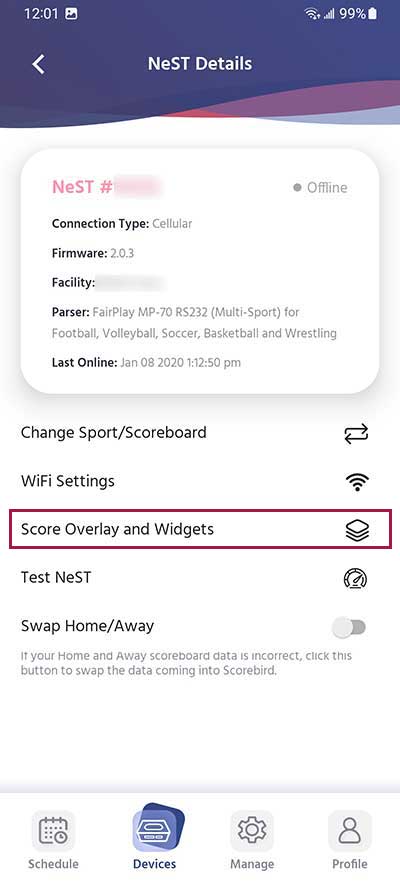
Step 1: Open NeST Details
In the ScoreBird Admin app, navigate to your NeST device details screen and select "Score Overlay and Widgets".
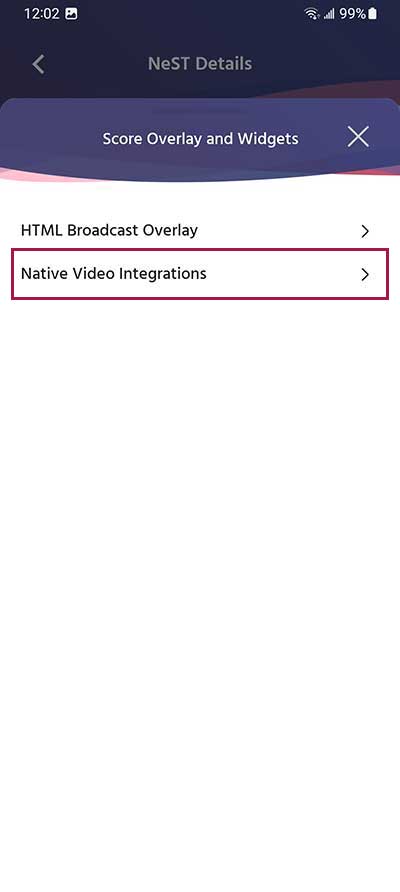
Step 2: Select Native Video Integrations
Choose "Native Video Integrations" from the menu.
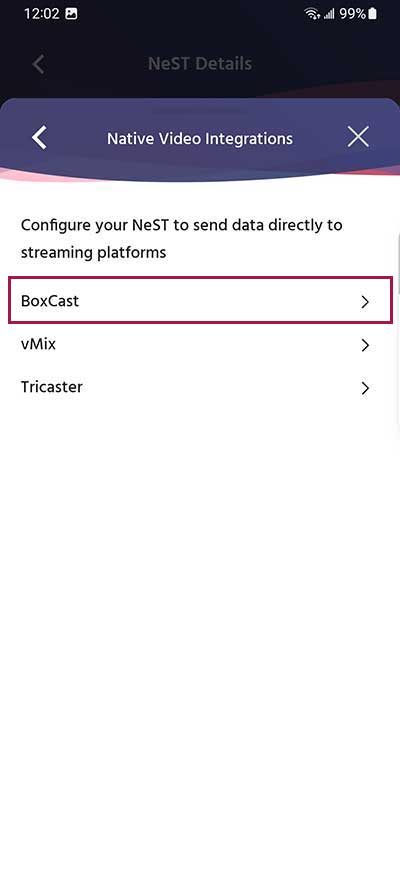
Step 3: Select Boxcast
Choose "Boxcast" as your integration.
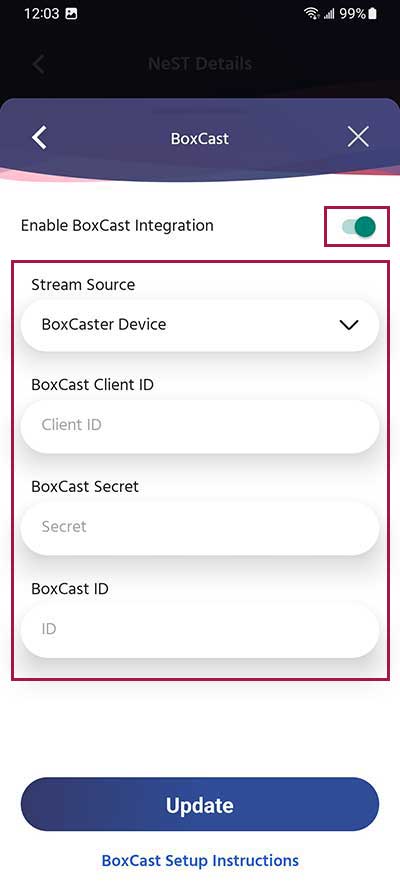
Step 4: Enter Credentials
Enter your Boxcast credentials:
- Client ID — from your Boxcast Dashboard API keys section
- Client Secret — from your Boxcast Dashboard API keys section
- BoxCast ID (optional) — only needed for Boxcast device streaming, not iOS app streaming
Click "Update" to save.
Important Notes
- Your NeST device must have internet access to communicate with the Boxcast API.
- The overlay will appear automatically on your Boxcast streams once configured.
- You can manage overlay appearance through the ScoreBird Portal.
Troubleshooting
- Overlay not appearing? Verify your Client ID and Client Secret are correct.
- Need API keys? Find them in your Boxcast Dashboard under API settings.
- Need help? Contact support at support@scorebird.com or call 844-GOT-BIRD (844-468-2473).
Ready to Connect with Boxcast?
Get ScoreBird set up with Boxcast and start showing live scores today.