

Broadcast Software Integration
ScoreBird + NewBlue Titler Live
Native IntegrationNewBlue Titler Live and Captivate are professional broadcast titling and graphics platforms used for live productions. ScoreBird integrates natively with Titler Live through the Captivate API, delivering real-time scoring data from NeST directly into your titling workflow — no manual score entry during production.
How It Works
Native Integration — ScoreBird data flows directly into Titler Live and Captivate via the Captivate API
Professional broadcast-quality score graphics rendered natively in your Titler Live production
Real-time score, clock, period, and sport-specific stats from NeST
No manual score entry — data updates automatically as your scoreboard changes
Works with Titler Live 5, Captivate, and NewBlue graphics platforms
Setup Guide
NewBlue Titler Live Integration Setup
Connect ScoreBird to NewBlue Titler Live to display live score overlays natively in your broadcast graphics workflow.
Requirements
- NewBlue Titler Live installed
- A ScoreBird API key — see how to retrieve your API key
- Your 5-digit NeST serial number
Step 1: Open NewBlue Titler Live
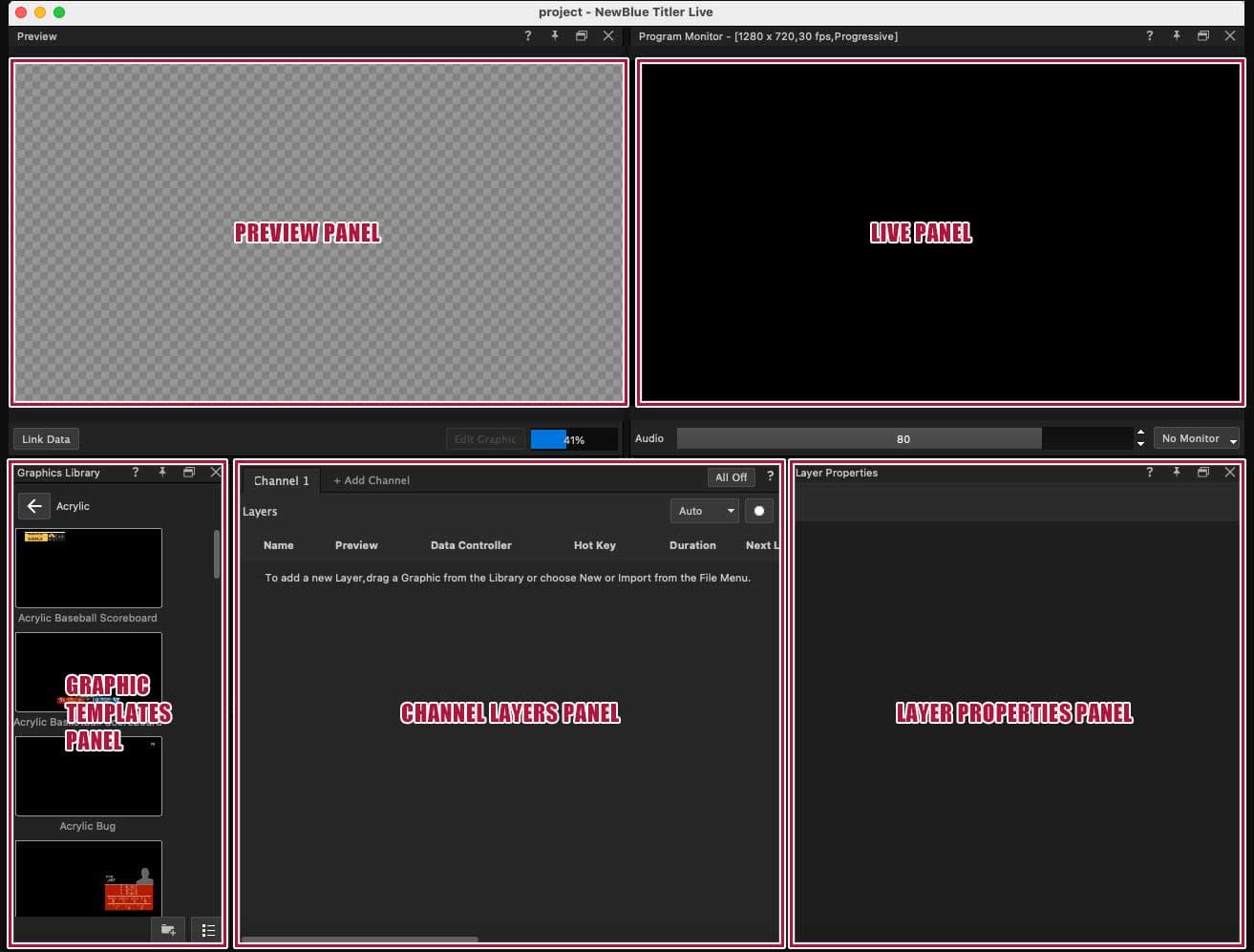
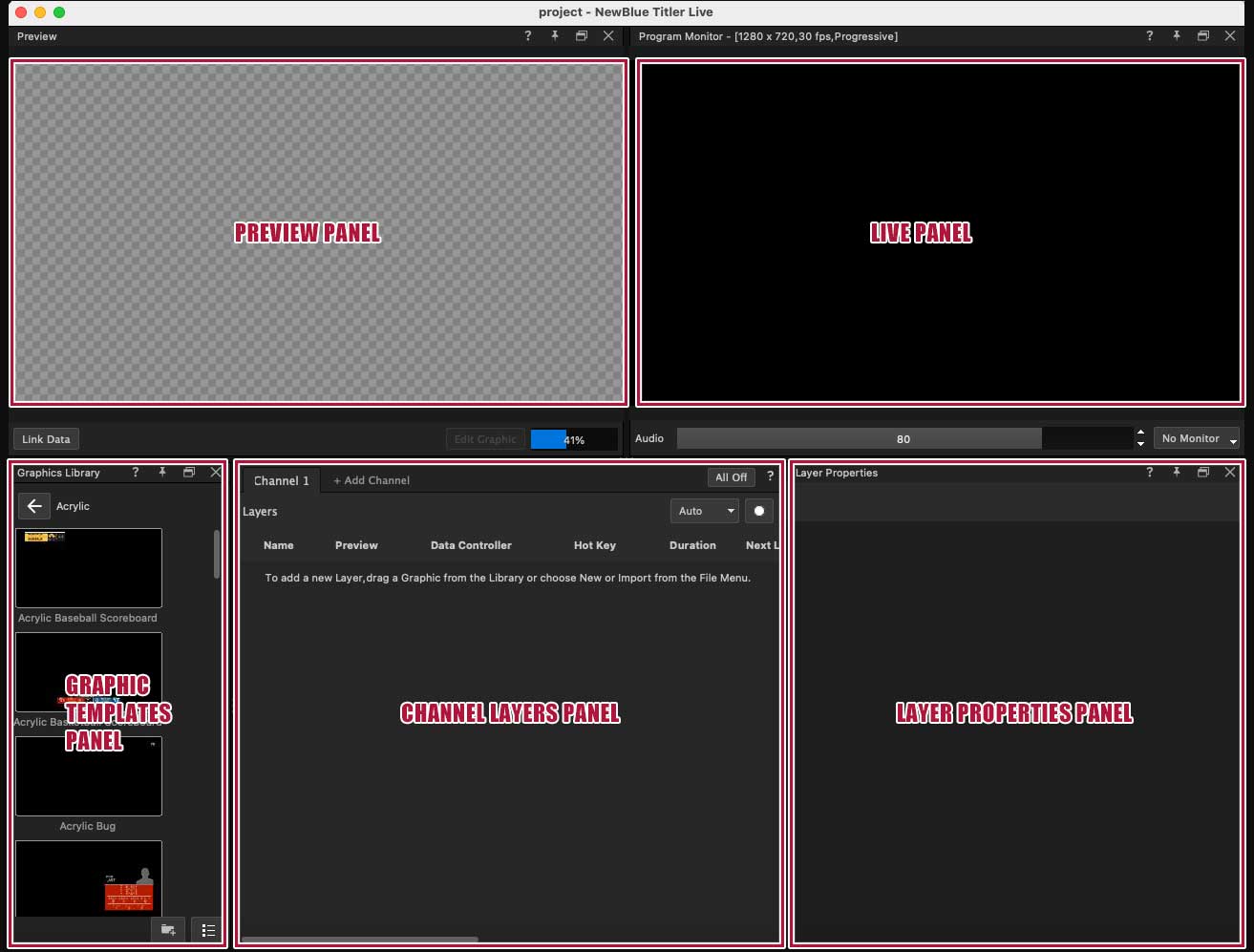
Open NewBlue Titler Live and confirm that five panels are displayed. If any panels are missing, access the View menu to restore them.
Step 2: Add the Sport-Specific Overlay
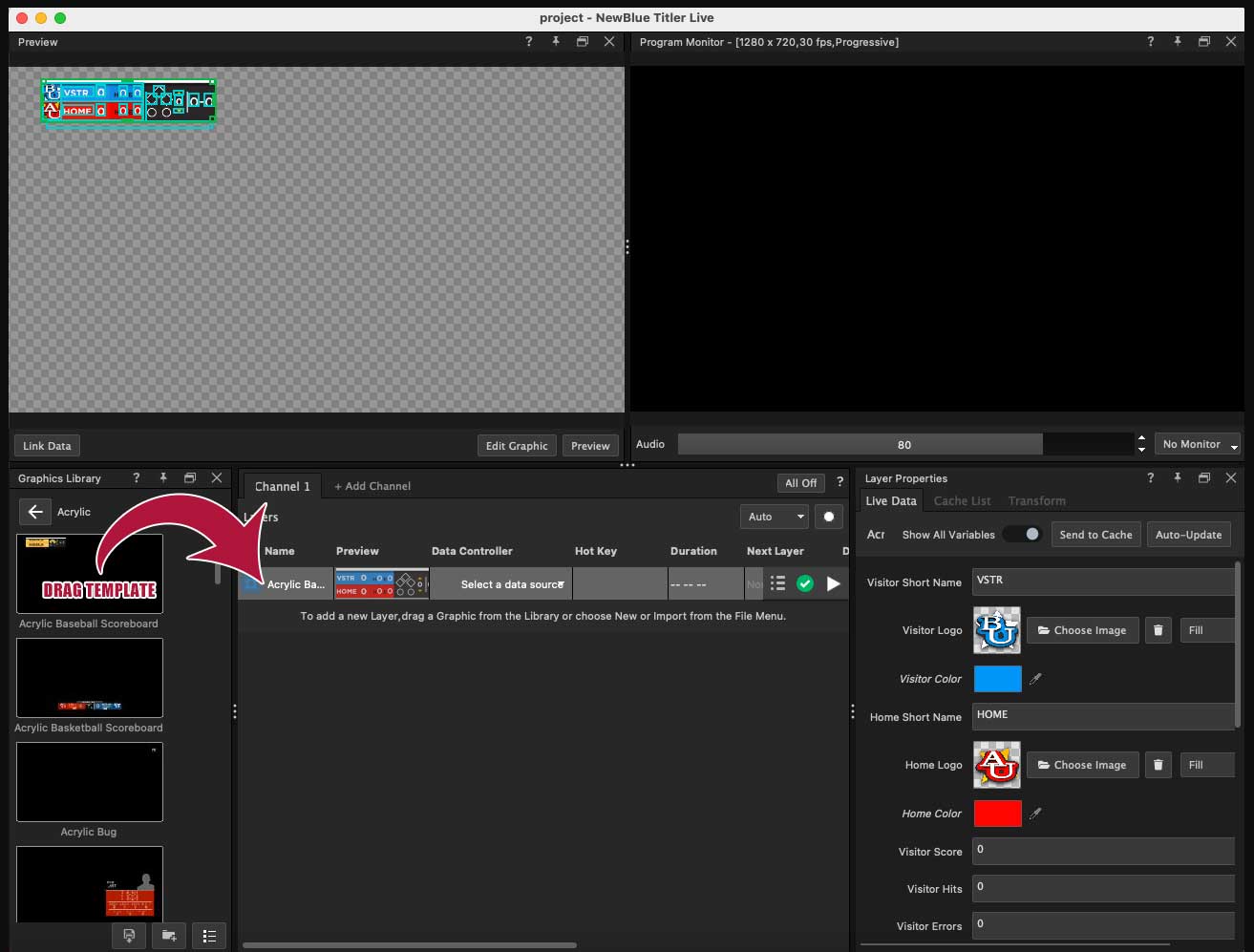
Drag the sport-specific graphic overlay into the Channel Layers panel.
Step 3: Select the ScoreBird Controller
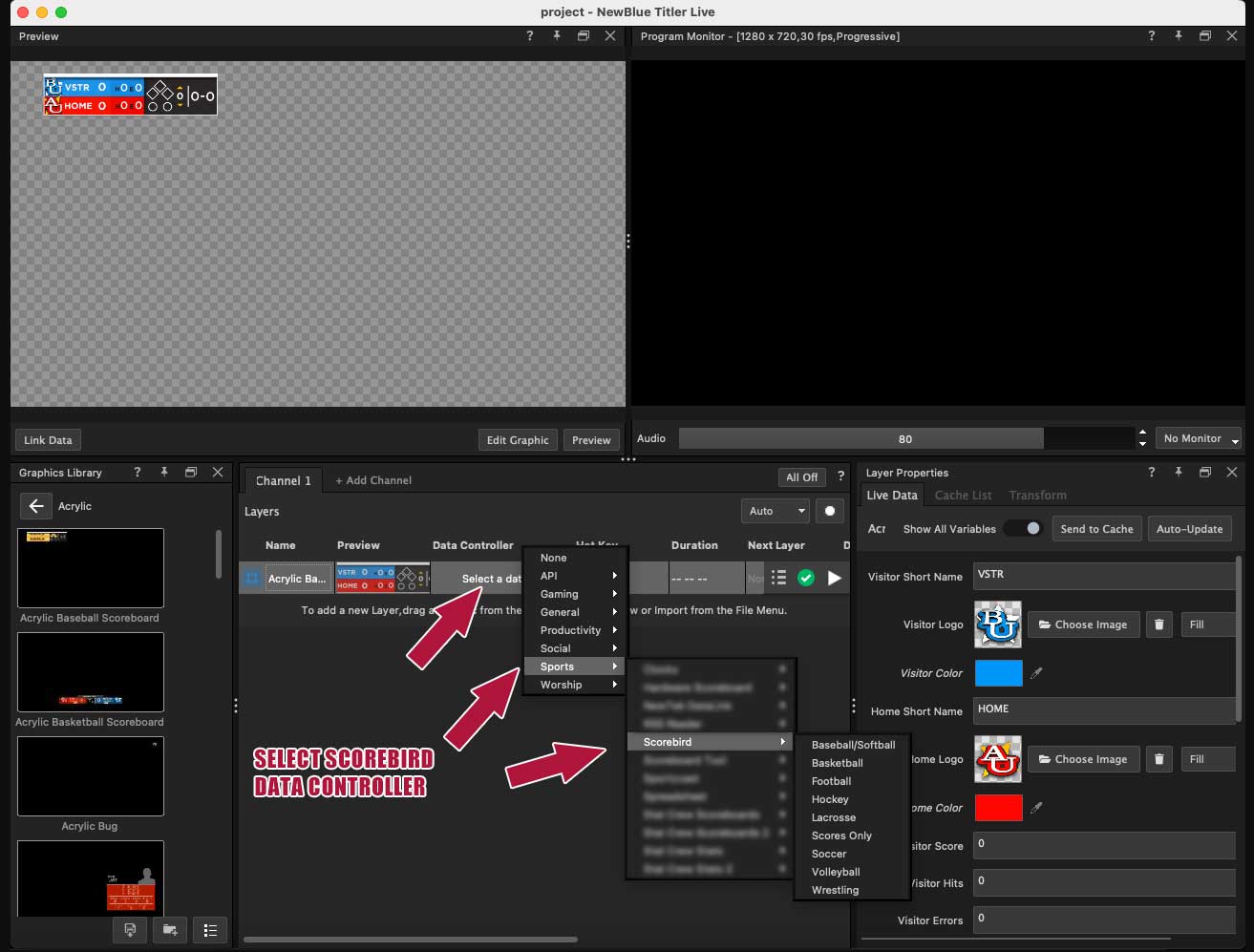
Under Data Controller, select the Scorebird controller from the menu.
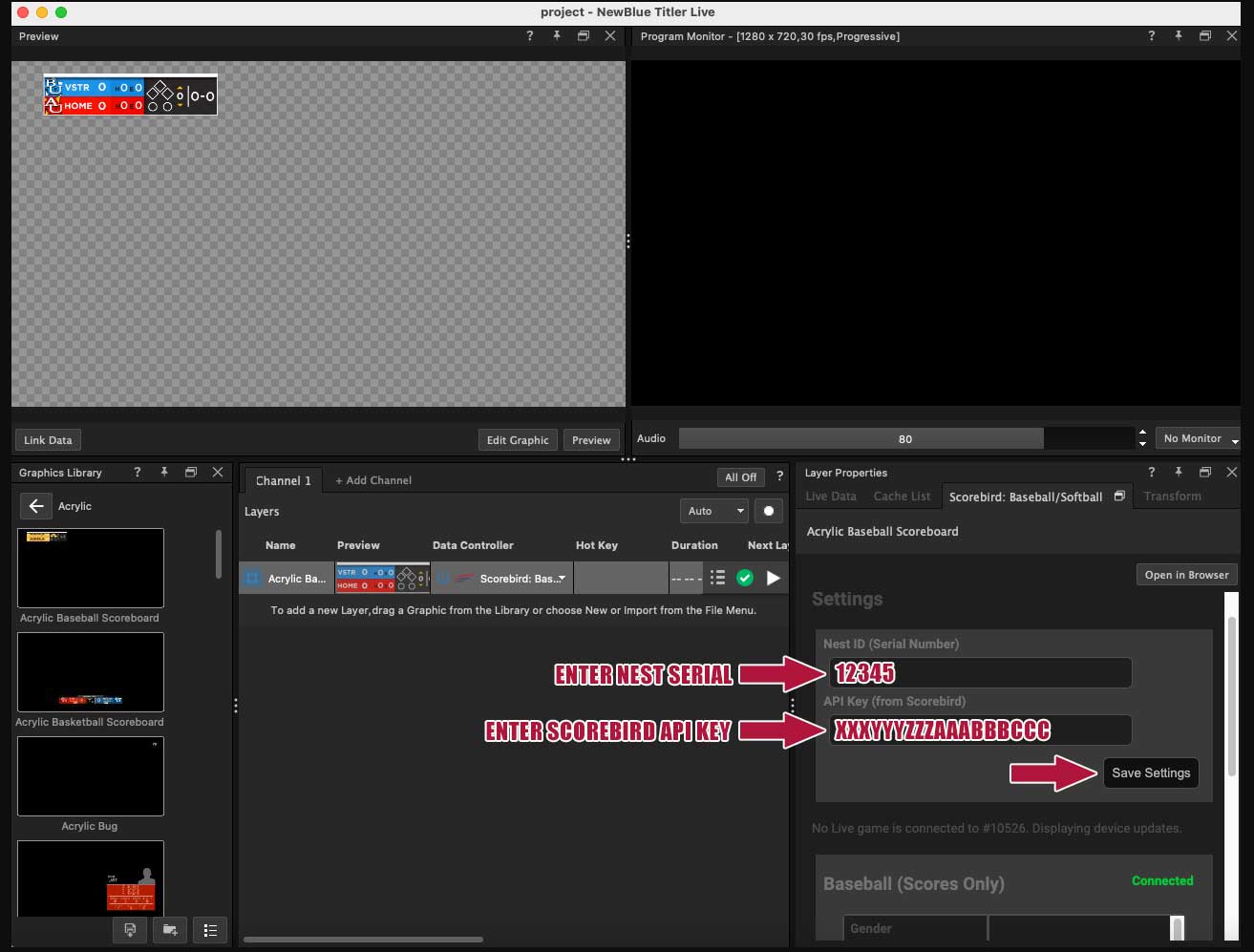
Step 4: Enter Your NeST ID and API Key
Retrieve your ScoreBird API key from the API key instructions page. Enter your 5-digit NeST serial number and API key in the Layer Properties panel.
Step 5: Confirm Connection Status
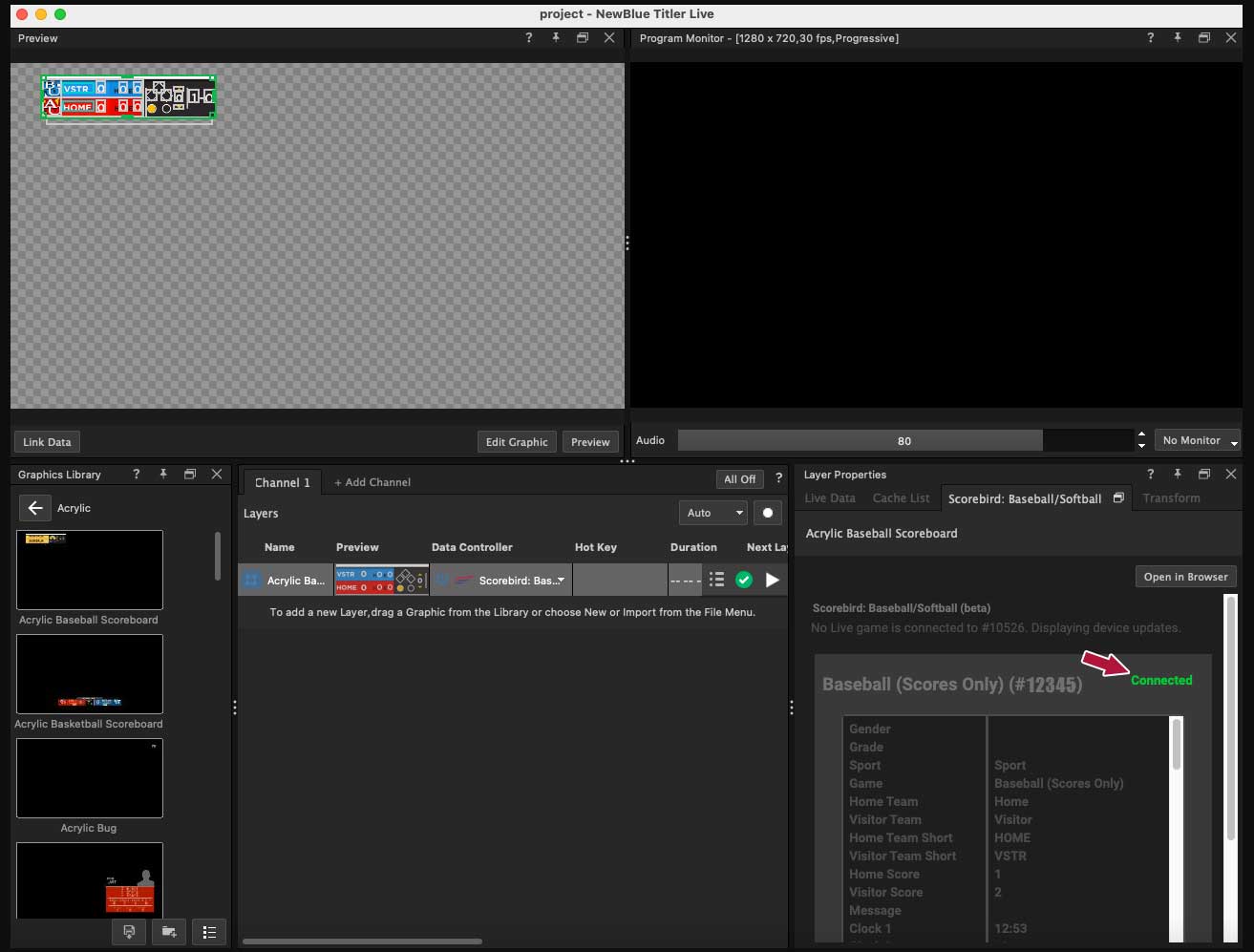
After saving, the connection status displays in the Layer Properties panel.
Step 6: Troubleshoot a Disconnected Status
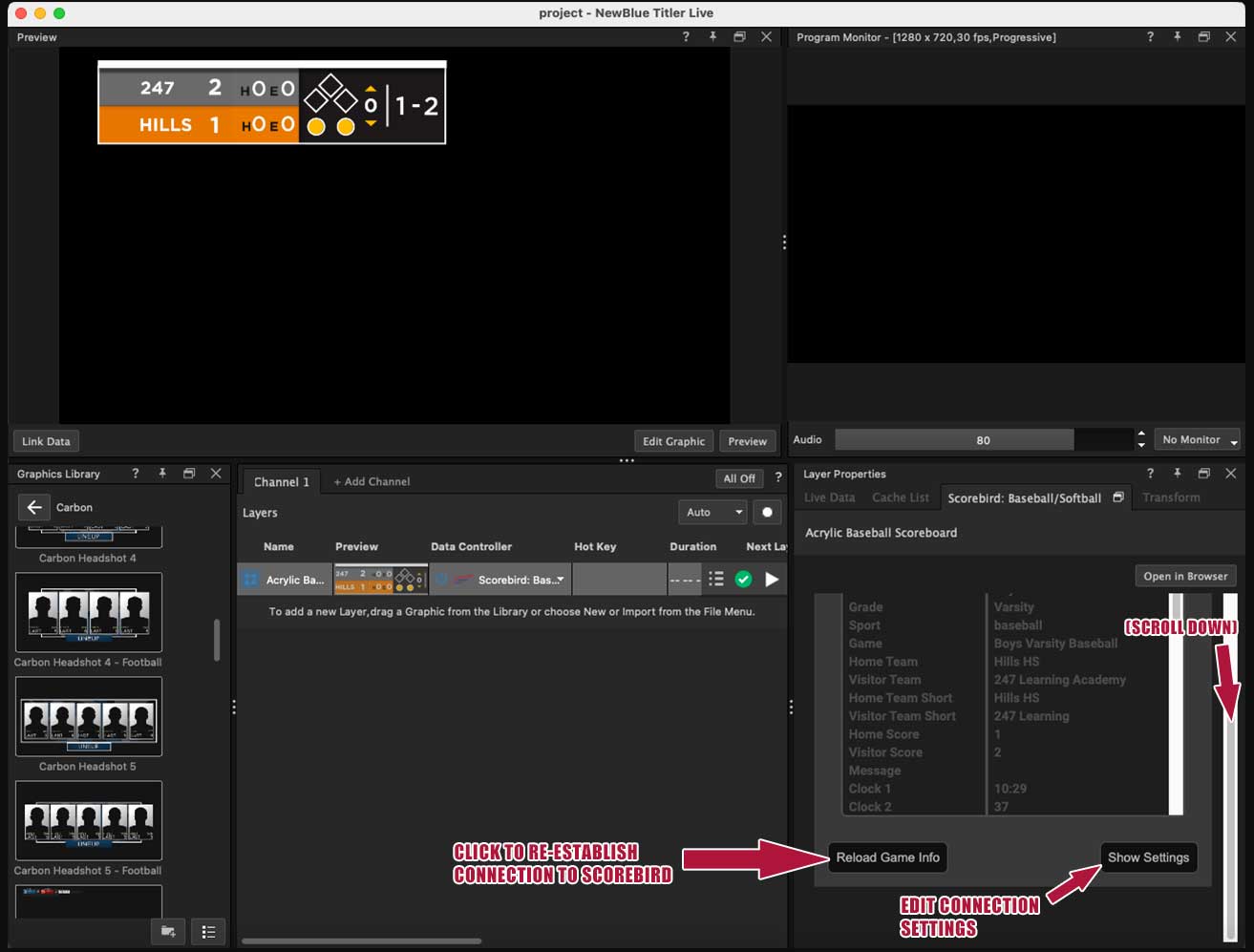
If the panel shows as disconnected, scroll down to edit the settings or click "Reload Game Info". If the panel shows "Scores Only", the game may not have been fully initiated — send test data via the scoreboard controller, then retry.
Step 7: Open the Data Fields Panel
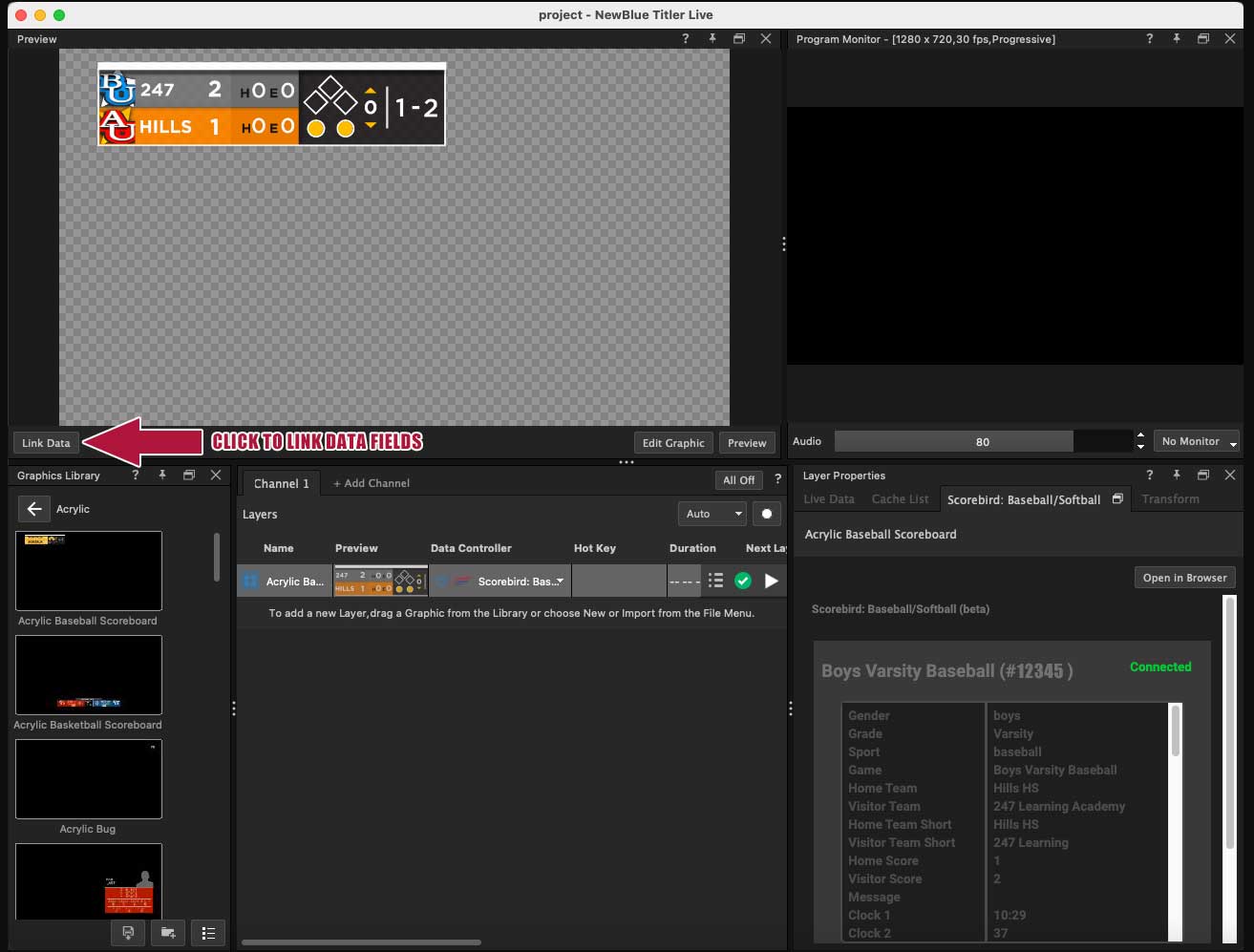
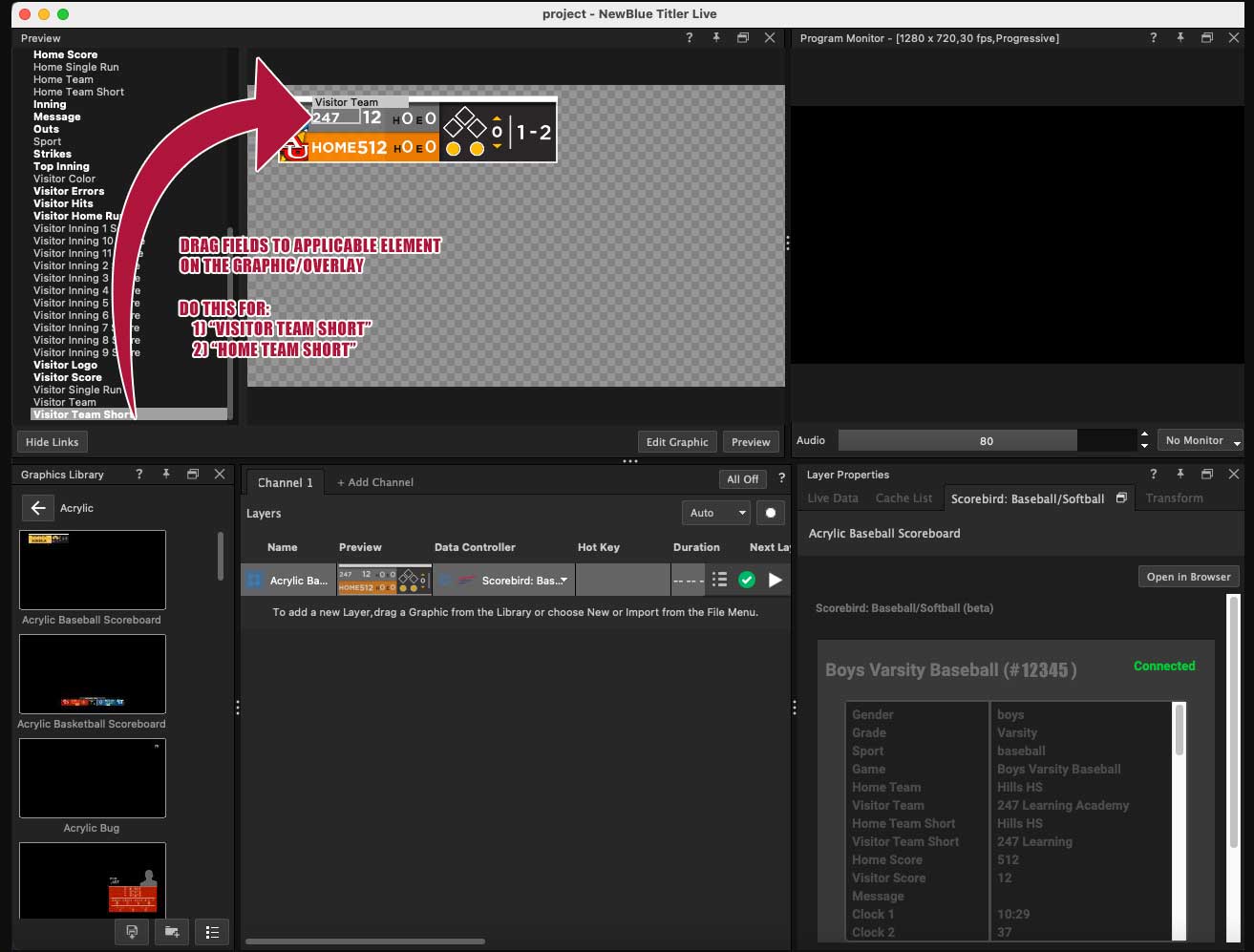
Click the Link Data button to open the data fields panel.
Step 8: Map Team Name Fields
Drag "Visitor Team Short" and "Home Team Short" data fields onto the applicable overlay locations. All other data elements are pre-configured.
Step 9: Edit Logos
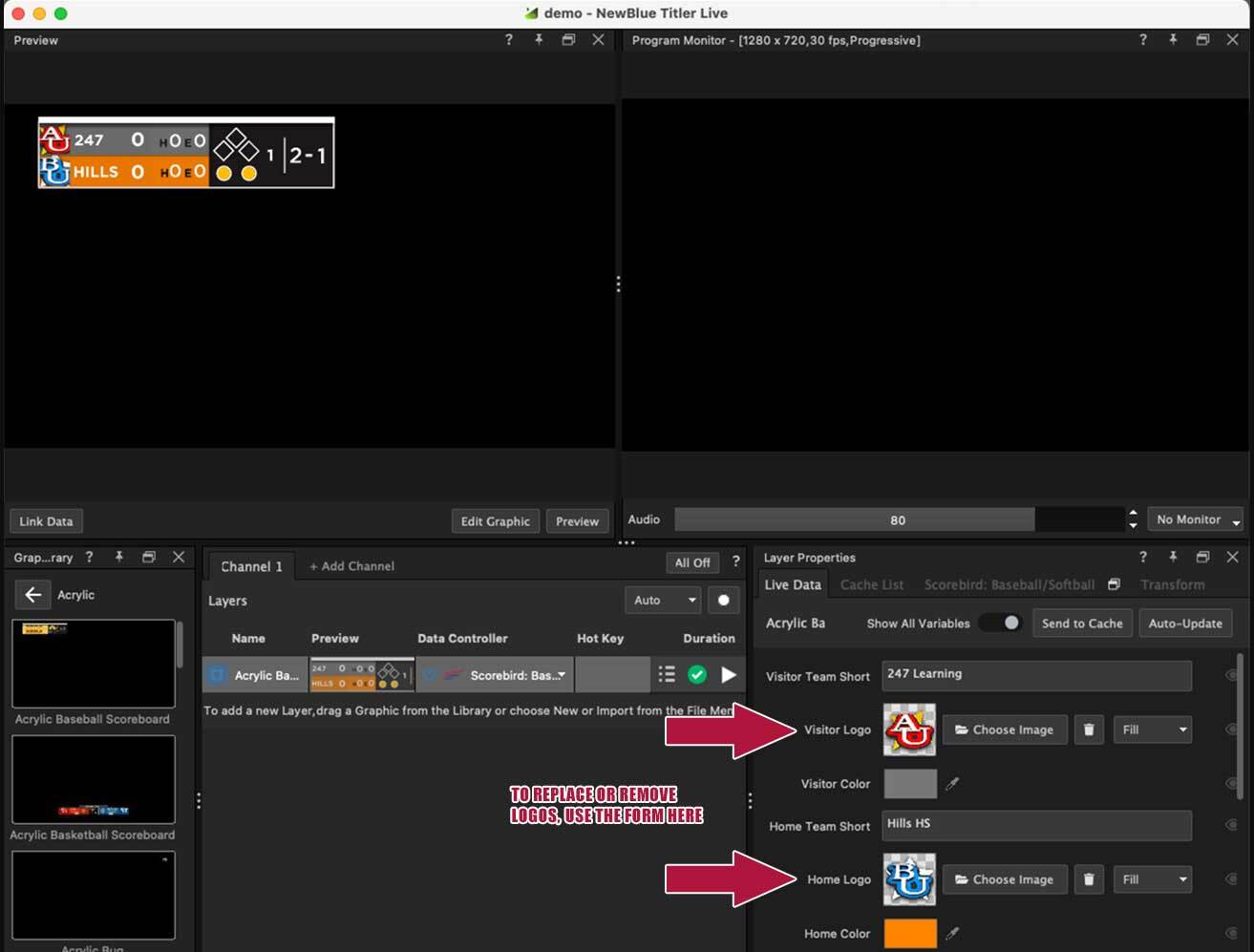
Edit team logos using the Live Data tab form in the Layer Properties panel.
Step 10: Go Live
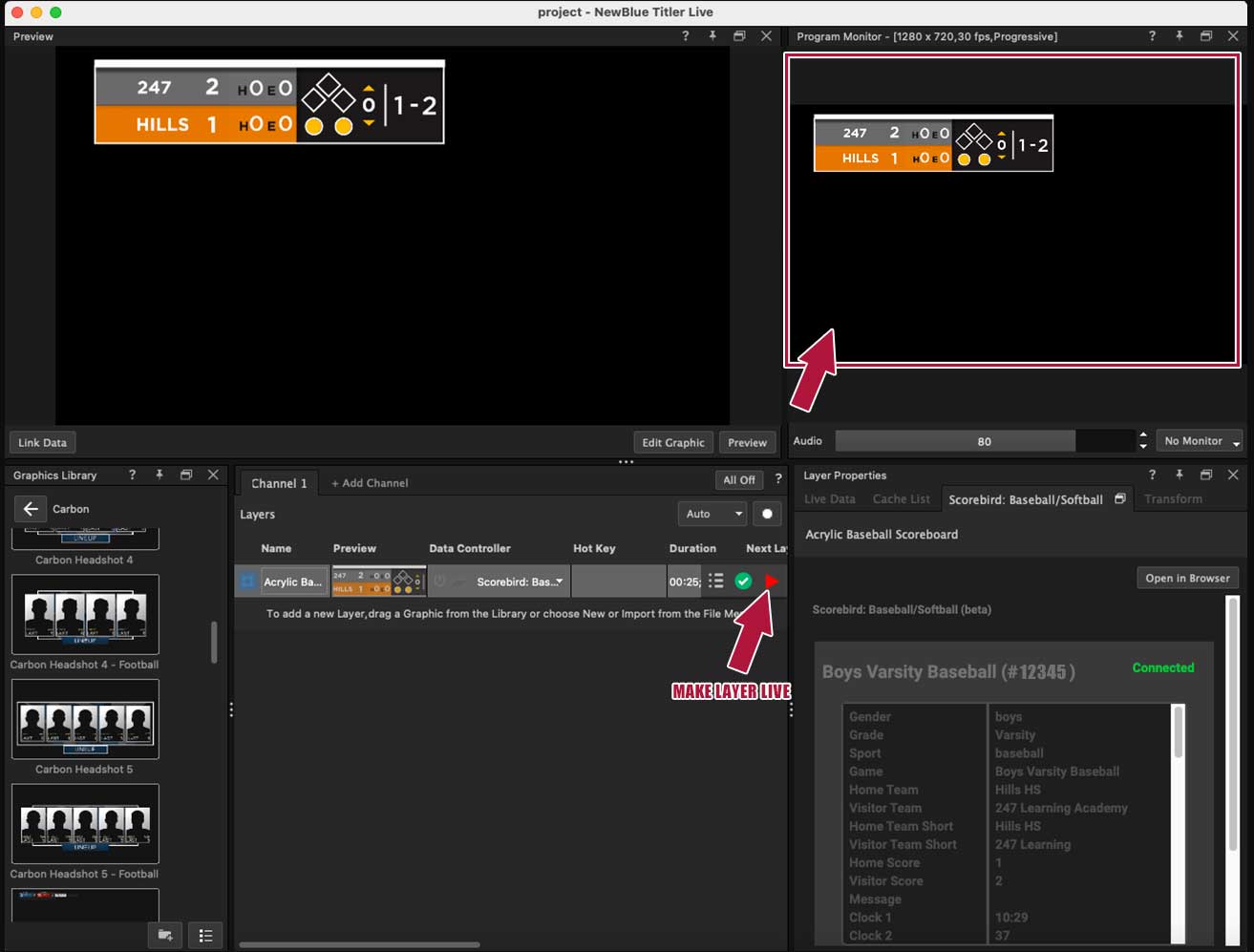
Click the Live icon to activate your overlay broadcast.
Notes
- Input naming matters — ensure your overlay input names match expected field labels.
- "Scores Only" status means the game has not been fully initiated. Send test data from the scoreboard controller to complete game initiation, then reload.
- If ScoreBird does not have schedule data for the current game, default colors and team names will be used.
Troubleshooting
- Controller not appearing? Confirm NewBlue Titler Live is fully loaded with all five panels visible before selecting a controller.
- Data not updating? Verify your API key is correct and your NeST device is online.
- Need help? Contact support at support@scorebird.com or call 844-GOT-BIRD (844-468-2473).
Ready to Connect with NewBlue Titler Live?
Get ScoreBird set up with NewBlue Titler Live and start showing live scores today.