

Broadcast Software Integration
ScoreBird + Ross Video
API & WebSocketRoss Video provides professional broadcast production systems including XPression and OverDrive. ScoreBird integrates with Ross via API and WebSocket connections, delivering live scoring data from NeST into your Ross production workflow for real-time on-air graphics.
How It Works
API & WebSocket Integration — ScoreBird connects to Ross systems via API or WebSocket
Live data from NeST feeds directly into Ross XPression and OverDrive
Professional broadcast-grade score graphics rendered natively in Ross
Multiple connection methods for flexible production setups
Real-time score, clock, and period data — no manual operator updates
Setup Guide
Ross XPression / DataLinq Integration Setup
Connect ScoreBird to Ross XPression using DataLinq. Two connection methods are available: an RSS Feed DataLinq source (works with any DataLinq version) and a WebSocket source (requires DataLinq 11.5+).
Requirements
- Ross XPression with DataLinq installed
- A NeST device
- Your 5-digit NeST ID
- WebSocket method only: DataLinq 11.5 or later, and the NeST device must be on the same network as your XPression system
Method A: RSS Feed DataLinq Connection
Step 1: Add a New DataLinq Source
In DataLinq, click "Add New" in the bottom left corner.
Step 2: Select RSS Feed DataLinq Source
Select #14, RSS Feed DataLinq Source. Click OK.
Step 3: Enter the API URL
Paste the following API link into the URL field, replacing XXXXX with your 5-digit NeST ID:
https://nestcloud-api.scorebird.com/v2/game-state?nest_id=XXXXX
Set "Data Format" to JSON. Click OK.

Step 4: Browse the Connection
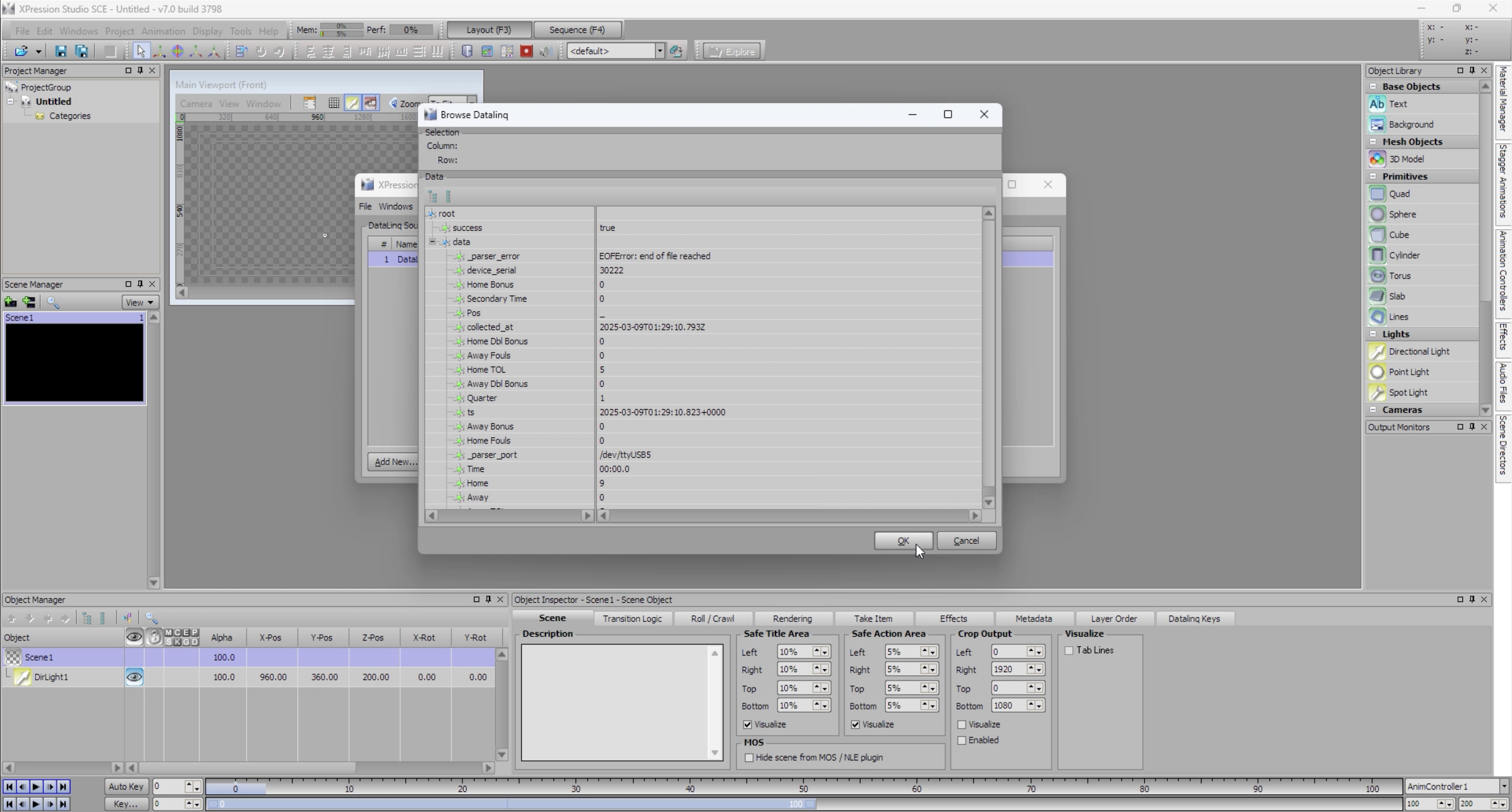
With the new connection highlighted, click "Browse".
Step 5: Verify Data Fields
Confirm that data fields are visible in the browser panel. Fields will populate with live data once a successful connection is established.
Method B: WebSocket Connection
Requires DataLinq 11.5 or later. The NeST device must be on the same network as your XPression system.
Step 1: Add a WebSocket DataLinq Source
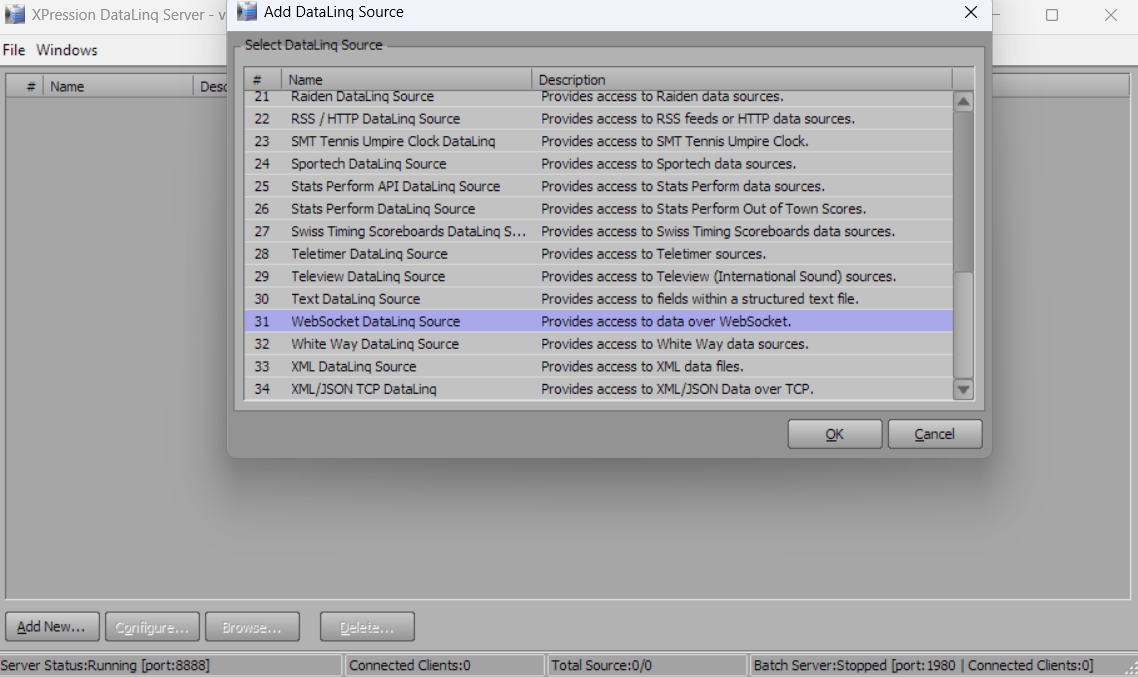
In DataLinq, click "Add New", select WebSocket DataLinq Source, and click OK.
Step 2: Enter the WebSocket Host
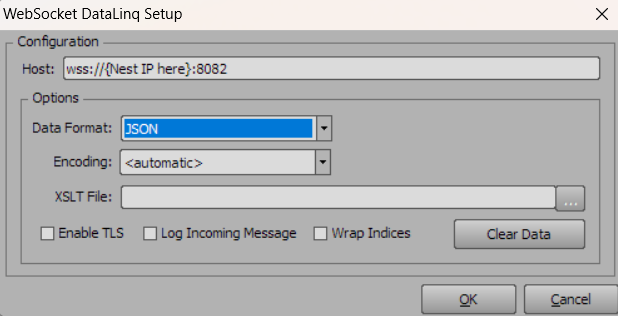
Enter the Host name using wss:// followed by the IP address of your NeST device and port :8082. For example:
wss://192.168.1.100:8082
Click OK.
Troubleshooting
- No data fields appearing? Verify your NeST ID is correct and your NeST device is online.
- WebSocket not connecting? Confirm the NeST device is on the same network as your XPression system and that you are running DataLinq 11.5 or later.
- Need help? Contact support at support@scorebird.com or call 844-GOT-BIRD (844-468-2473).
Ready to Connect with Ross Video?
Get ScoreBird set up with Ross Video and start showing live scores today.