

Broadcast Software Integration
ScoreBird + Streamlabs
Web IntegrationStreamlabs is a popular streaming platform built on top of OBS, widely used by content creators and sports broadcasters. ScoreBird connects to Streamlabs via a browser source — add your ScoreBird overlay URL and NeST delivers live scoring data to your stream automatically.
How It Works
Web Integration — add ScoreBird's overlay URL as a Browser Source in Streamlabs
Built on OBS technology — familiar setup for existing OBS users
Live score, clock, and period data updates automatically from your scoreboard via NeST
Sport-specific overlay templates for all major sports
No manual score entry during your broadcast
Setup Guide
Streamlabs Integration Setup
Add a live ScoreBird score overlay to your Streamlabs streams using a browser source. The overlay pulls directly from your NeST device and updates in real time — no manual score entry needed.
Requirements
- Streamlabs desktop app installed
- A ScoreBird account with an active NeST device
- Your overlay URL from the ScoreBird Portal
Step 1: Add a New Source
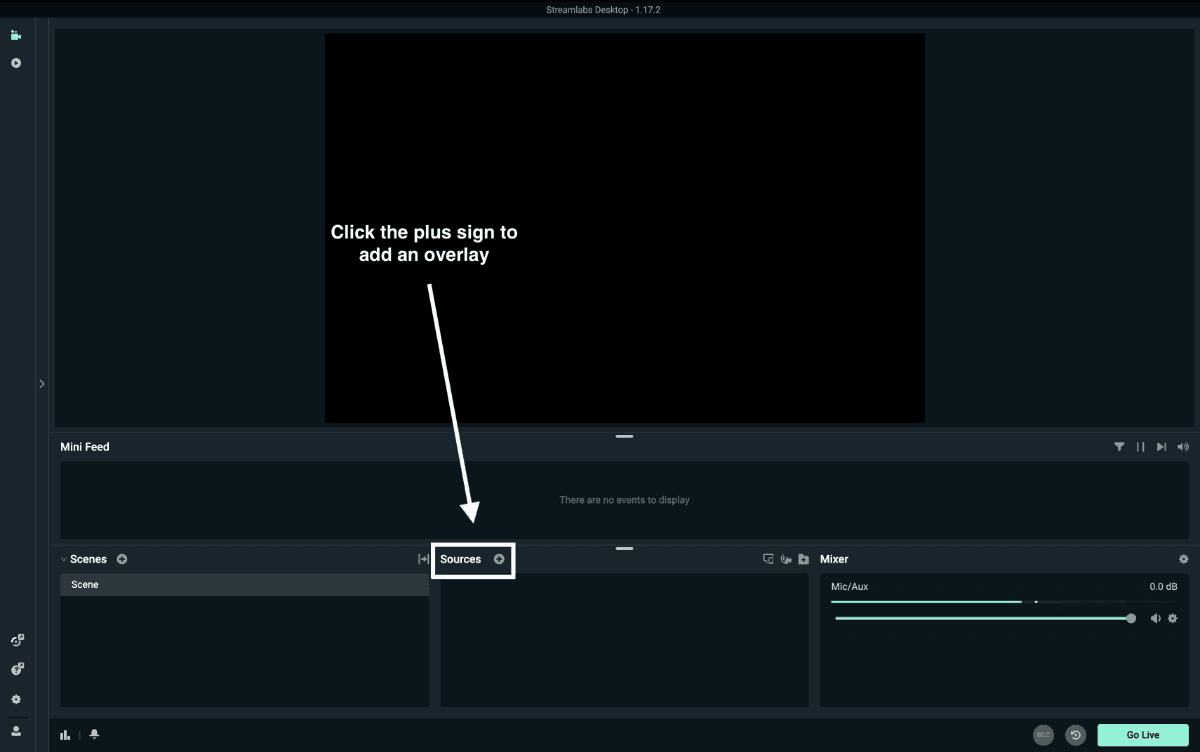
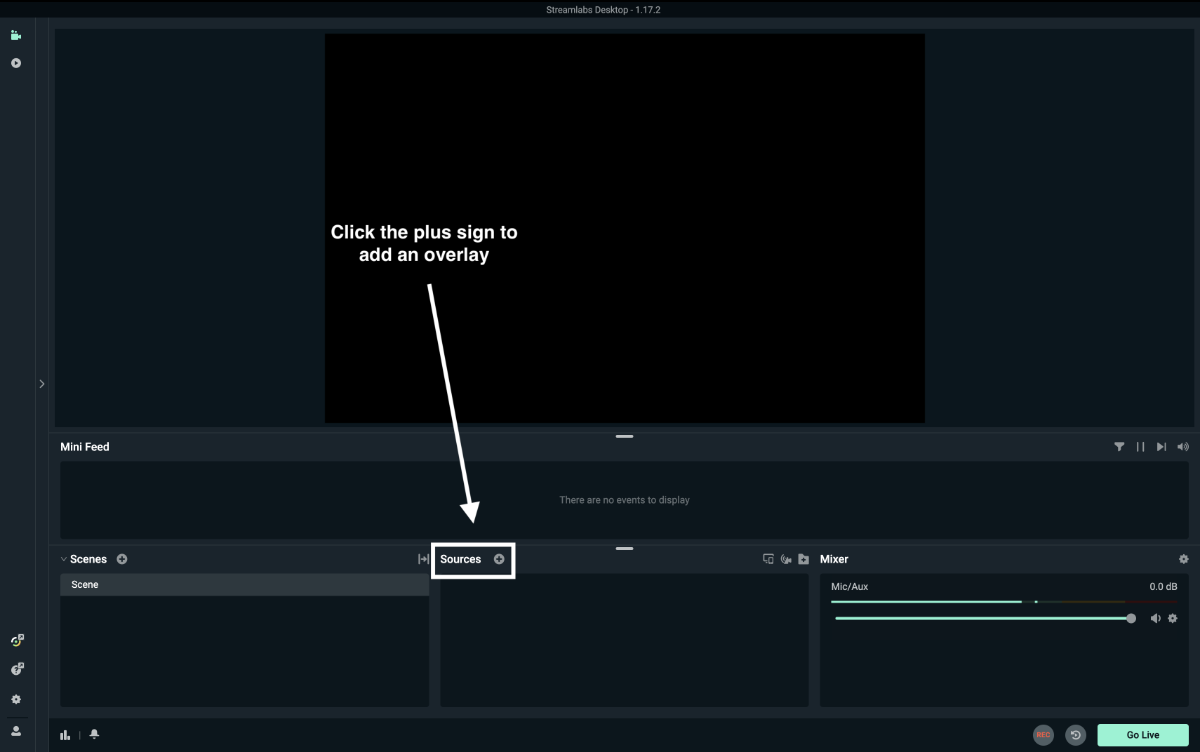
In Streamlabs, navigate to the Sources tab and click the "+" icon to add a new source.
Step 2: Select "Browser Source"
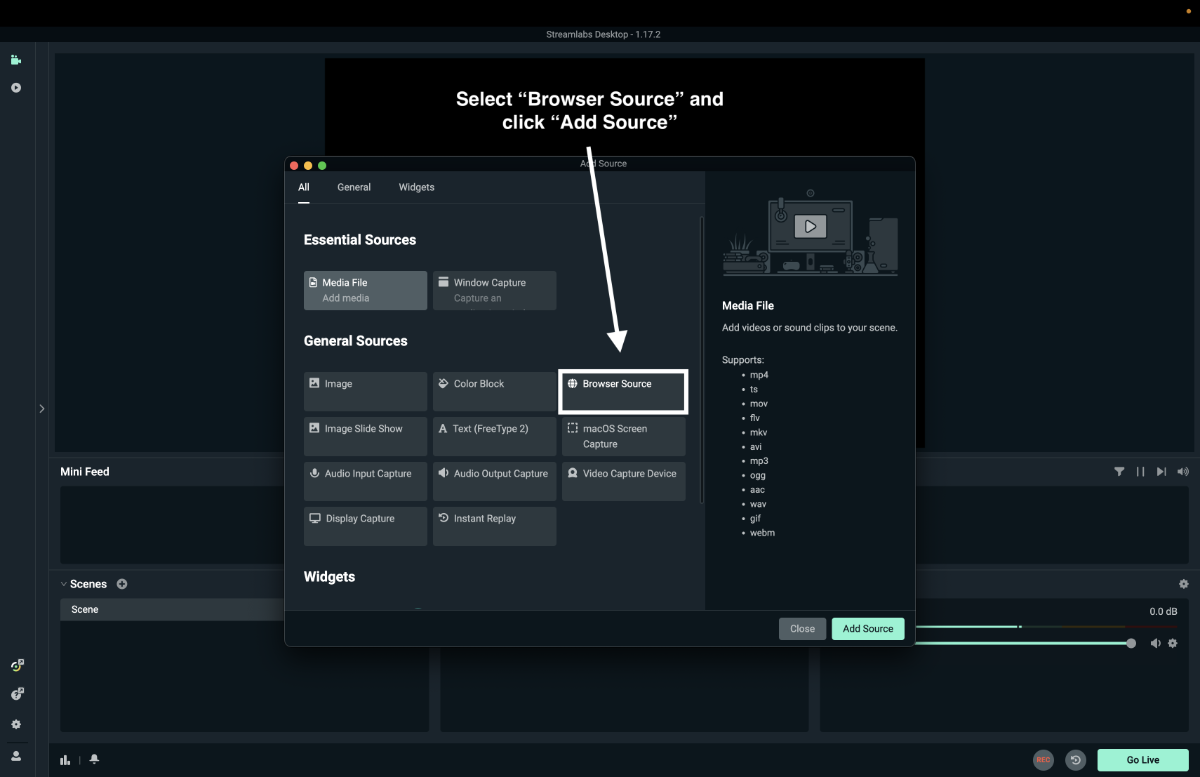
Choose Browser Source from the source type list.
Step 3: Name Your Overlay
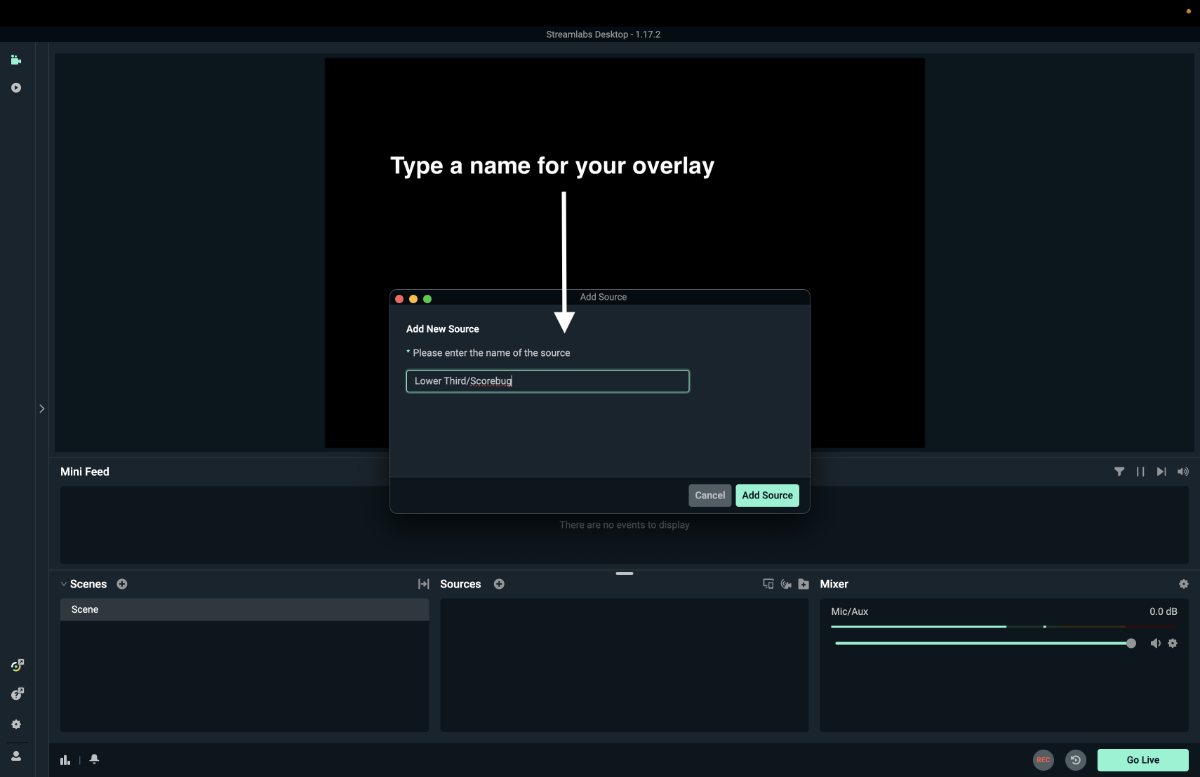
Give the new source a descriptive name (e.g., "ScoreBird Overlay") and click Add Source.
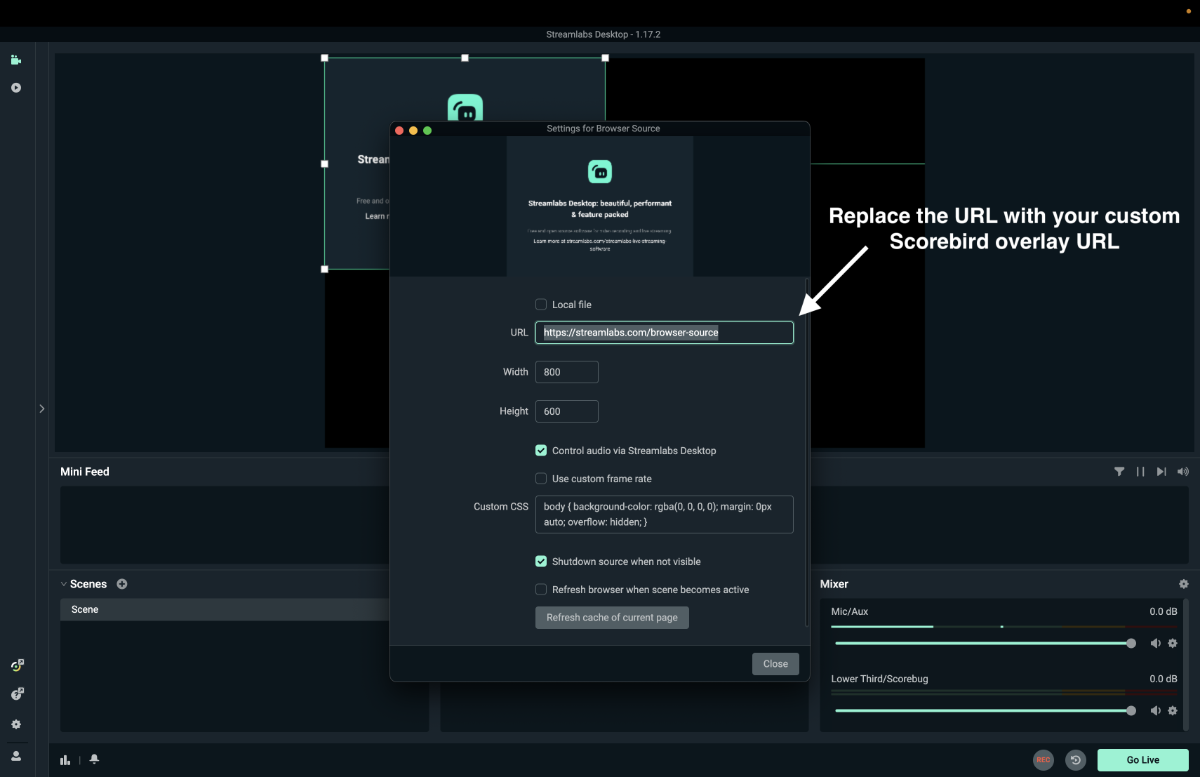
Step 4: Clear the Existing URL
In the browser source properties, clear the pre-filled URL field so you can enter your ScoreBird overlay URL.
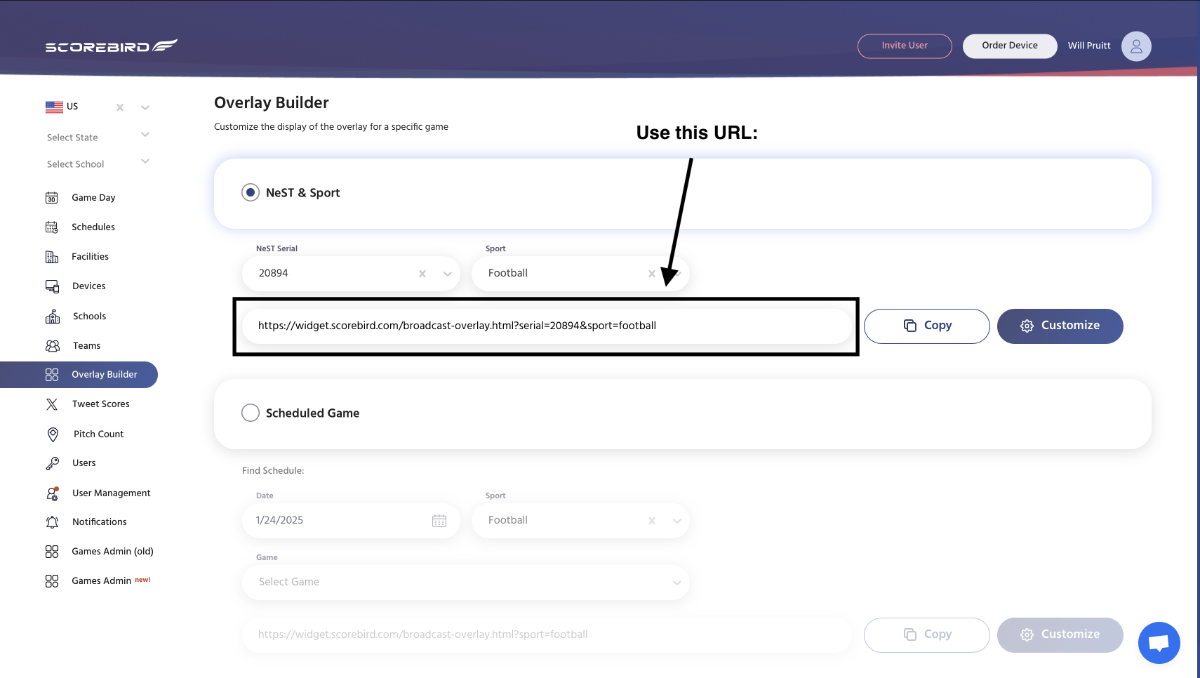
Step 5: Copy Your Overlay URL from the ScoreBird Portal
Open the ScoreBird Portal. Navigate to Overlay Builder, select your device and sport, then copy the generated URL.
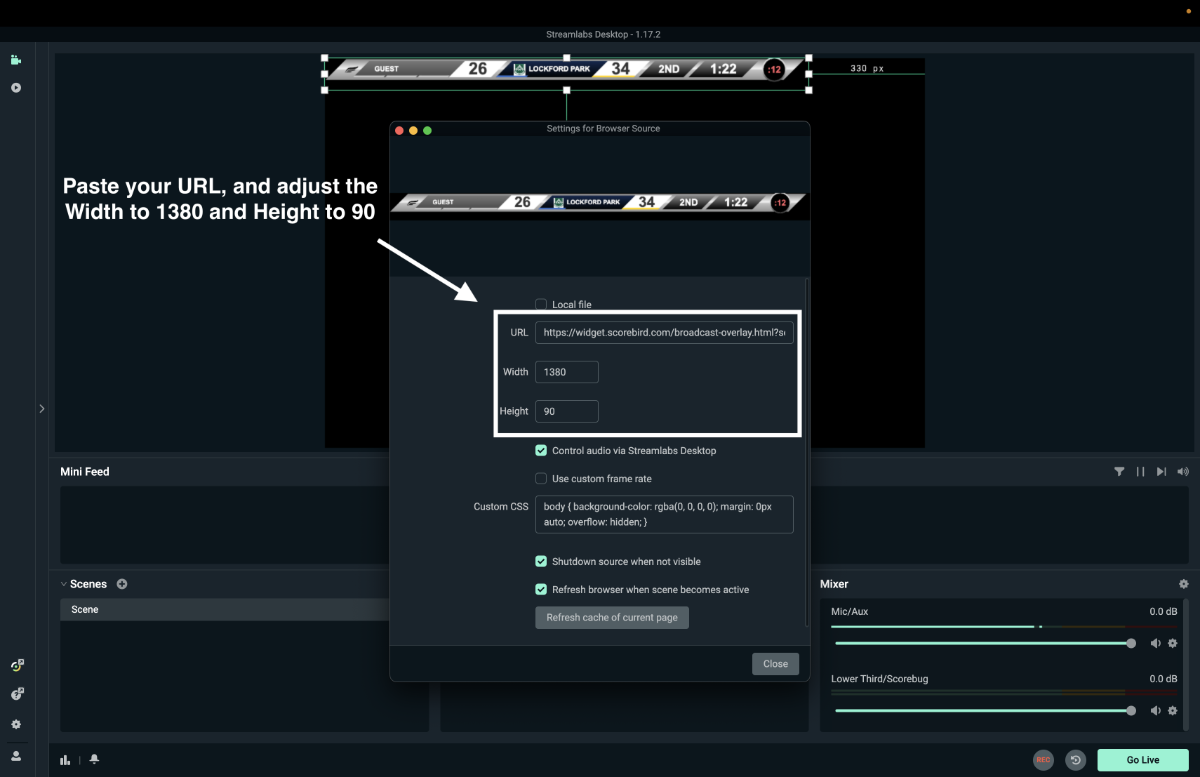
Step 6: Paste the URL and Set Dimensions
Paste the copied URL into the browser source URL field. Set the dimensions to a minimum of 1380px wide × 130px high (you can increase the width to match your stream resolution). Click Done.
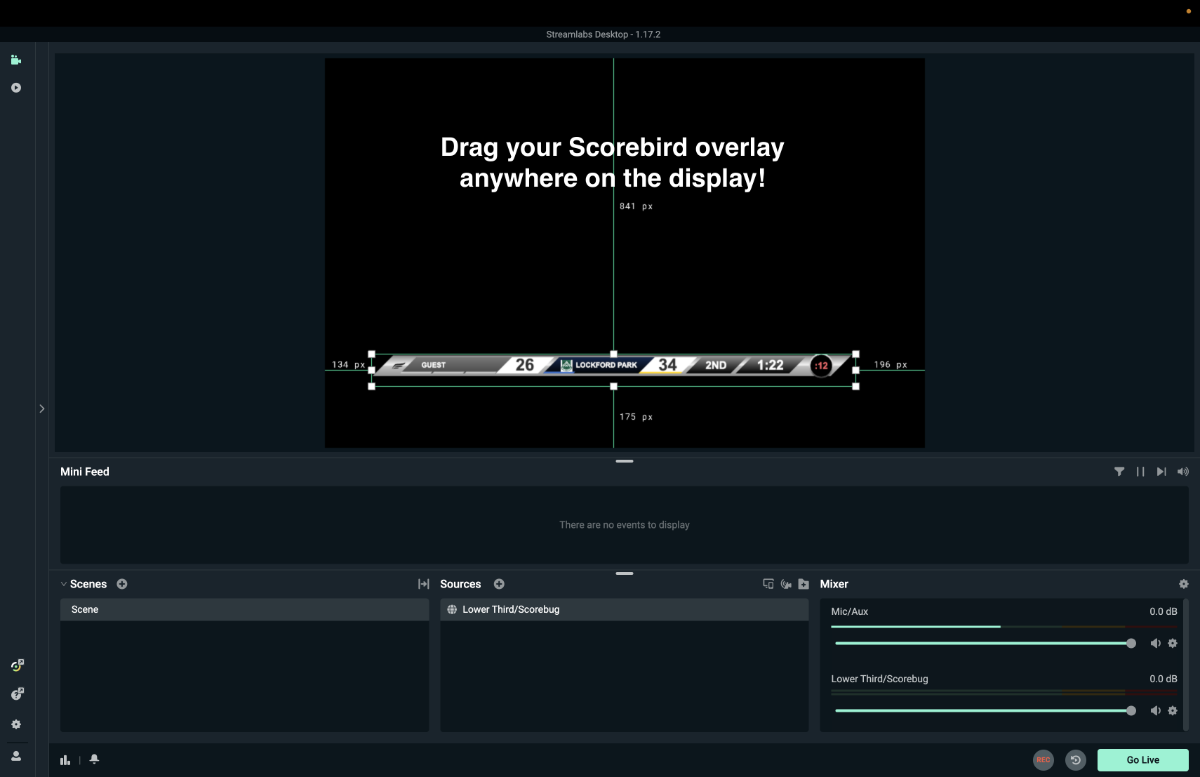
Step 7: Reposition the Overlay
Click and drag the overlay in the scene preview to position it where you want it on screen — typically along the bottom or top edge.
Troubleshooting
- Overlay not loading? Double-check the URL you copied from the ScoreBird portal and confirm your NeST device is online.
- Score not updating? Ensure a game is currently active in your ScoreBird schedule. The overlay only updates when a game is in progress.
- Overlay too small or cut off? Increase the width in the browser source properties. A width of 1920px works well for full-HD streams.
- Need help? Contact support at support@scorebird.com or call 844-GOT-BIRD (844-468-2473).
Ready to Connect with Streamlabs?
Get ScoreBird set up with Streamlabs and start showing live scores today.