

Broadcast Software Integration
ScoreBird + TriCaster
NDI, Web & Native IntegrationNewTek TriCaster is a professional all-in-one live production system used by broadcasters, schools, and sports venues worldwide. ScoreBird offers three integration methods with TriCaster — NDI, web browser source, and native — so NeST can feed live scoreboard data into your TriCaster production regardless of your setup.
How It Works
Three integration methods: NDI, Web Browser Source, and Native integration
NDI integration delivers ScoreBird data as an NDI source on your network
Web integration uses the ScoreBird overlay URL as a browser input
Real-time score, clock, and period data from NeST — no manual updates
Works with TriCaster Mini, TC1, TC2, and 2 Elite systems
Setup Guide
TriCaster Web Integration Setup
TriCaster Web Integration Setup
Add live ScoreBird score overlays to TriCaster using the built-in web buffer — no extra software required.
Requirements
- A current-model TriCaster updated to version 7-9 or higher
- Your overlay URL from the ScoreBird Portal
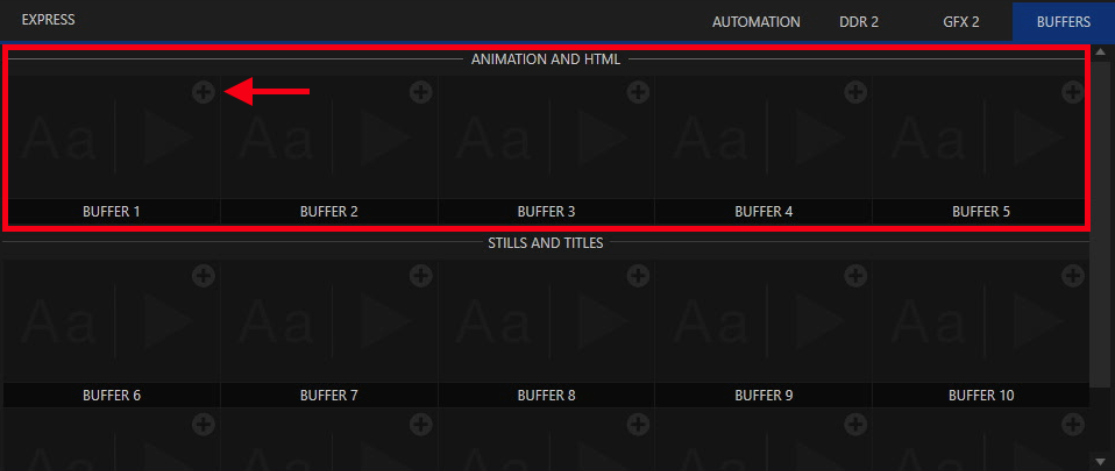
Step 1: Open the Buffer Tab
Access the Buffer tab in the lower right corner of the TriCaster interface. Click the "+" icon in any buffer slot within the Animation and HTML section.
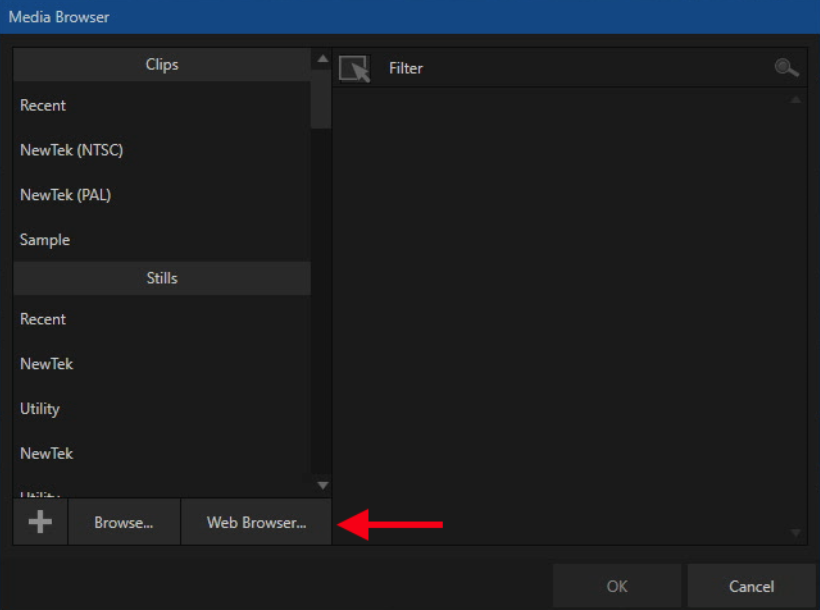
Step 2: Click the Web Browser Button
Click the Web Browser button in the lower left area of the buffer panel.
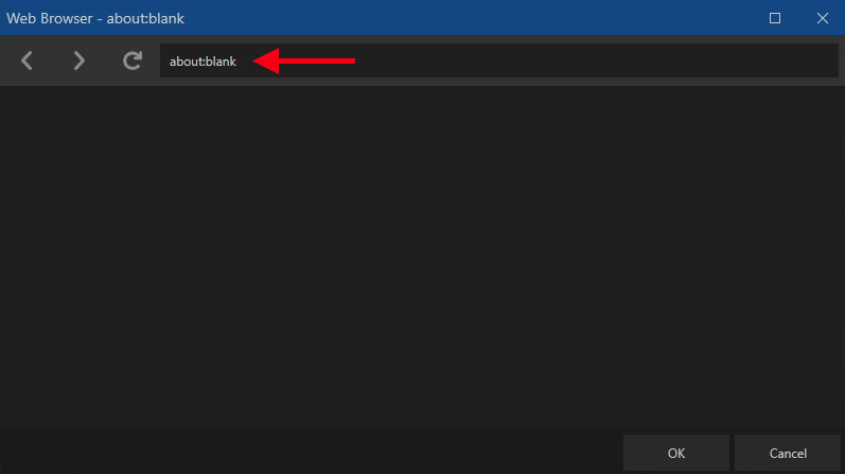
Step 3: Enter the Overlay URL
Enter your broadcast overlay URL at the top of the dialog and click OK.
Step 4: Update the Icon
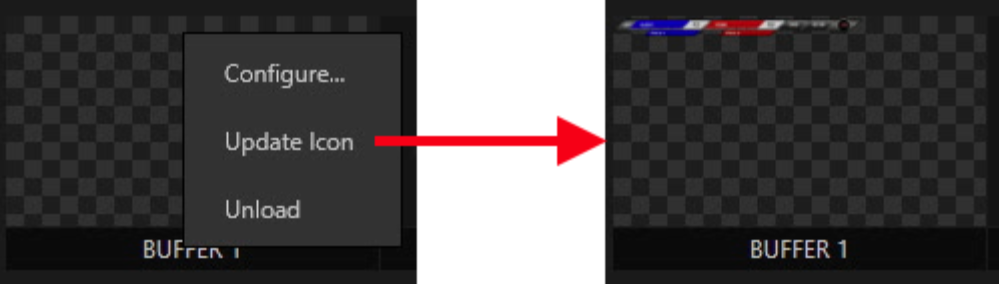
Right-click the loaded URL and select "Update Icon" to capture a page snapshot as the buffer thumbnail.
Step 5: Assign to a DSK
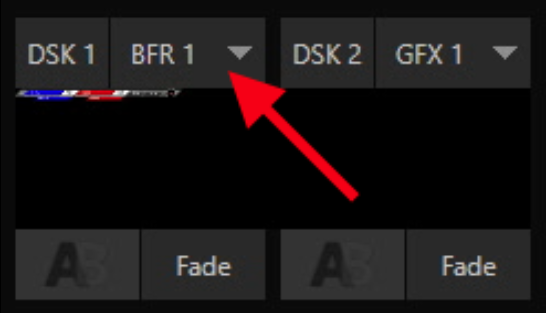
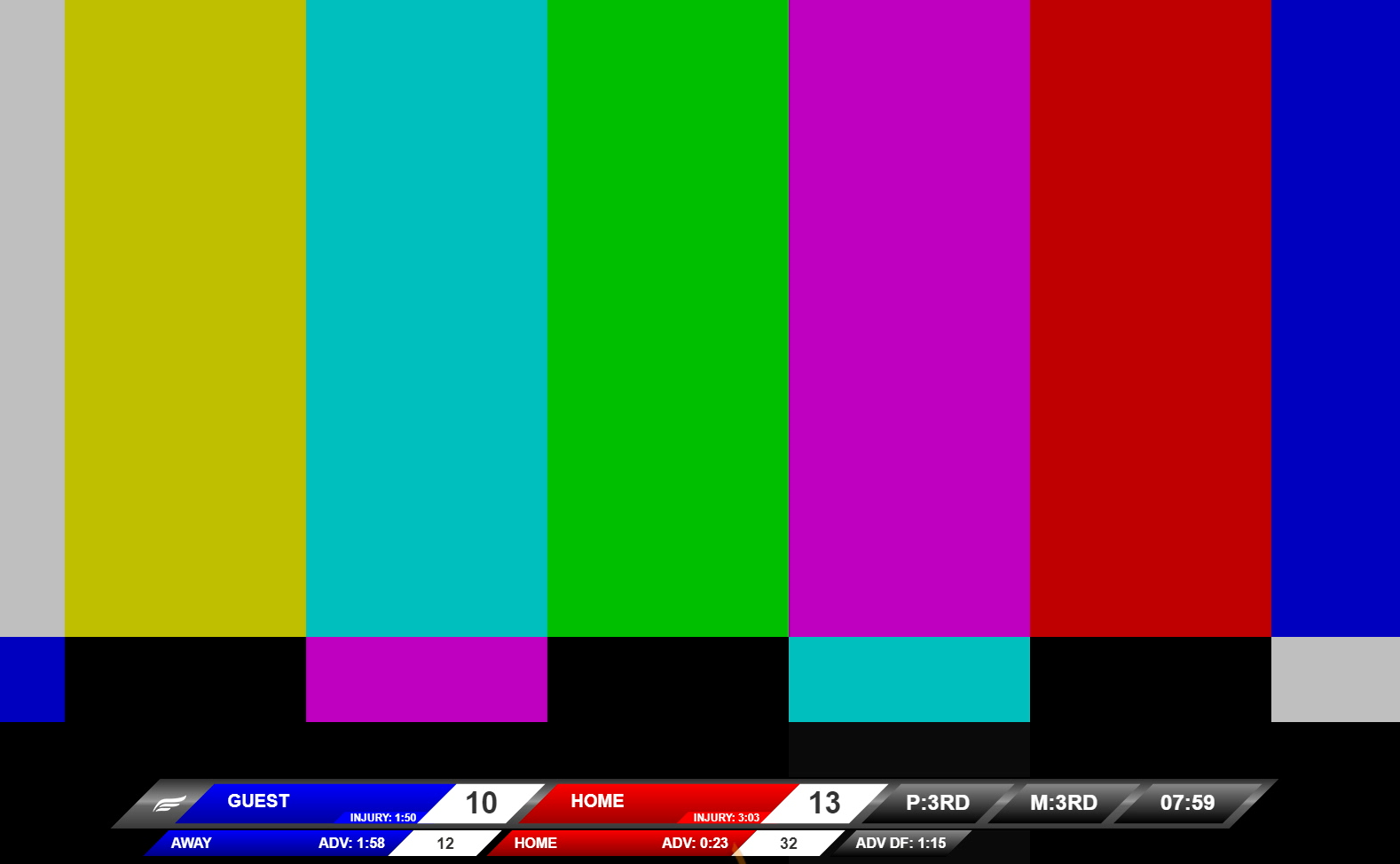
Assign the buffer to a DSK (Down Stream Keyer). A preview of the overlay appears below the DSK slot.
Step 6: Toggle the Overlay on Program Output
Click the transition button (labeled "Fade") to toggle the title on and off in your program output.
Step 7: Reposition the Overlay
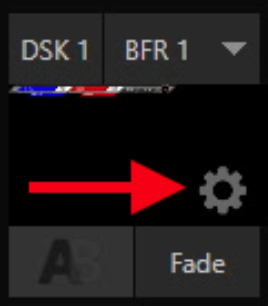
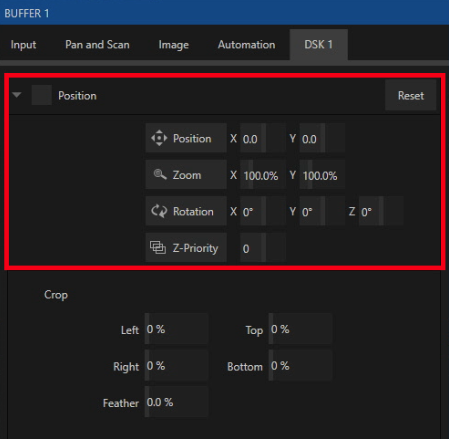
Click the gear icon that appears when hovering over the DSK to reposition the title on screen.
Step 8: Edit the URL
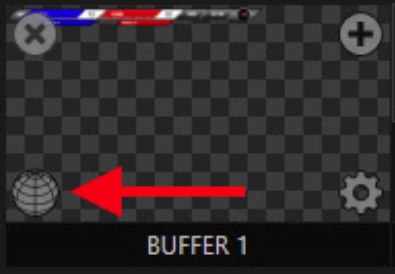
To change the overlay URL, click the globe icon that appears when hovering over the buffer slot.
Troubleshooting
- Overlay not loading? Confirm your TriCaster is on version 7-9 or higher.
- Score not updating? Ensure a game is active in your ScoreBird schedule and your NeST device is online.
- Need help? Contact support at support@scorebird.com or call 844-GOT-BIRD (844-468-2473).
TriCaster Native Integration Setup
TriCaster Native Integration Setup
Connect ScoreBird to TriCaster using native LiveText templates for deep, direct integration with live scoring data.
Requirements
- A TriCaster with LiveText
- Your NeST device on the same network as the TriCaster
- The ScoreBird Admin mobile app (iOS or Android)
- LiveText Templates (download link below)
Supported Sports
Basketball, football, soccer, volleyball, field hockey, wrestling, lacrosse, baseball/softball.
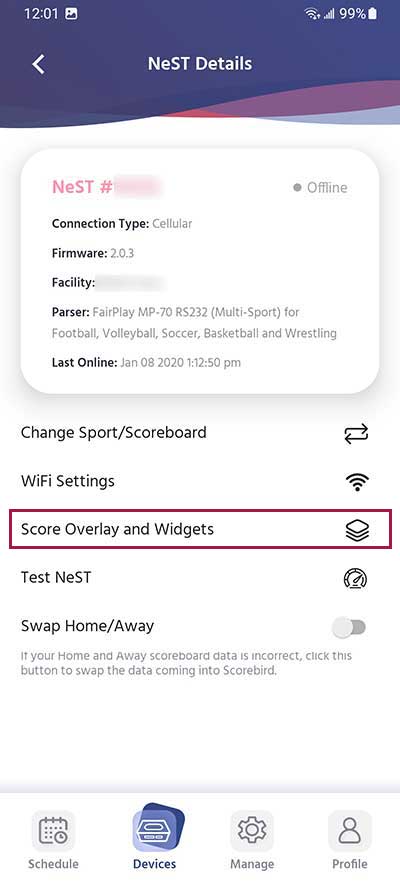
Step 1: Open NeST Details
In the ScoreBird Admin app, navigate to your NeST device details screen and select "Score Overlay and Widgets".
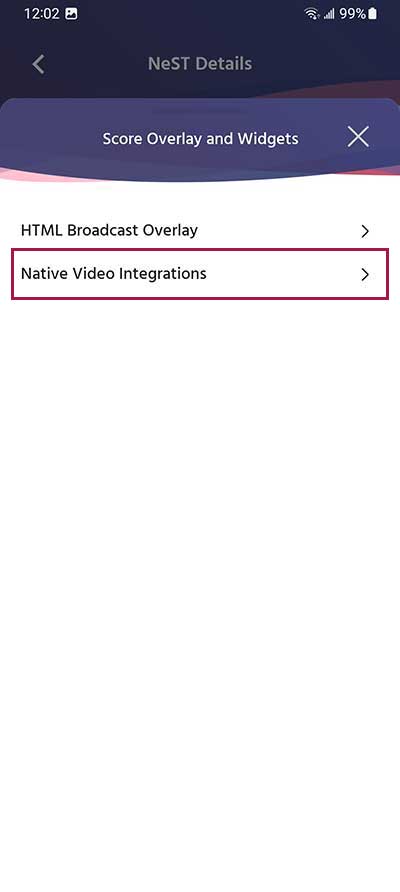
Step 2: Select Native Video Integrations
Choose "Native Video Integrations" from the menu.
Step 3: Select TriCaster
Choose "Tricaster" as your integration option.
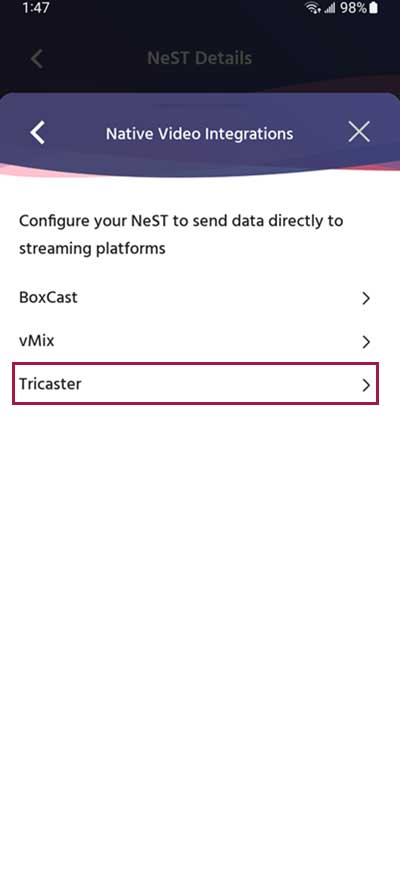
Step 4: Enter TriCaster Configuration
Enter your TriCaster configuration details. If authentication is enabled on your TriCaster, also enter your username and password.
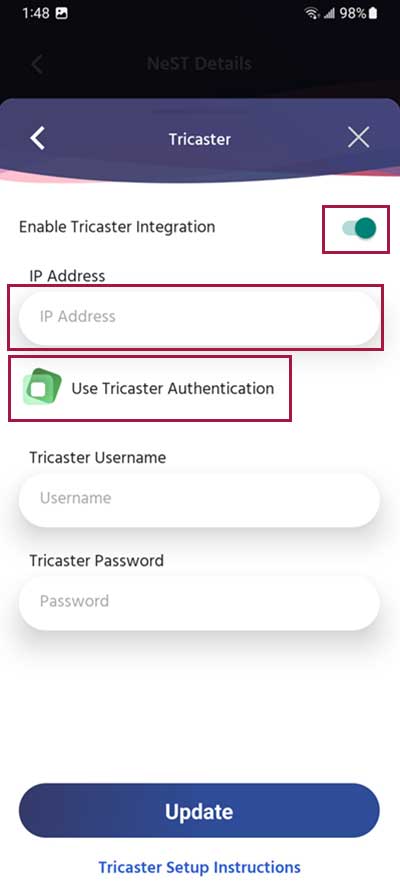
Download LiveText Templates
Download the ScoreBird LiveText templates and import them into your TriCaster:
Download LiveText Templates (v12)
Troubleshooting
- TriCaster not connecting? Confirm your NeST device and TriCaster are on the same local network.
- Authentication errors? Double-check the username and password entered in the configuration step.
- Sport not supported? See the supported sports list above — contact support if your sport is not listed.
- Need help? Contact support at support@scorebird.com or call 844-GOT-BIRD (844-468-2473).
TriCaster NDI via OBS Setup
TriCaster NDI via OBS Setup
Route ScoreBird overlays from OBS to TriCaster as an NDI source. This method lets you use OBS as a compositor and send a clean keyed overlay feed to TriCaster over your local network.
Requirements
- OBS Studio installed
- TriCaster on the same local network as the OBS computer
- Your overlay URL from the ScoreBird Portal
Step 1: Install the OBS NDI Plugin
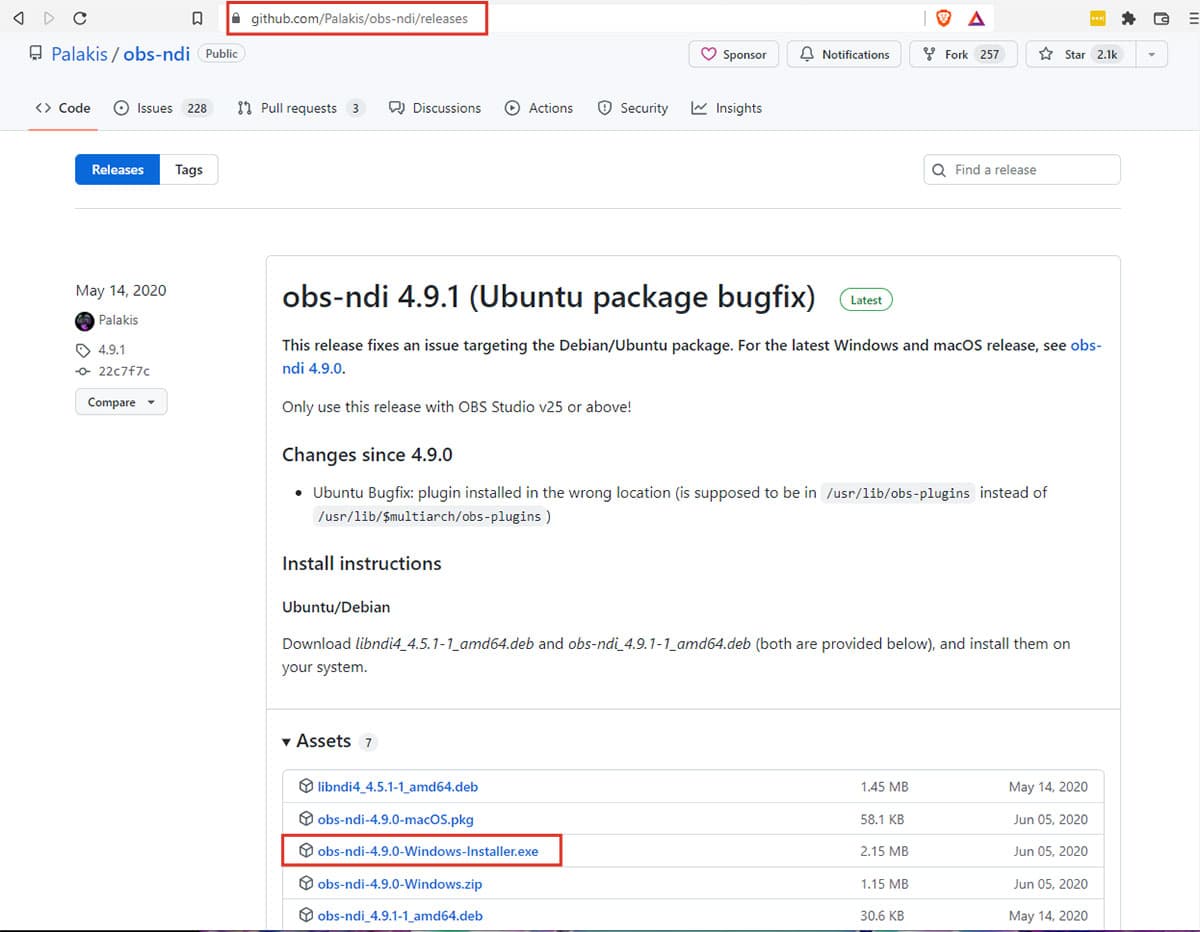
Download the OBS NDI Plugin from github.com/Palakis/obs-ndi/releases and run the installer.
A full computer reboot is required after installation before OBS will detect the plugin.
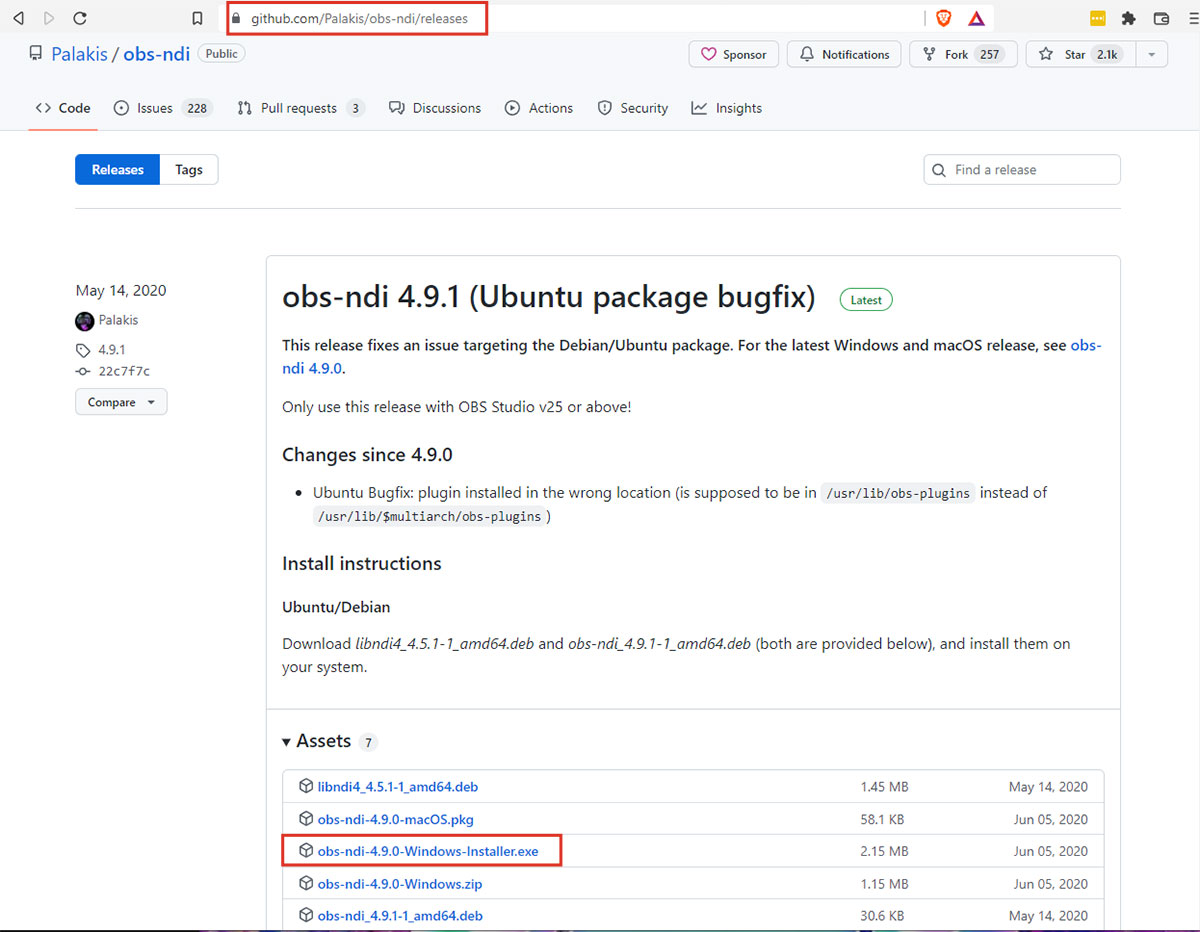
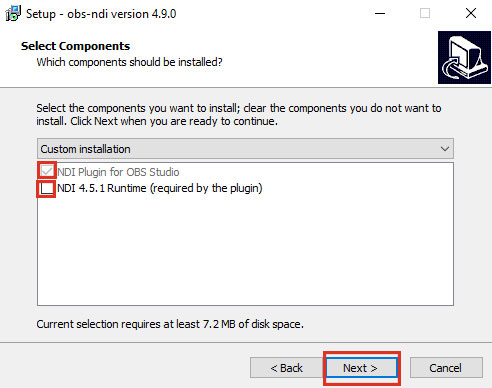
Step 2: Enable NDI Output in OBS
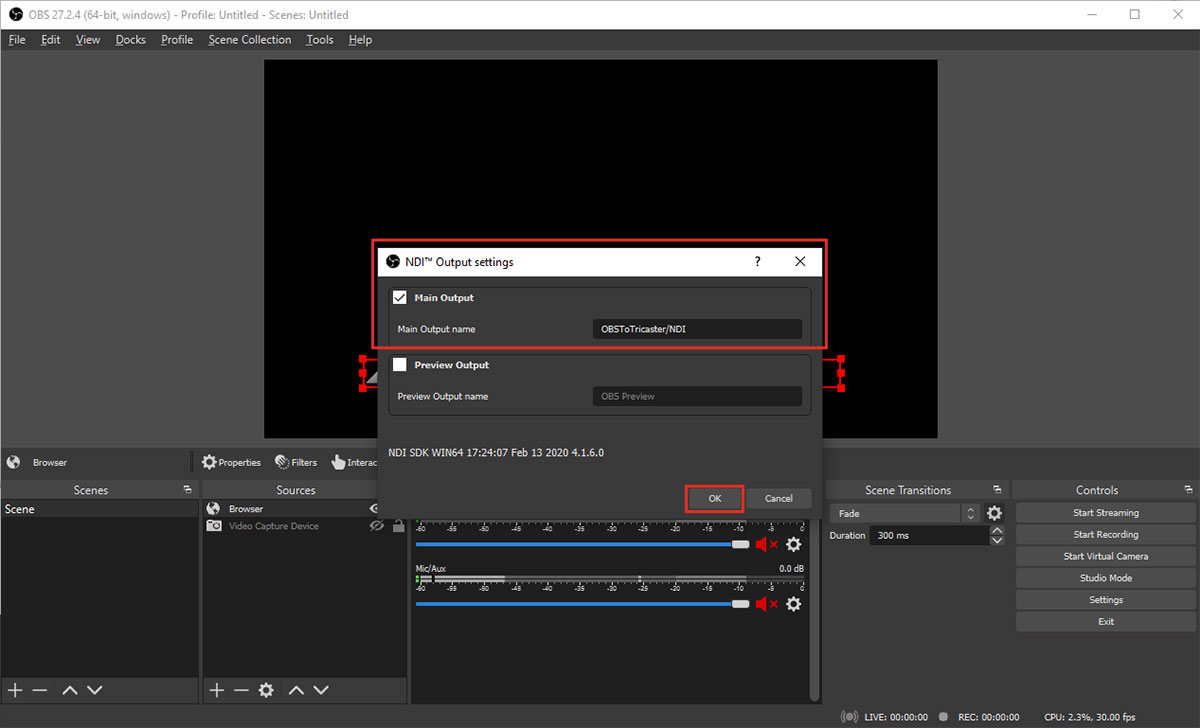
After rebooting, reopen OBS. Go to Tools > NDI Output Settings, enable "Main Output", and give the stream a name. Click OK.
Step 3: Add ScoreBird as a Browser Source
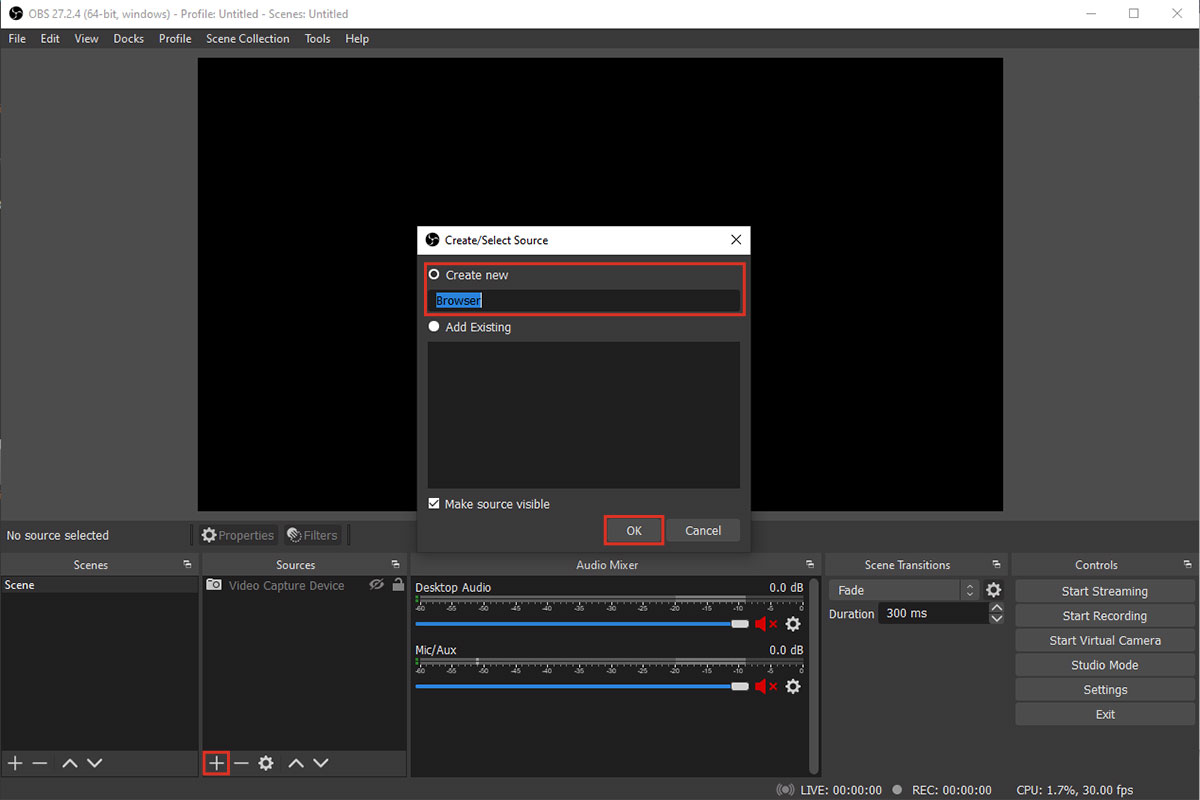
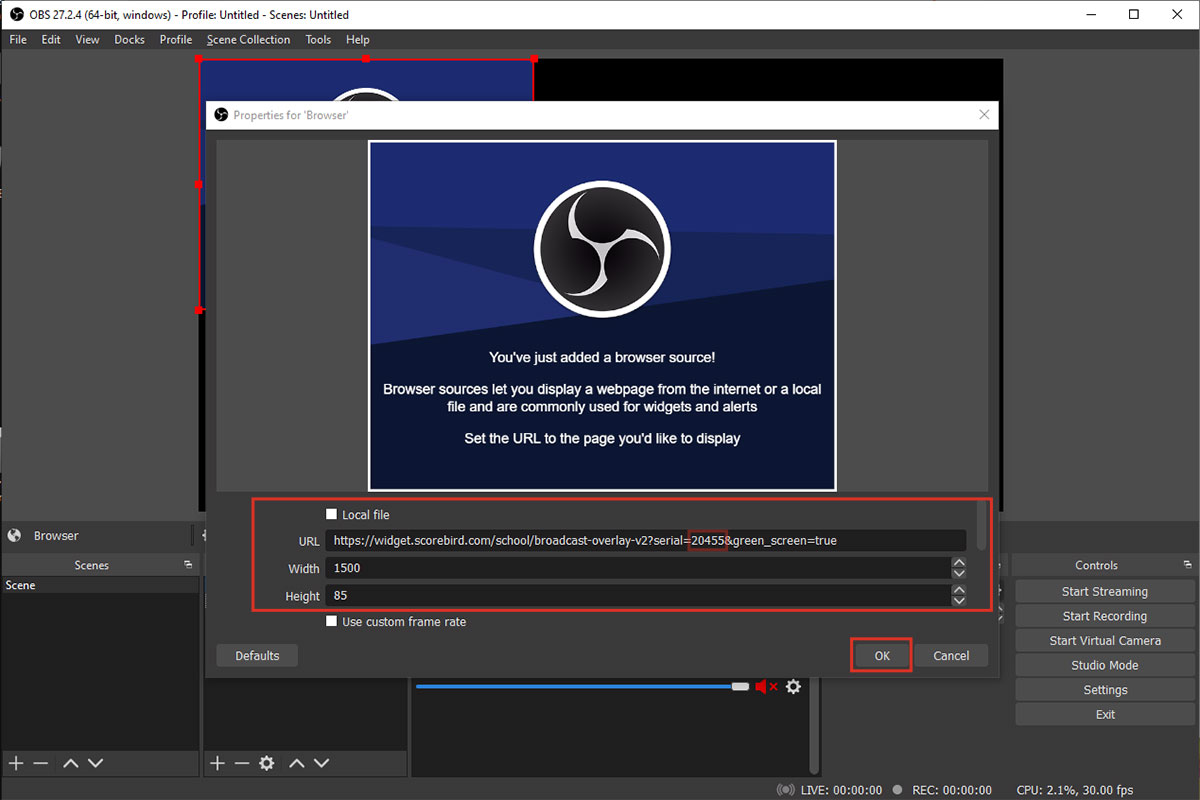
Add a new Browser Source in OBS and configure it as follows:
URL format:
https://widget.scorebird.com/school/broadcast-overlay-v2?serial=[YOUR_SERIAL]&green_screen=true
Replace [YOUR_SERIAL] with your NeST serial number. The green_screen=true parameter sets the background to green for chroma keying.
Dimensions: Set width to 1500px and height to 85px.
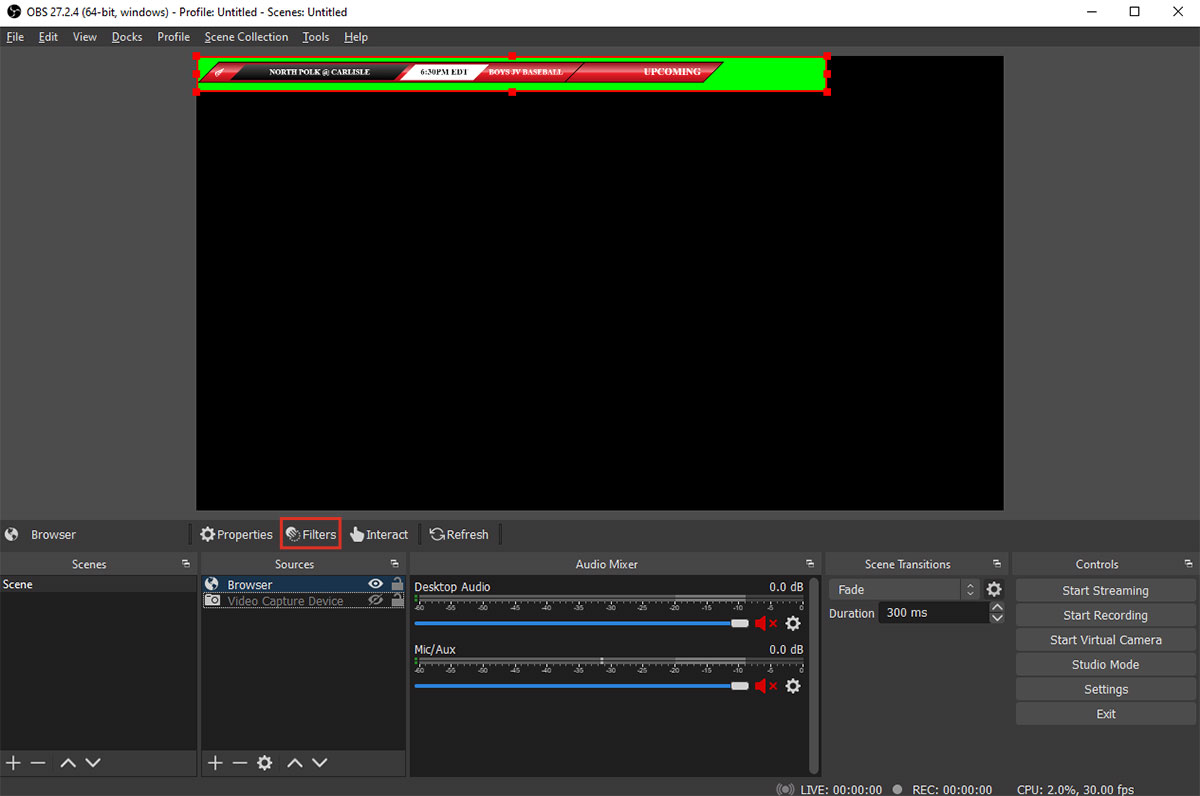
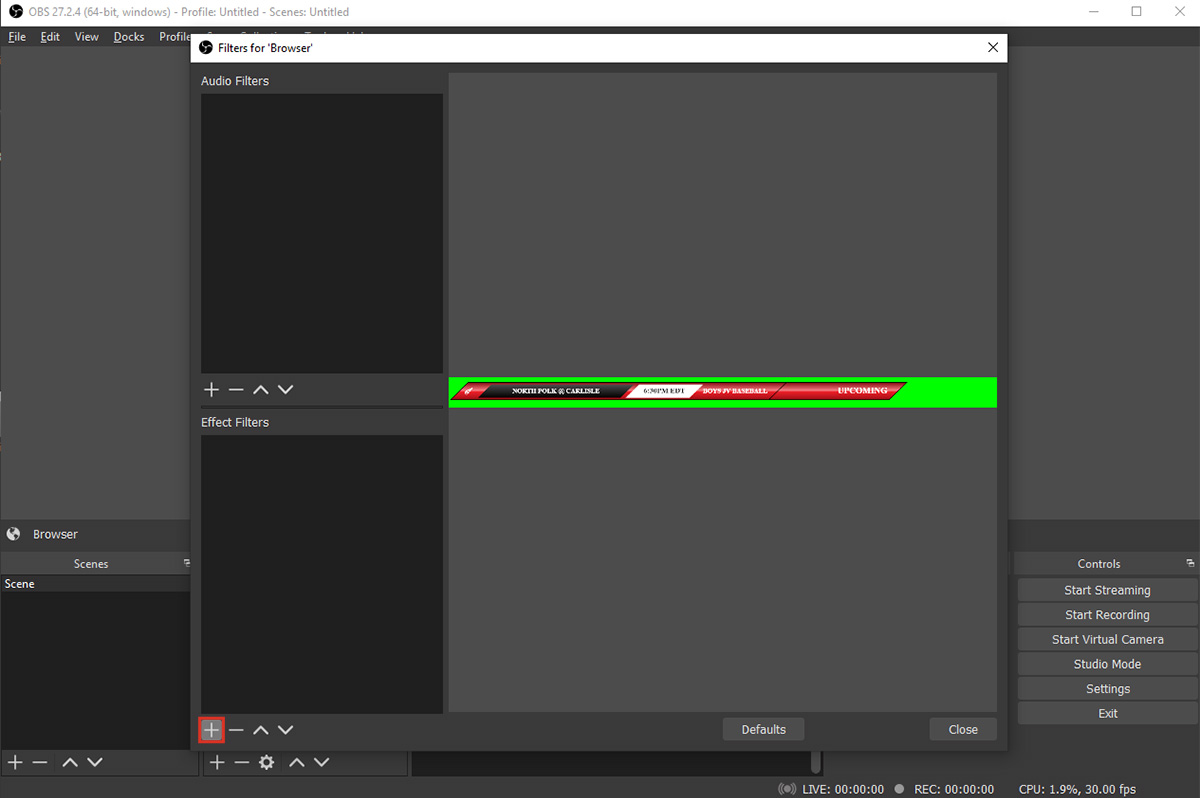
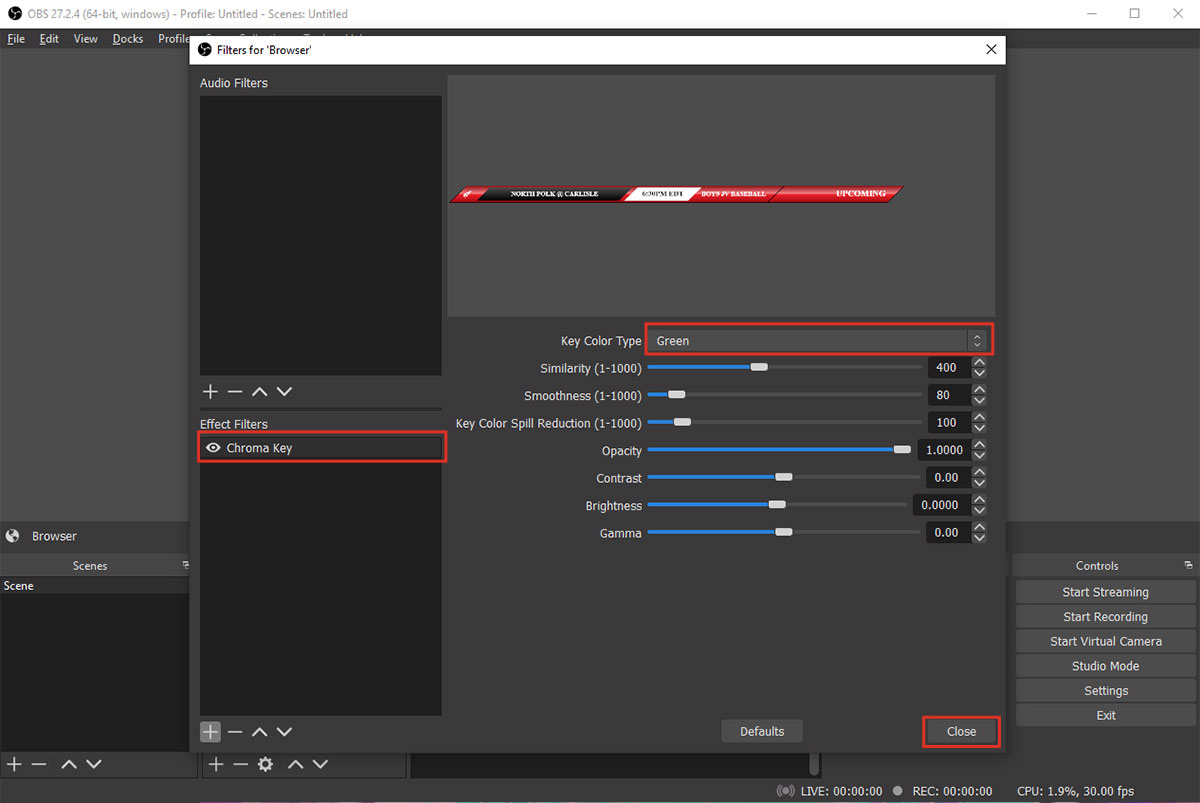
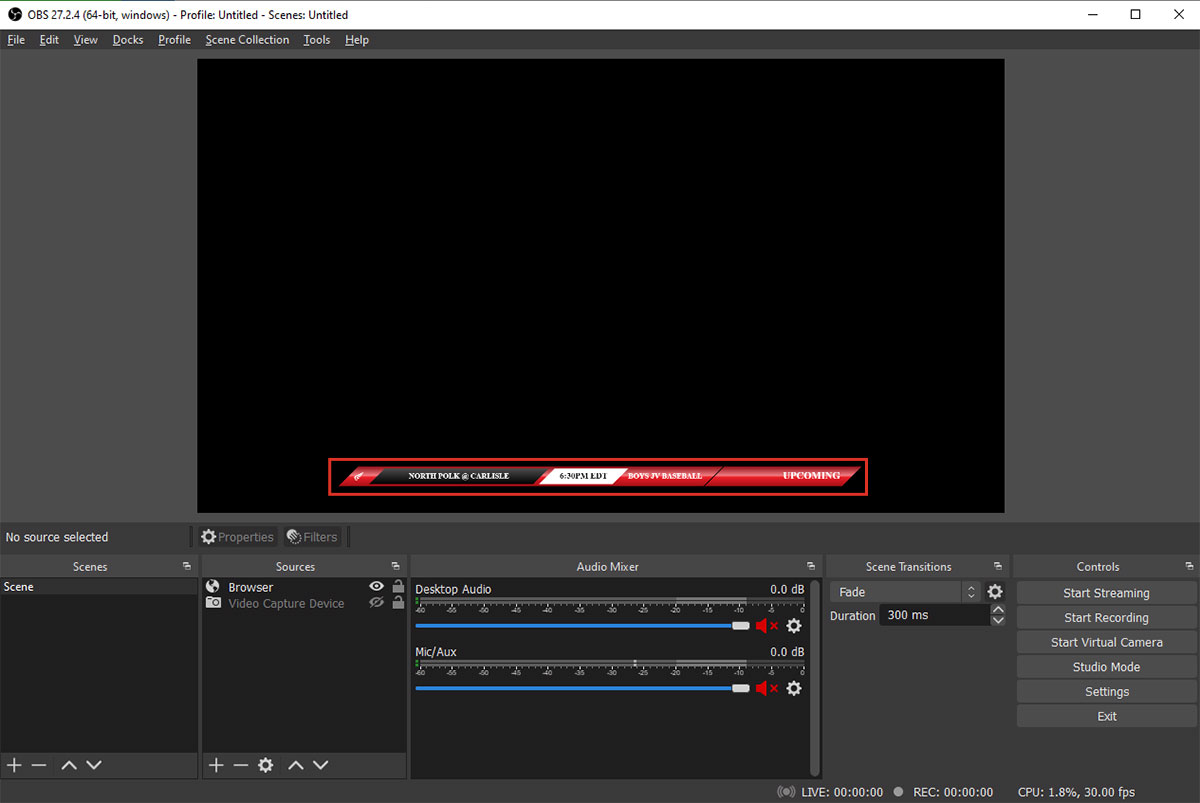
Next, apply a Chroma Key filter to the browser source. Right-click the source, select Filters, add a Chroma Key filter, and set the key color to green.
Step 4: Configure TriCaster to Receive the NDI Stream
In TriCaster, add the OBS NDI output as a network source. Select the named NDI stream you configured in Step 2. The ScoreBird overlay will appear as a keyed input ready to use in your TriCaster production.
Troubleshooting
- NDI output not visible in TriCaster? Confirm OBS is running with NDI Output enabled and both machines are on the same local network.
- Plugin not appearing in OBS Tools menu? Reboot the computer — reboot is mandatory after NDI plugin installation.
- Green background still showing? Verify the Chroma Key filter is applied to the browser source and the key color is set to green.
- Score not updating? Ensure a game is active in your ScoreBird schedule and your NeST device is online.
- Need help? Contact support at support@scorebird.com or call 844-GOT-BIRD (844-468-2473).
Ready to Connect with TriCaster?
Get ScoreBird set up with TriCaster and start showing live scores today.