
Boxcast Setup
Boxcast Integration Setup
ScoreBird connects natively to Boxcast — configure it once through the ScoreBird Admin app and your overlays appear automatically on your Boxcast streams.
Requirements
- A Boxcast account with API access (Client ID and Client Secret from Boxcast Dashboard)
- A ScoreBird account with an active NeST device
- The ScoreBird Admin mobile app (iOS or Android)
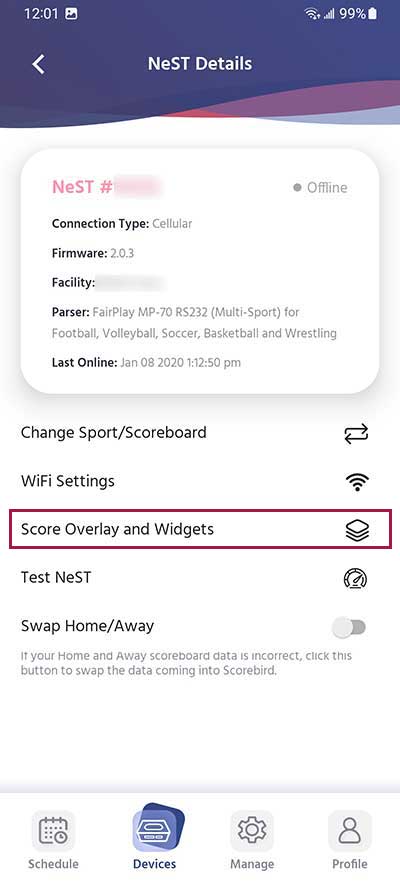
Step 1: Open NeST Details
In the ScoreBird Admin app, navigate to your NeST device details screen and select "Score Overlay and Widgets".
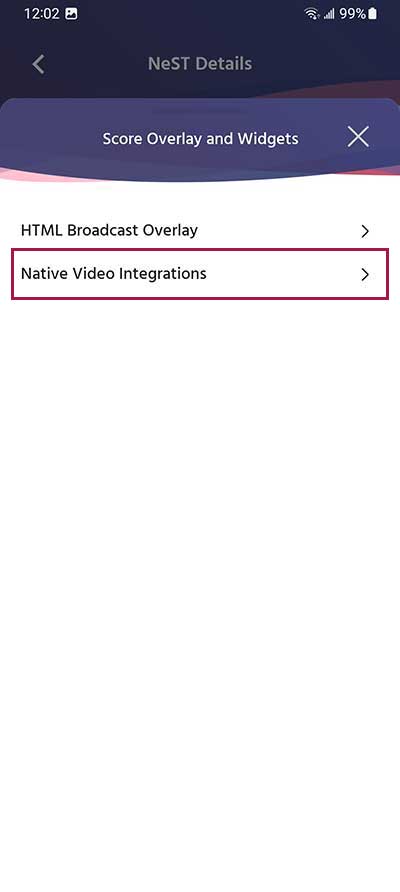
Step 2: Select Native Video Integrations
Choose "Native Video Integrations" from the menu.
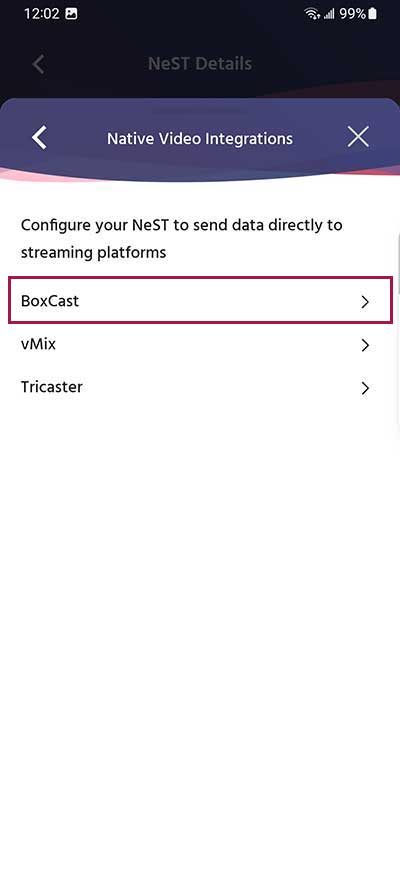
Step 3: Select Boxcast
Choose "Boxcast" as your integration.
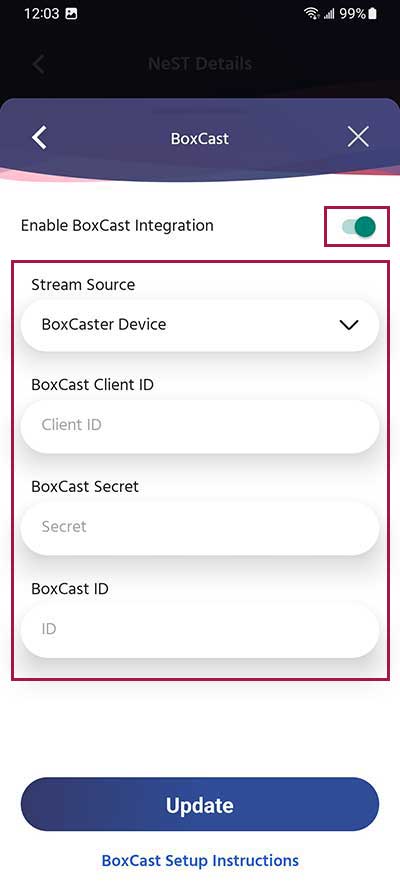
Step 4: Enter Credentials
Enter your Boxcast credentials:
- Client ID — from your Boxcast Dashboard API keys section
- Client Secret — from your Boxcast Dashboard API keys section
- BoxCast ID (optional) — only needed for Boxcast device streaming, not iOS app streaming
Click "Update" to save.
Important Notes
- Your NeST device must have internet access to communicate with the Boxcast API.
- The overlay will appear automatically on your Boxcast streams once configured.
- You can manage overlay appearance through the ScoreBird Portal.
Troubleshooting
- Overlay not appearing? Verify your Client ID and Client Secret are correct.
- Need API keys? Find them in your Boxcast Dashboard under API settings.
- Need help? Contact support at support@scorebird.com or call 844-GOT-BIRD (844-468-2473).
Still need help?
Can't find what you're looking for? Our support team is here to help.
Contact Support →Ready to automate your scores?
NeST connects to your scoreboard and powers everything you just read about.