
Hudl Focus Camera Setup
Hudl Focus Camera Integration
To use a Hudl Focus camera with ScoreBird score overlays, both need to be connected through OBS (Open Broadcaster Software). OBS captures the Hudl Focus stream and adds the ScoreBird overlay on top as a browser source.
Before starting, confirm you have connected your Hudl Focus camera to OBS using Hudl's own setup guide.
Requirements
- Hudl Focus camera connected and streaming
- OBS installed and configured to capture the Hudl Focus feed
- A ScoreBird account with an active NeST device
- Your sport-specific overlay URL from the ScoreBird Portal
Step 1: Add a Source in OBS
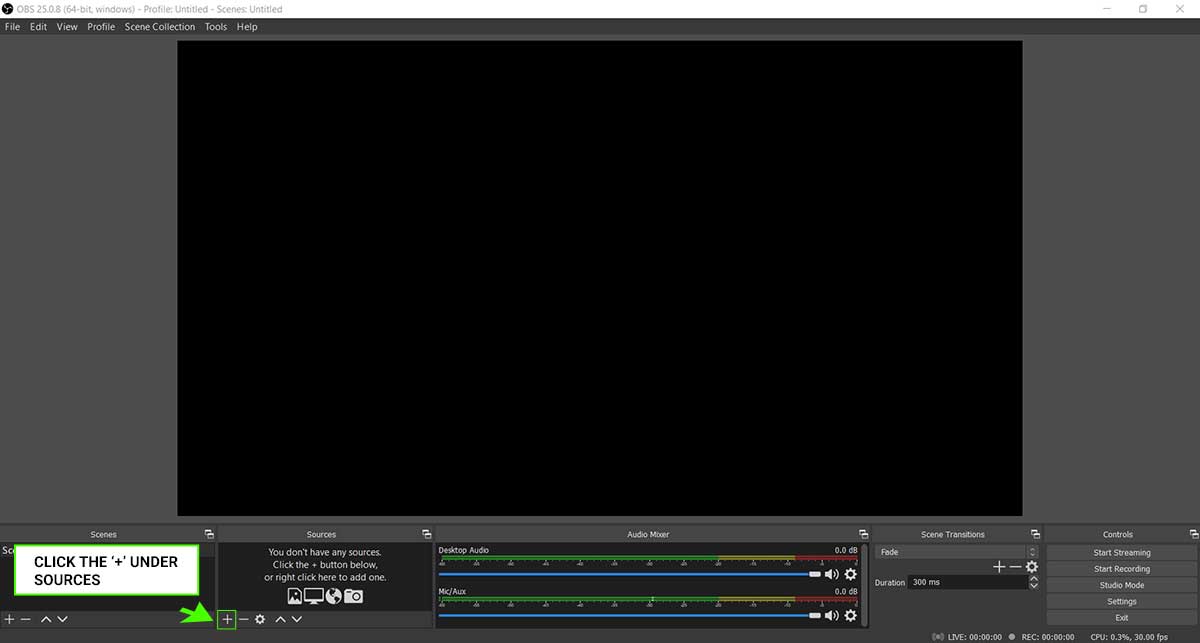
In OBS, click the "+" button in the Sources panel at the bottom of the screen.
Step 2: Select Browser Source
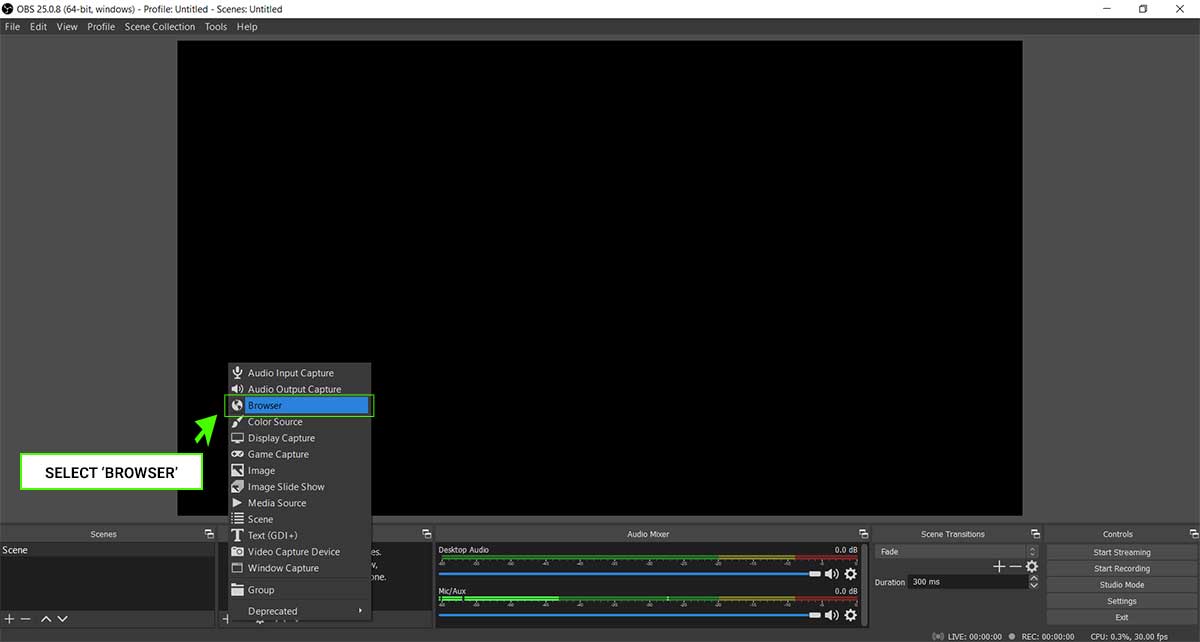
From the source type list, choose "Browser".
Step 3: Name the Source
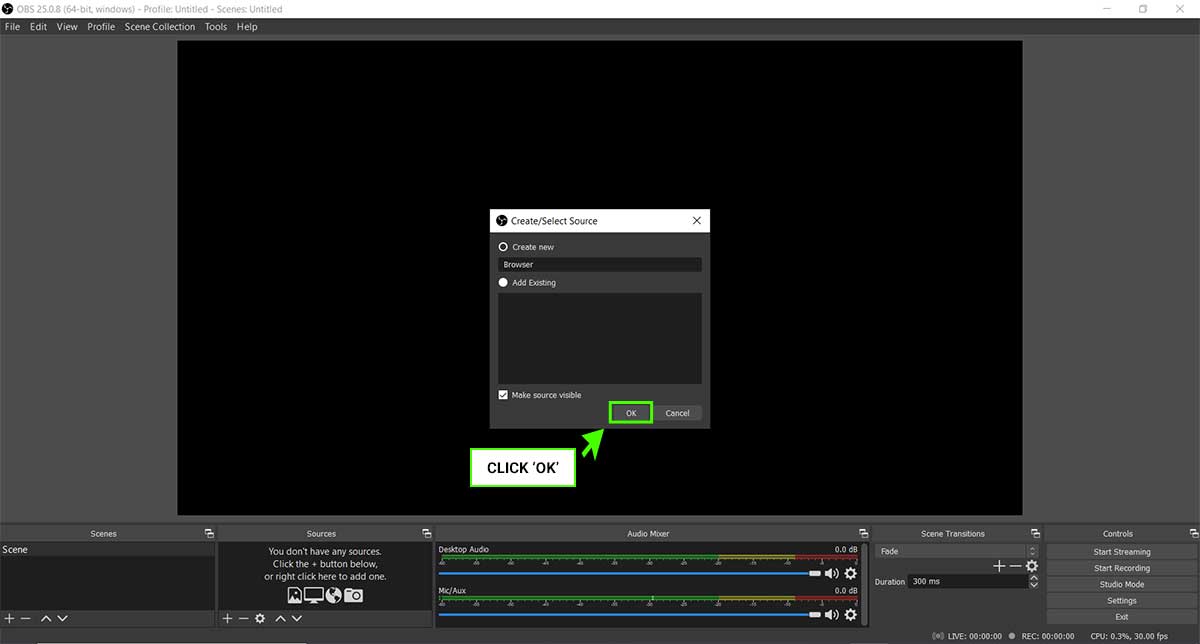
Give the source a name such as "ScoreBird Overlay" and click OK.
Step 4: Enter the Overlay URL
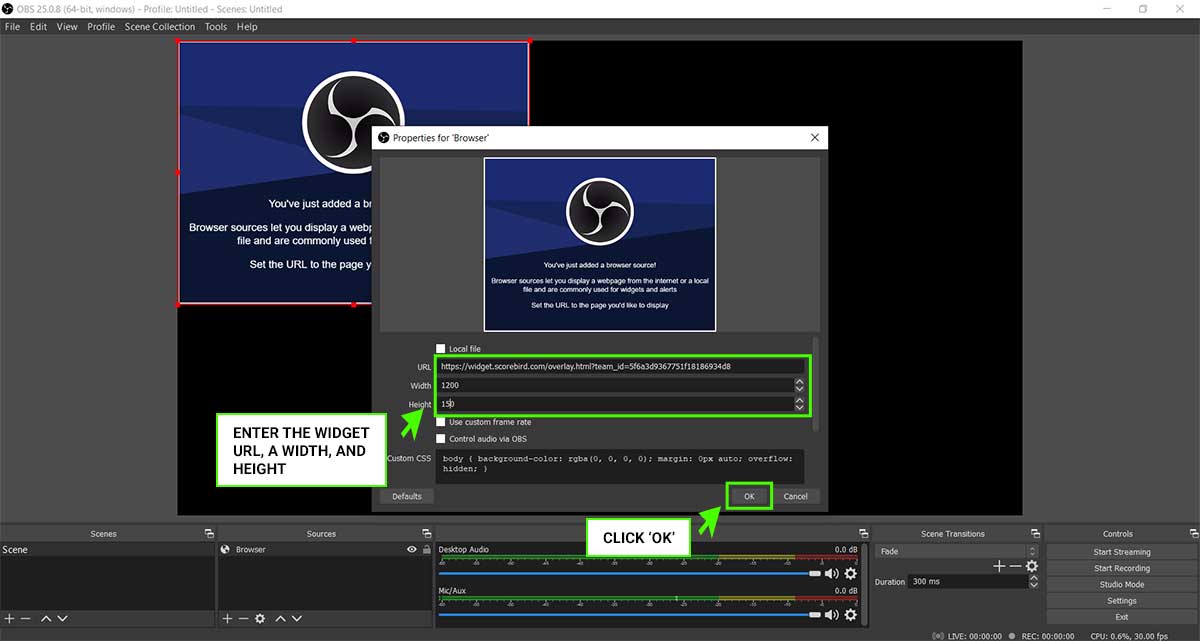
In the source properties window, paste your ScoreBird overlay URL into the URL field. Set the dimensions to match your stream resolution (typically 1920 × 1080). Click OK.
Your overlay URL is found in the ScoreBird Portal under Overlay Builder — select the correct sport and device, then copy the URL.
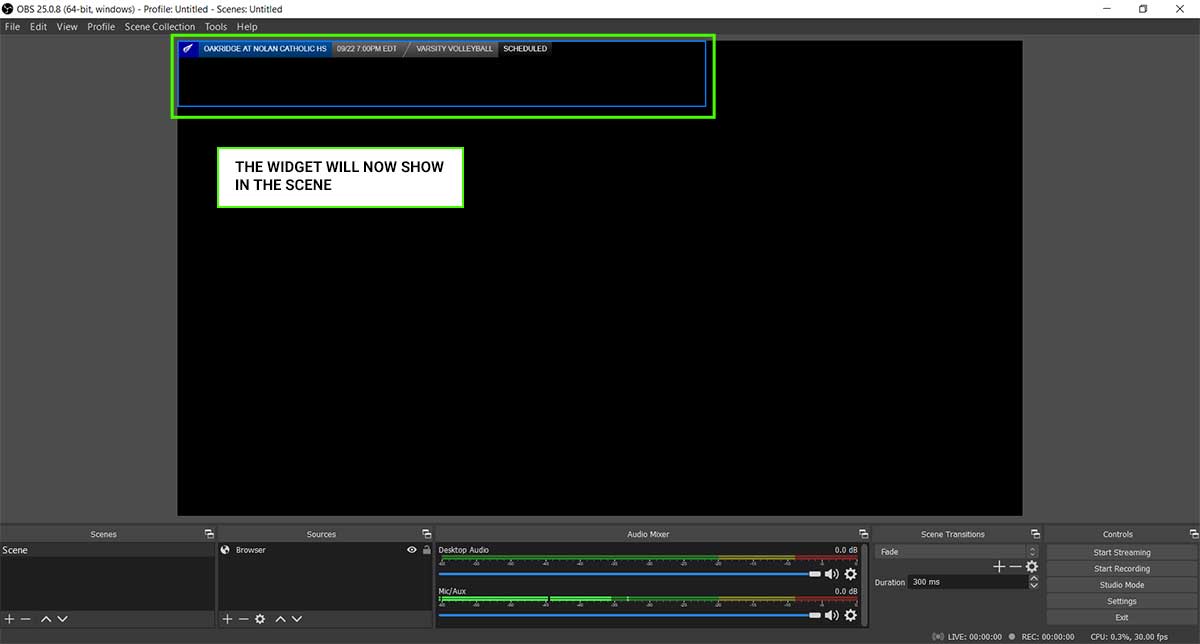
Step 5: Overlay Active
The ScoreBird overlay now appears as a layer over your Hudl Focus camera feed in OBS. Scores update automatically as your scoreboard changes — no manual intervention needed during the game.
Tips
- Layer order matters: In OBS, sources listed higher in the Sources panel appear in front of lower sources. Make sure the ScoreBird overlay source sits above your Hudl Focus camera source.
- Green screen option: If the default overlay background is opaque, add
&green_screen=trueto your overlay URL and apply a Chroma Key filter in OBS to make the background transparent. - Sport-specific overlays: Use the correct overlay URL for the sport you're broadcasting. A basketball overlay on a football game will show the wrong scoreboard fields.
Troubleshooting
- Overlay not showing? Verify your overlay URL is correct and that your NeST device shows "Connected" in the ScoreBird portal.
- Score not updating? Confirm a game is active in your ScoreBird schedule and NeST is reading the scoreboard.
- Hudl Focus feed issues? See Hudl's support documentation for camera-specific troubleshooting.
- Need help? Contact support at support@scorebird.com or call 844-GOT-BIRD (844-468-2473).
Still need help?
Can't find what you're looking for? Our support team is here to help.
Contact Support →Ready to automate your scores?
NeST connects to your scoreboard and powers everything you just read about.