
Hudl Setup
Hudl Integration Setup
Connect ScoreBird to Hudl Production Truck (BlueFrame) to display live score overlays on your broadcasts. Once configured, your ScoreBird scores update automatically in real time — no manual entry required.
For more background on the partnership, see the official announcement.
Requirements
- Hudl Production Truck with BlueFrame software installed
- A ScoreBird account with an active NeST device
- Your 5-digit NeST ID (found in the ScoreBird Portal)
Initial Configuration
Step 1: Open Settings
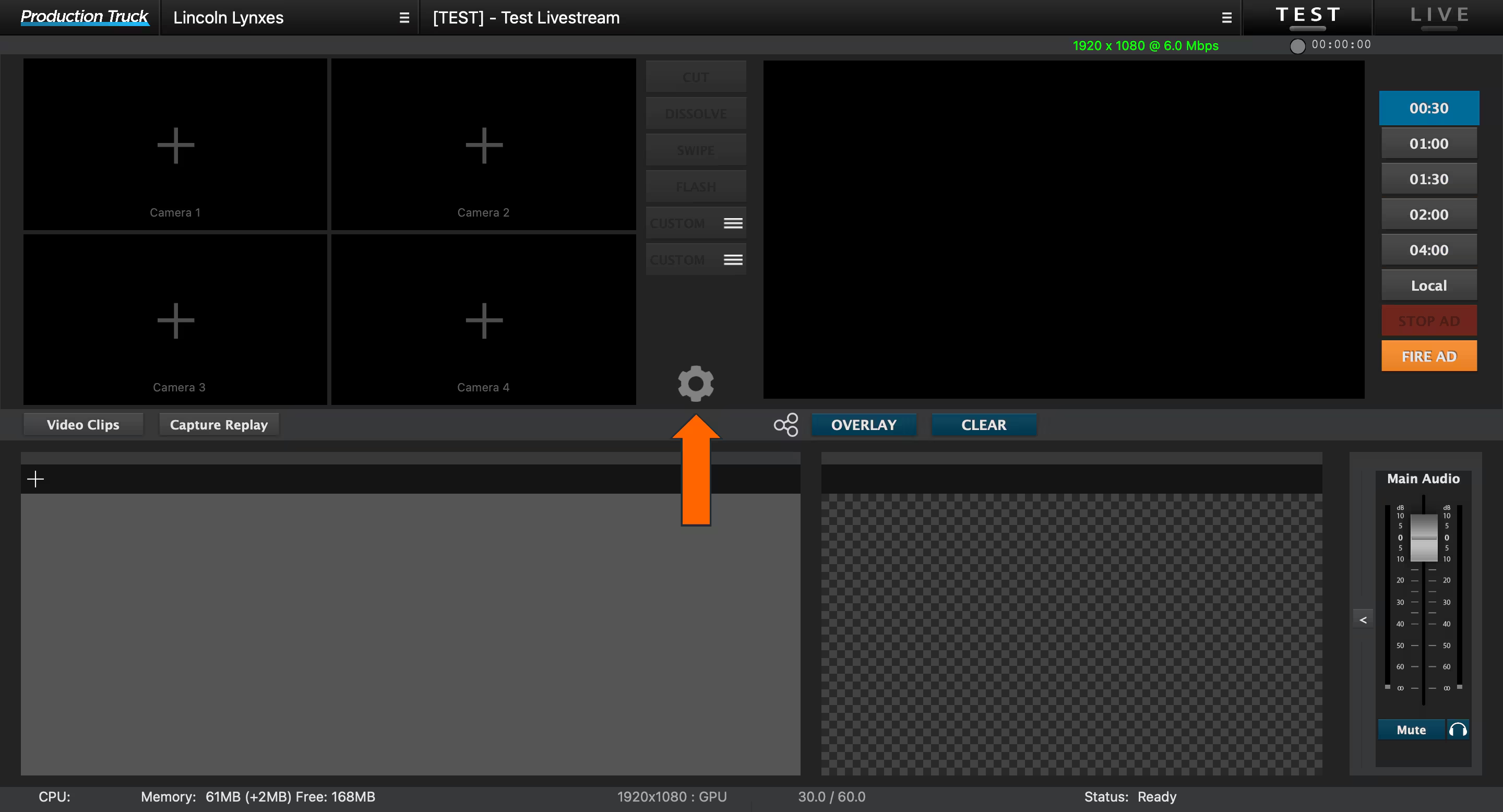
Click the gear icon in the top-right corner of the BlueFrame interface to open the Settings panel.
Step 2: Navigate to the Scoreboard Tab
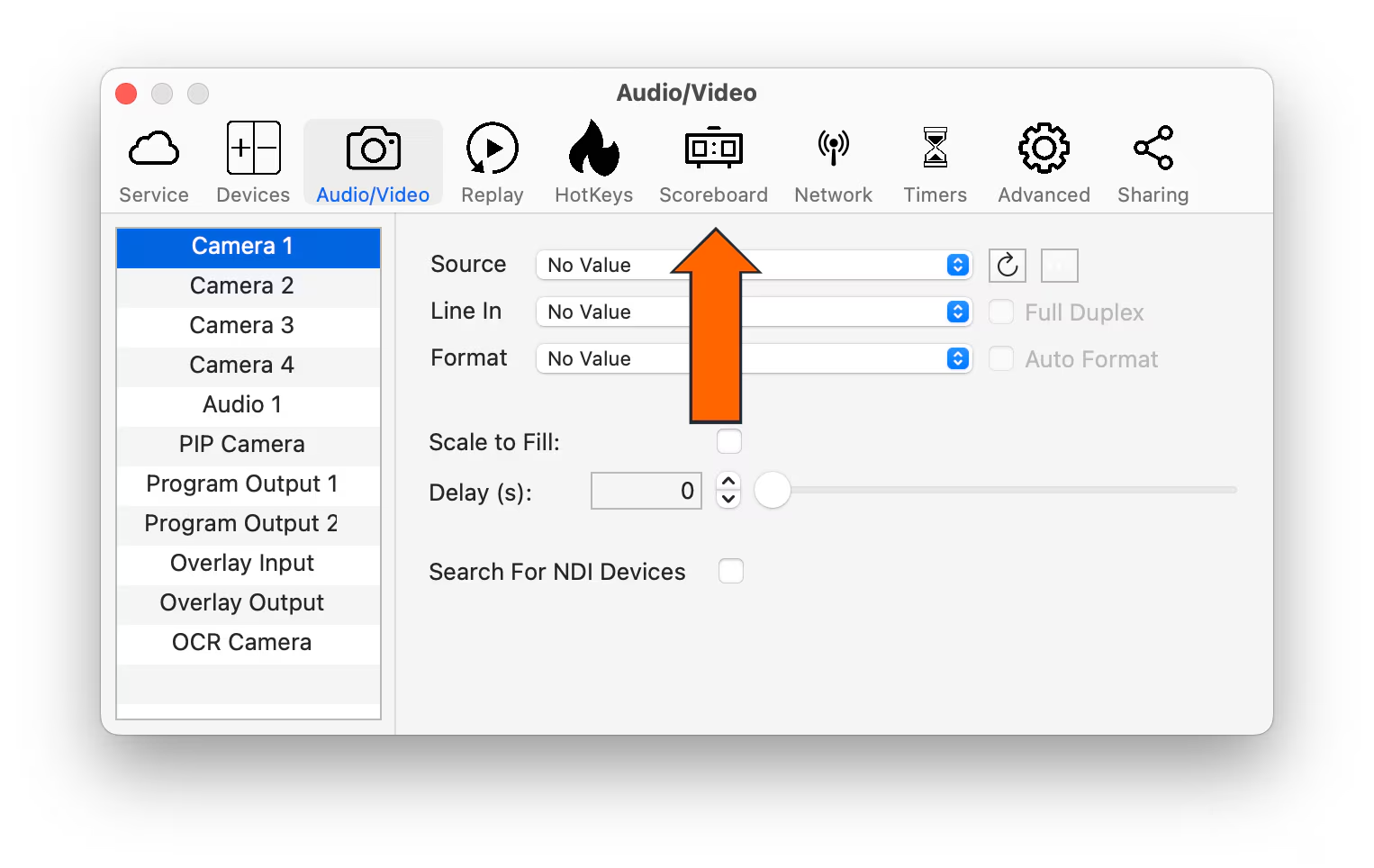
Inside Settings, select the Scoreboard tab.
Step 3: Select "Scorebird" as the Source
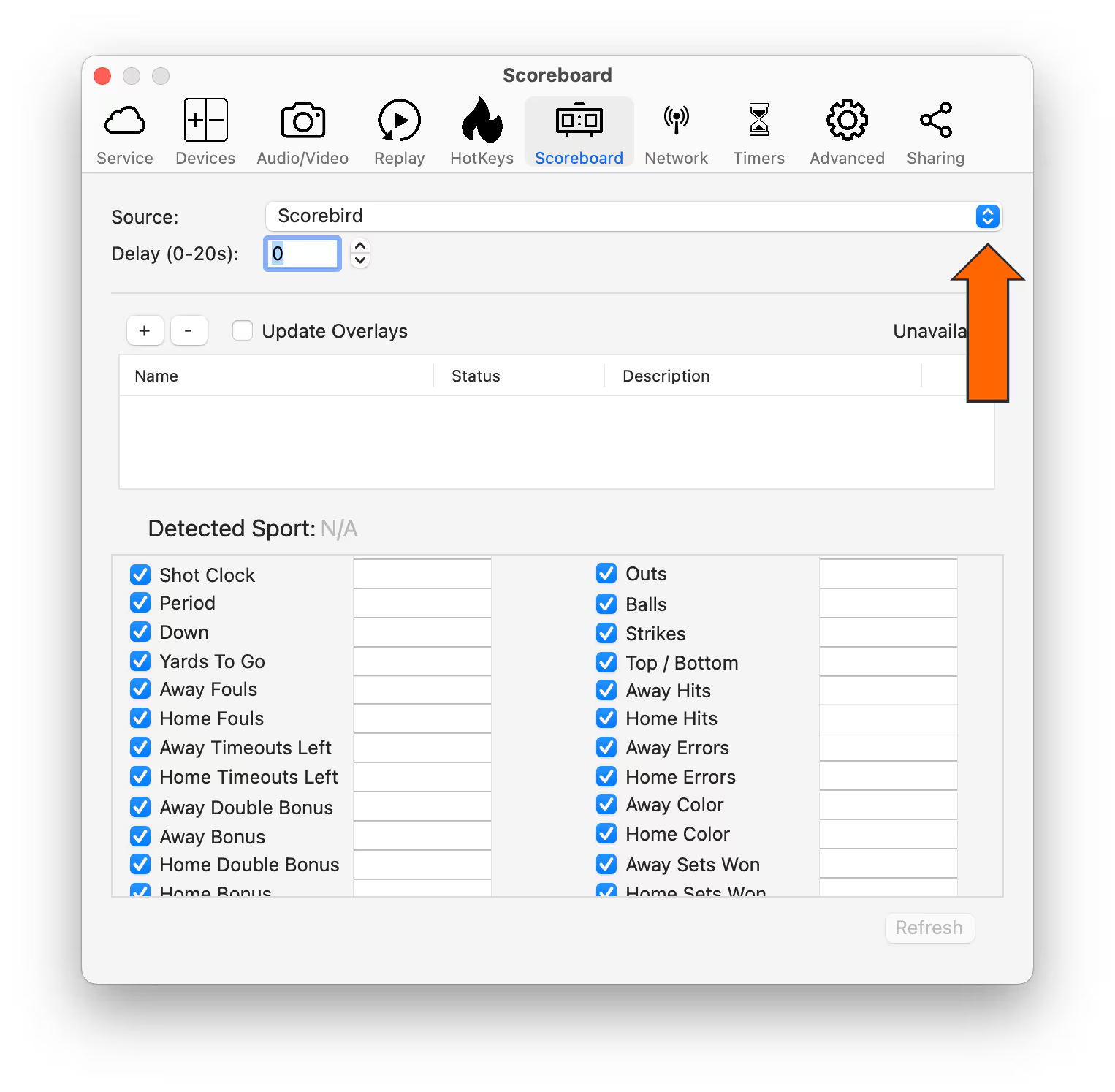
From the scoreboard source dropdown, choose Scorebird.
Step 4: Enable "Update Overlays"
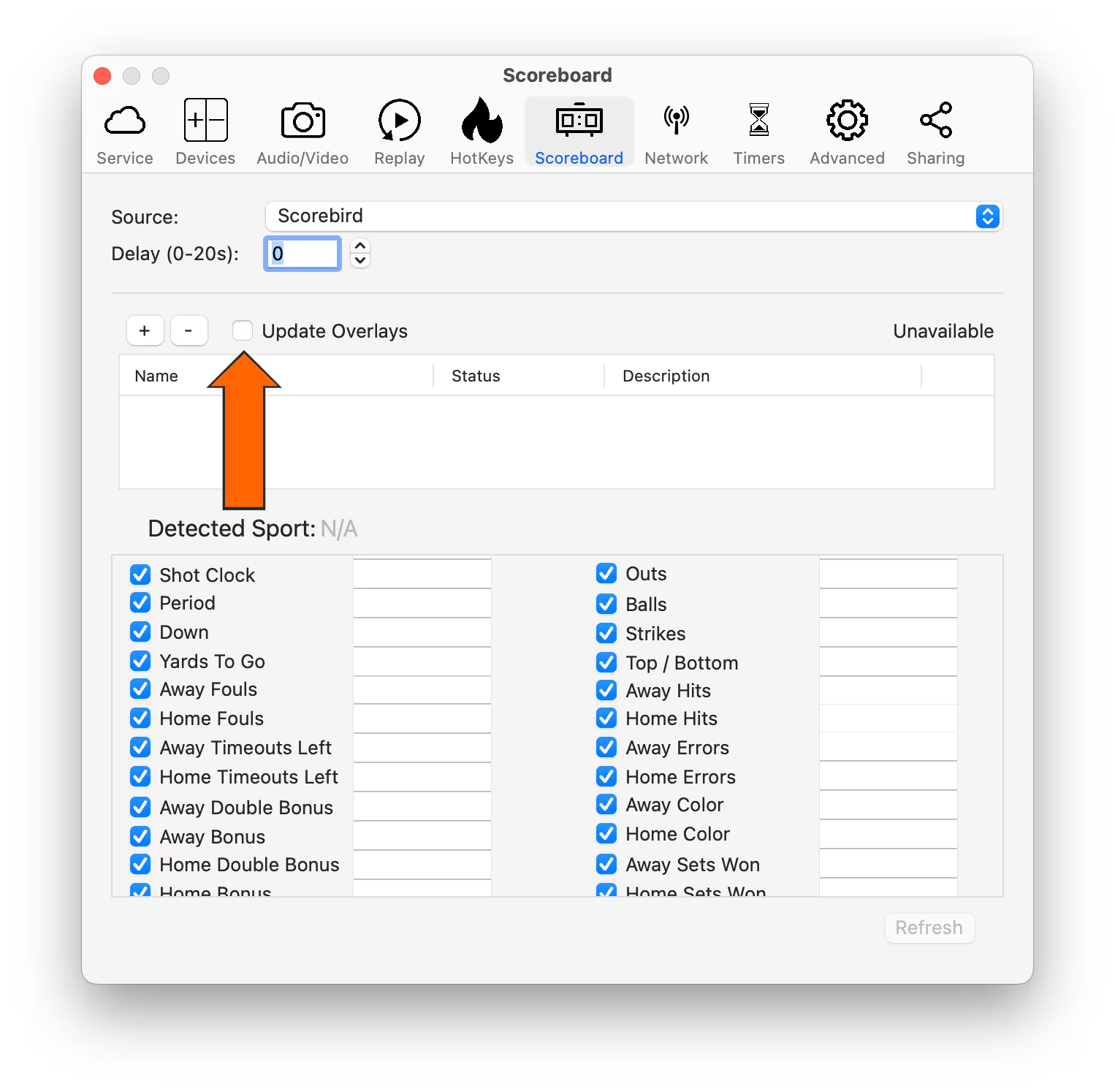
Toggle on Update Overlays so that score changes from ScoreBird push to your graphics automatically.
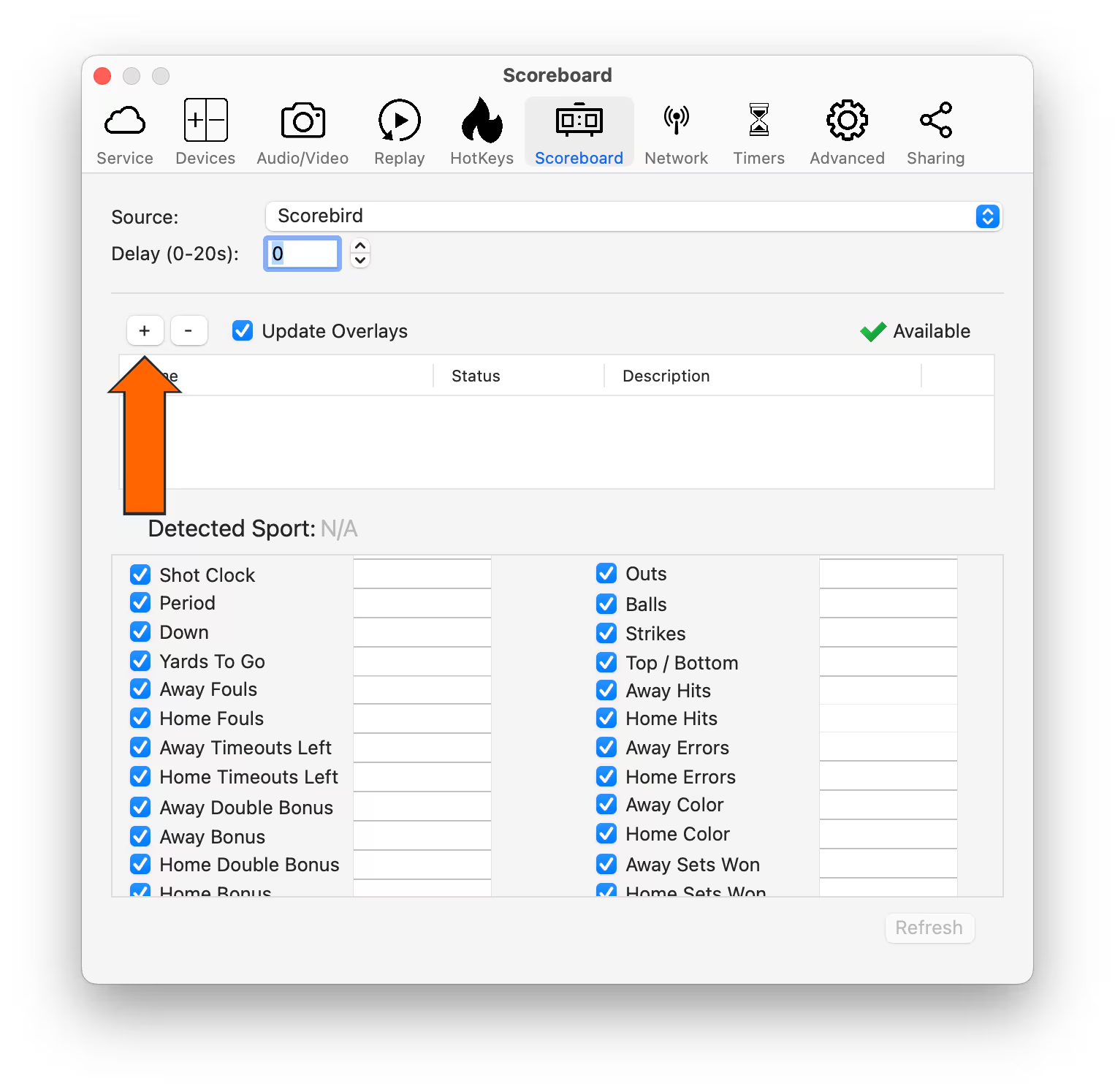
Step 5: Add a NeST Device
Click the "+" button to add a new NeST device connection.
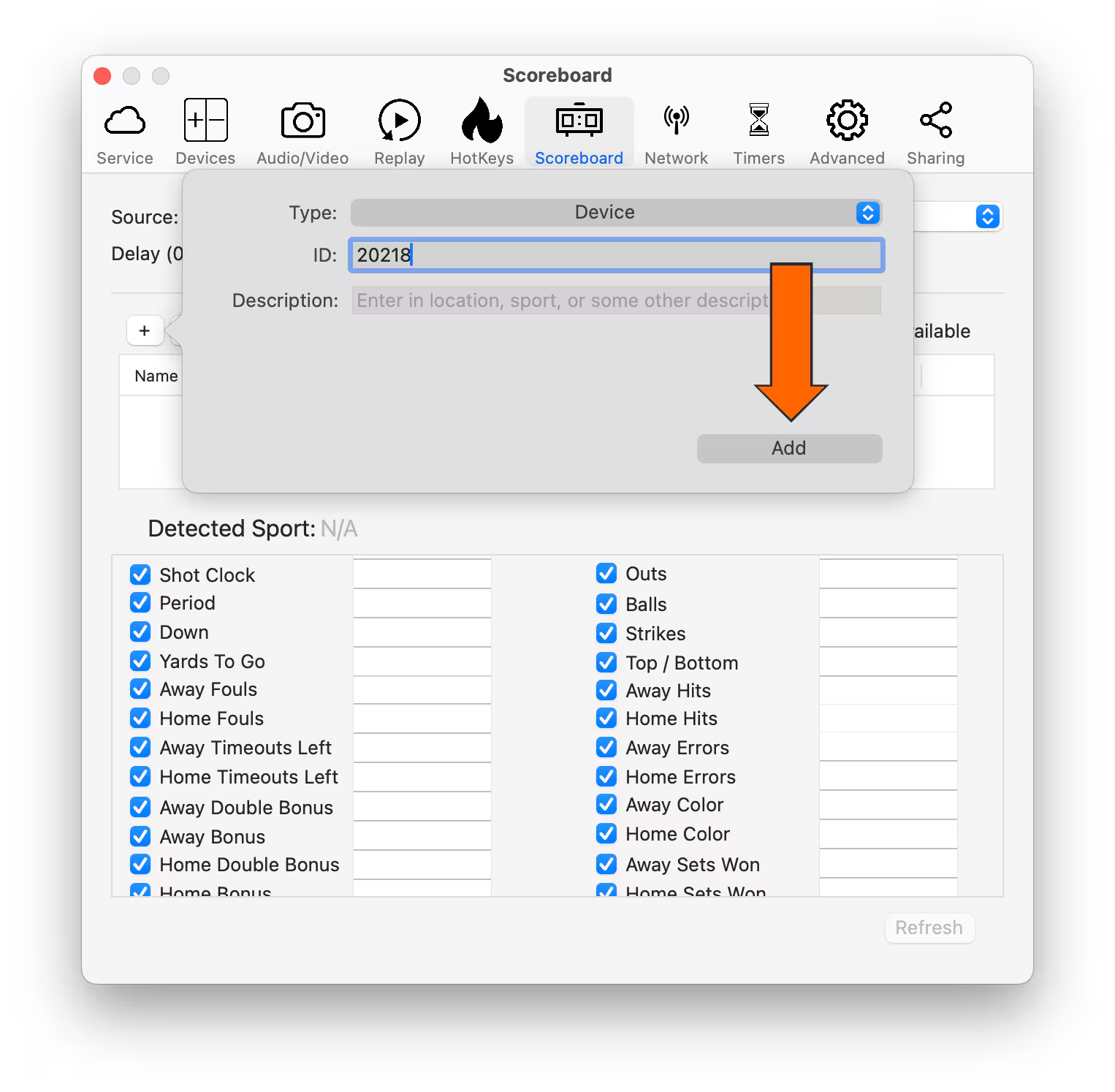
Step 6: Enter Your NeST ID
Type your 5-digit NeST ID in the field provided and confirm.
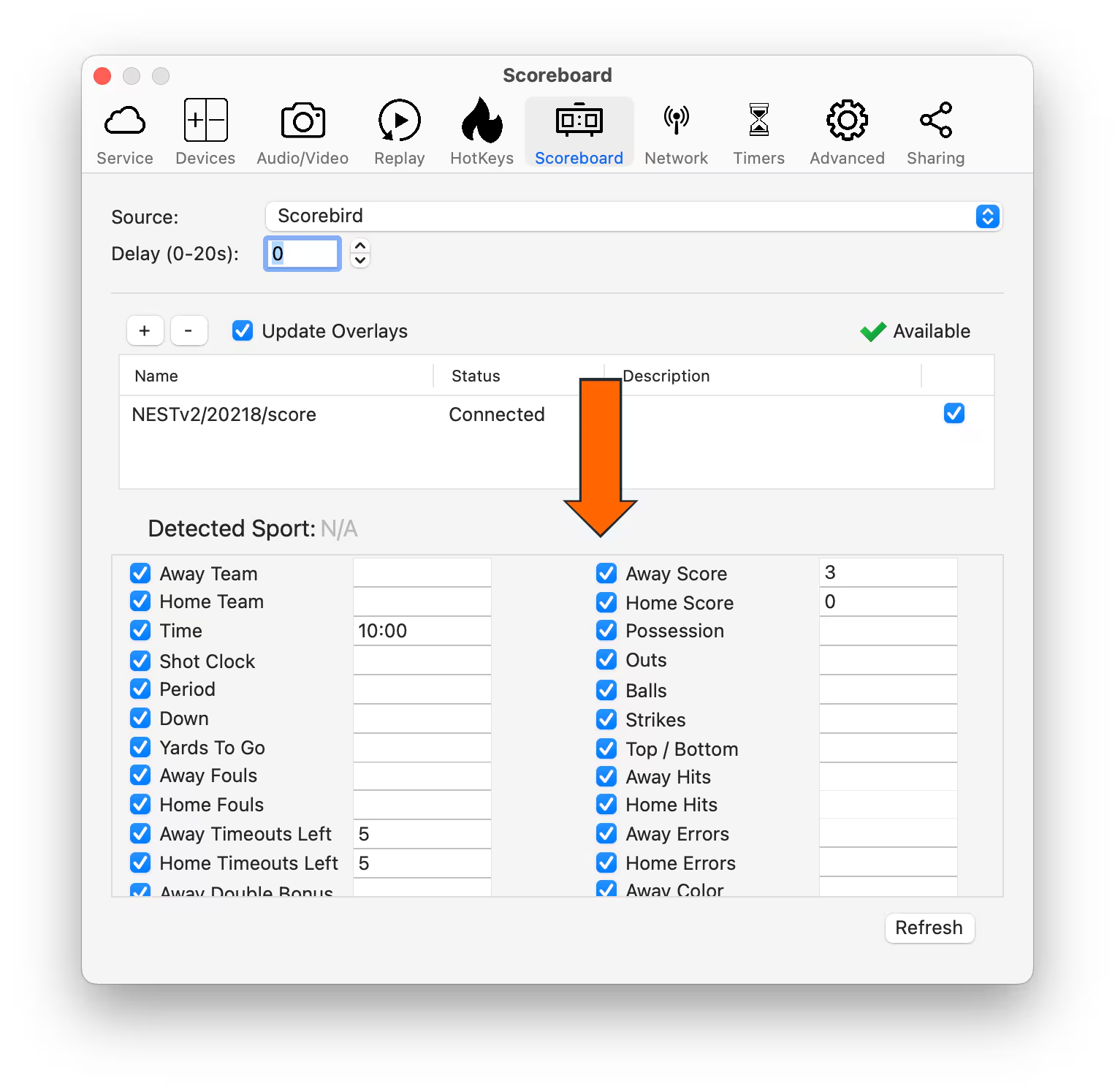
Step 7: Verify "Connected" Status
The device entry should show a Connected status indicator. If it shows an error, double-check your NeST ID and ensure the device is online.
Accessing Overlays
Once the NeST device is connected, follow these steps to add score overlays to your production layout.
- Click the "+" button in the bottom-left corner of the Production Truck interface.
- Select your scoreboard template and the corresponding control panel.
- Drag the scoreboard graphic onto the preview area.
- Select the "Game" and "Shot" checkboxes to enable live clock data in the overlay.
- Click the Overlay button to push the graphic to your active output.
Troubleshooting
- Status shows "Disconnected"? Confirm your NeST ID is correct and that the device has an active network connection. Visit the ScoreBird portal to verify the device is online.
- Scores not updating in the overlay? Make sure Update Overlays is toggled on and that a game is active in your ScoreBird schedule.
- No NeST devices available to add? Ensure the device is registered to your ScoreBird account at customer.scorebird.com.
- Need help? Contact support at support@scorebird.com or call 844-GOT-BIRD (844-468-2473).
Still need help?
Can't find what you're looking for? Our support team is here to help.
Contact Support →Ready to automate your scores?
NeST connects to your scoreboard and powers everything you just read about.