
TriCaster Native Integration Setup
TriCaster Native Integration Setup
Connect ScoreBird to TriCaster using native LiveText templates for deep, direct integration with live scoring data.
Requirements
- A TriCaster with LiveText
- Your NeST device on the same network as the TriCaster
- The ScoreBird Admin mobile app (iOS or Android)
- LiveText Templates (download link below)
Supported Sports
Basketball, football, soccer, volleyball, field hockey, wrestling, lacrosse, baseball/softball.
Step 1: Open NeST Details
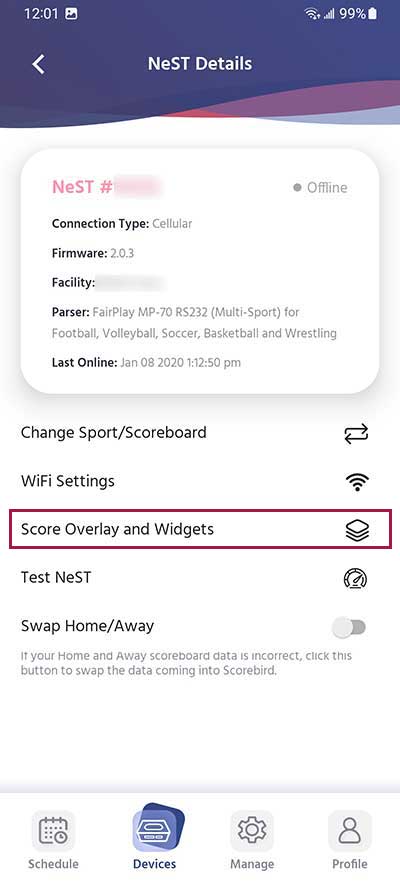
In the ScoreBird Admin app, navigate to your NeST device details screen and select "Score Overlay and Widgets".
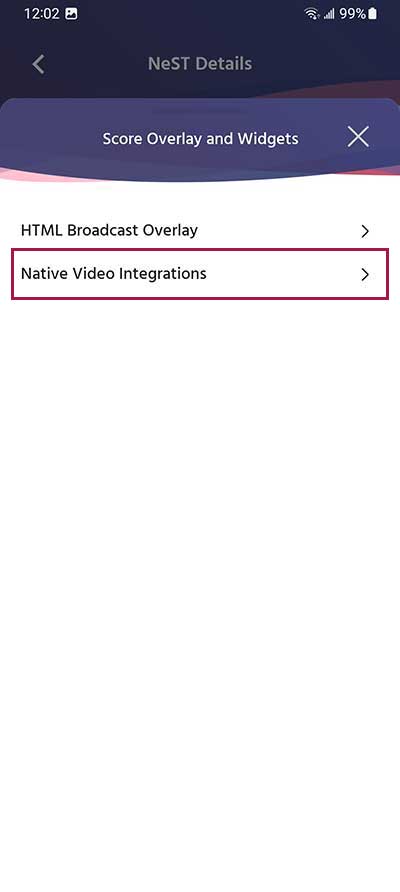
Step 2: Select Native Video Integrations
Choose "Native Video Integrations" from the menu.
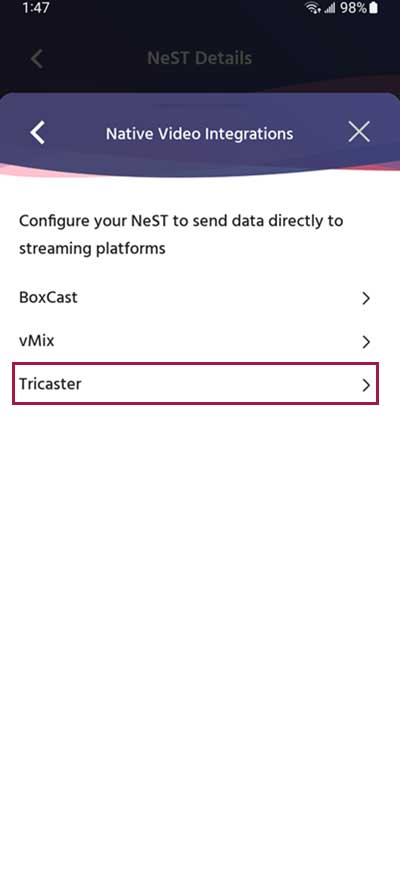
Step 3: Select TriCaster
Choose "Tricaster" as your integration option.
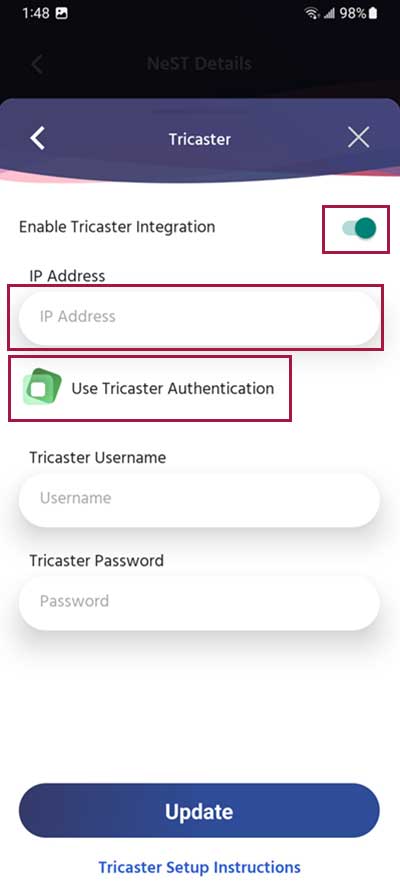
Step 4: Enter TriCaster Configuration
Enter your TriCaster configuration details. If authentication is enabled on your TriCaster, also enter your username and password.
Download LiveText Templates
Download the ScoreBird LiveText templates and import them into your TriCaster:
Download LiveText Templates (v12)
Troubleshooting
- TriCaster not connecting? Confirm your NeST device and TriCaster are on the same local network.
- Authentication errors? Double-check the username and password entered in the configuration step.
- Sport not supported? See the supported sports list above — contact support if your sport is not listed.
- Need help? Contact support at support@scorebird.com or call 844-GOT-BIRD (844-468-2473).
Still need help?
Can't find what you're looking for? Our support team is here to help.
Contact Support →Ready to automate your scores?
NeST connects to your scoreboard and powers everything you just read about.