
TriCaster Web Integration Setup
TriCaster Web Integration Setup
Add live ScoreBird score overlays to TriCaster using the built-in web buffer — no extra software required.
Requirements
- A current-model TriCaster updated to version 7-9 or higher
- Your overlay URL from the ScoreBird Portal
Step 1: Open the Buffer Tab
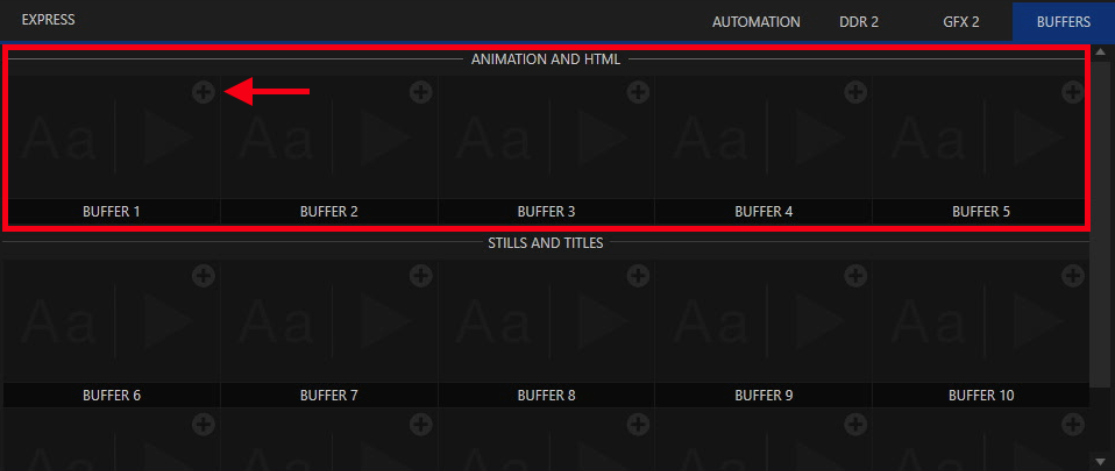
Access the Buffer tab in the lower right corner of the TriCaster interface. Click the "+" icon in any buffer slot within the Animation and HTML section.
Step 2: Click the Web Browser Button
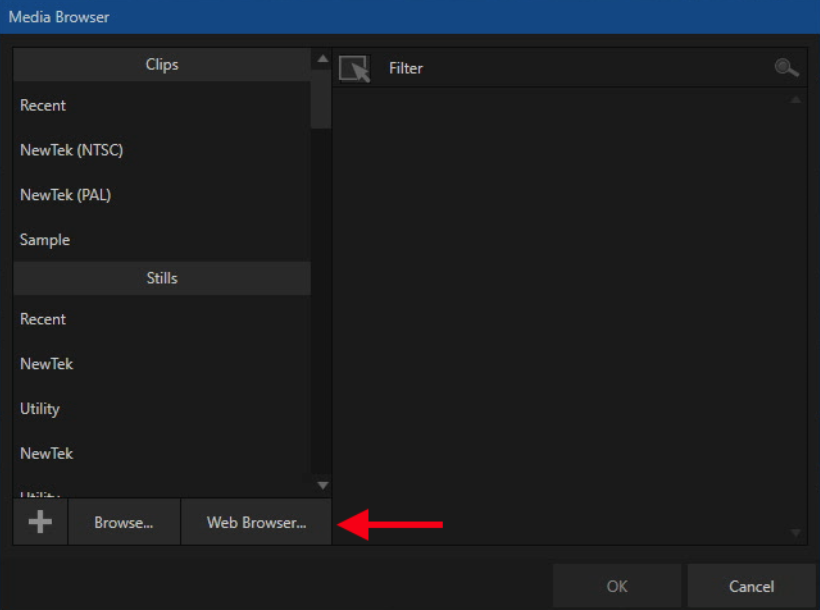
Click the Web Browser button in the lower left area of the buffer panel.
Step 3: Enter the Overlay URL
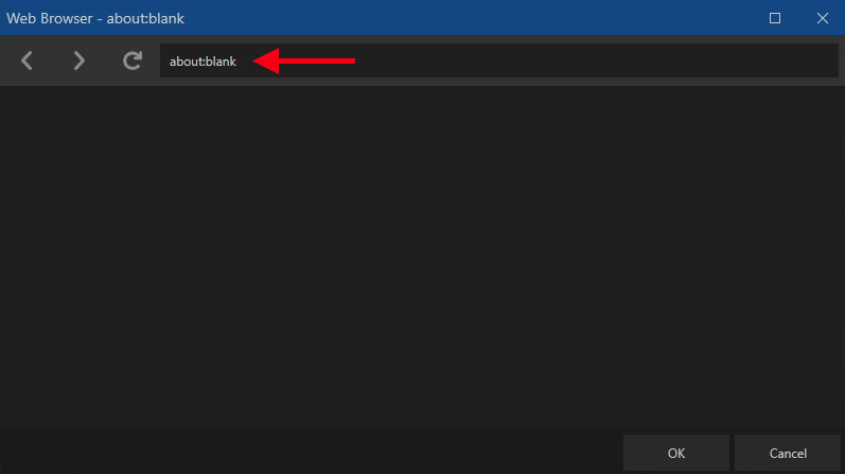
Enter your broadcast overlay URL at the top of the dialog and click OK.
Step 4: Update the Icon
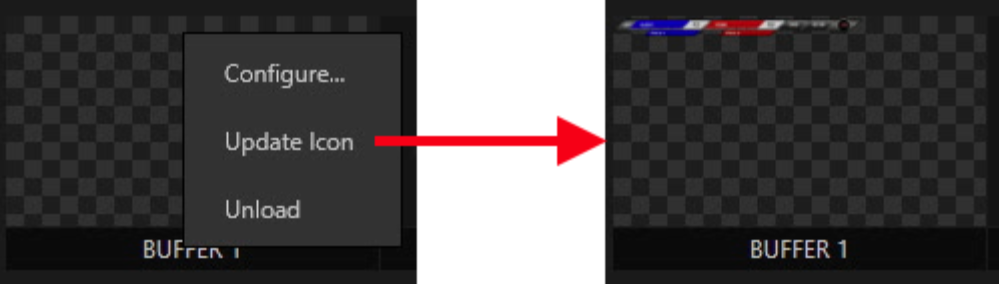
Right-click the loaded URL and select "Update Icon" to capture a page snapshot as the buffer thumbnail.
Step 5: Assign to a DSK
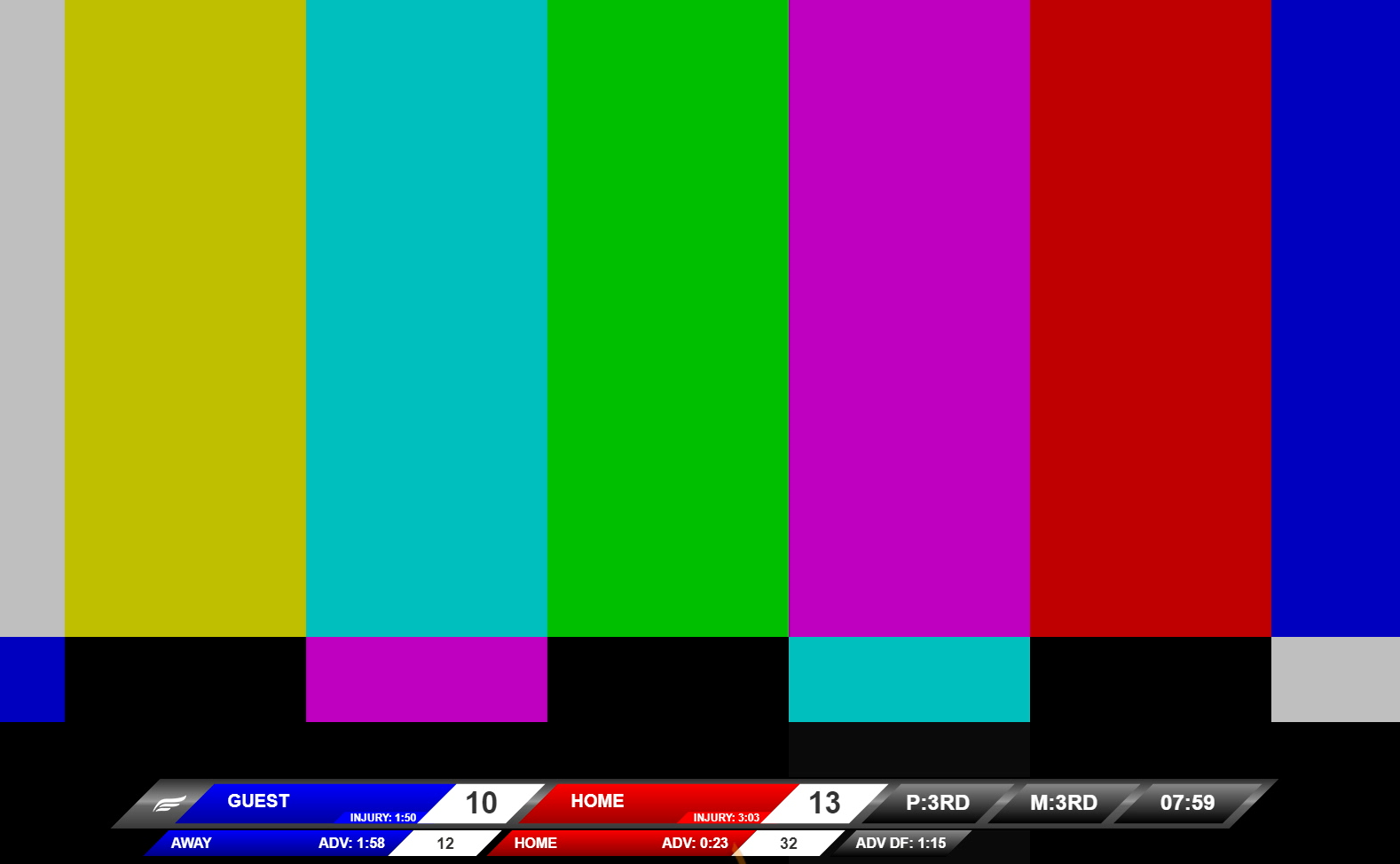
Assign the buffer to a DSK (Down Stream Keyer). A preview of the overlay appears below the DSK slot.
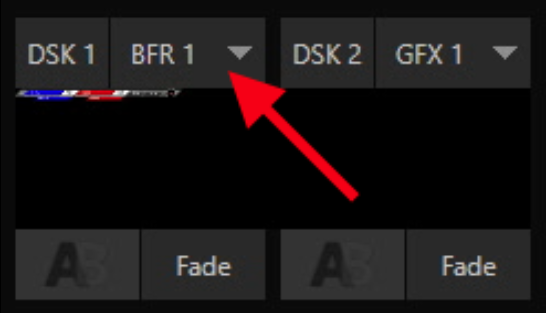
Step 6: Toggle the Overlay on Program Output
Click the transition button (labeled "Fade") to toggle the title on and off in your program output.
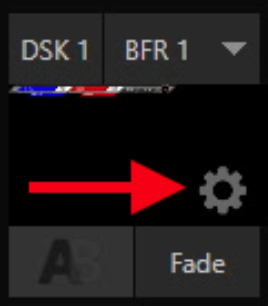
Step 7: Reposition the Overlay
Click the gear icon that appears when hovering over the DSK to reposition the title on screen.
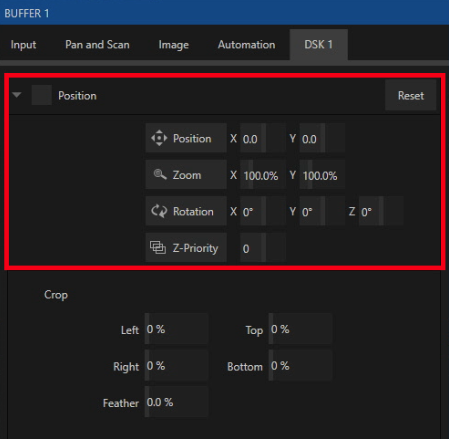
Step 8: Edit the URL
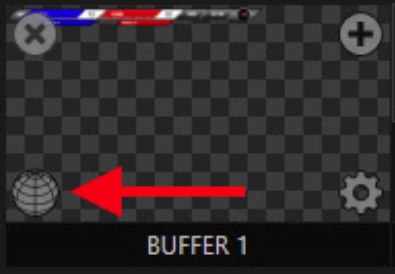
To change the overlay URL, click the globe icon that appears when hovering over the buffer slot.
Troubleshooting
- Overlay not loading? Confirm your TriCaster is on version 7-9 or higher.
- Score not updating? Ensure a game is active in your ScoreBird schedule and your NeST device is online.
- Need help? Contact support at support@scorebird.com or call 844-GOT-BIRD (844-468-2473).
Still need help?
Can't find what you're looking for? Our support team is here to help.
Contact Support →Ready to automate your scores?
NeST connects to your scoreboard and powers everything you just read about.