
Getting Started
Getting Started
This guide walks you through signing in for the first time, understanding the ScoreBird Portal interface, and setting up your profile.
Signing In
- Open a browser and navigate to customer.scorebird.com.
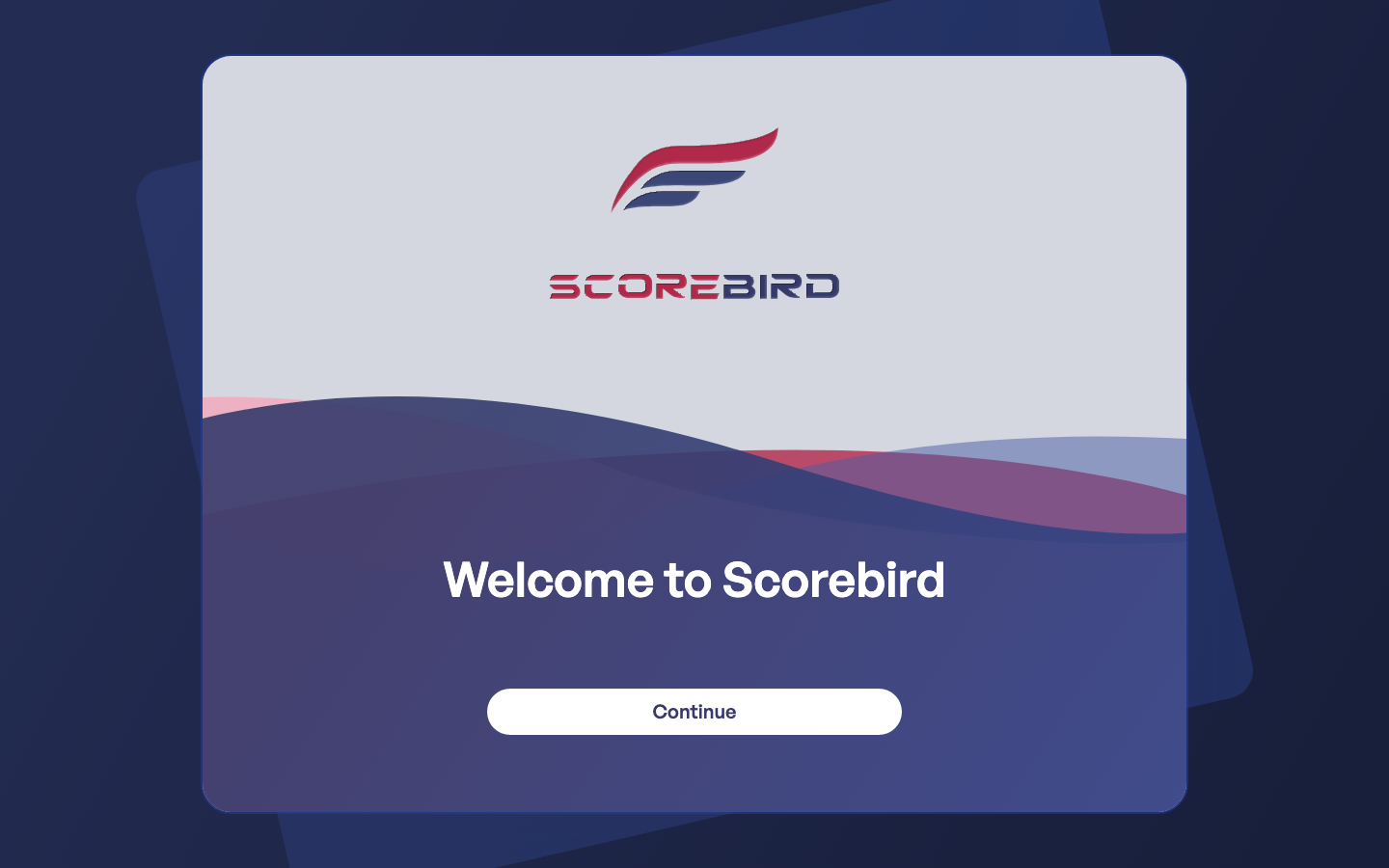
- A Welcome to Scorebird splash modal appears on top of the sign-in form. Click Continue to dismiss it.
- Enter your Enter Your Email and Enter Your Password in the sign-in form.
- Click Continue to sign in.
Note: If you just ordered a NeST device, your account invitation arrives by email. Use the email address and password from that invitation. If you have not received it, check your spam folder or contact support@scorebird.com.
Forgot Your Password
- On the sign-in page, click Forgot password? below the password field.
- Enter your email address and submit the form.
- Check your inbox for a password reset link and follow the instructions.
Tip: ScoreBird uses the same credentials for both the web app and the mobile app. Resetting your password here resets it for both.
Your First Login
What You See After Signing In
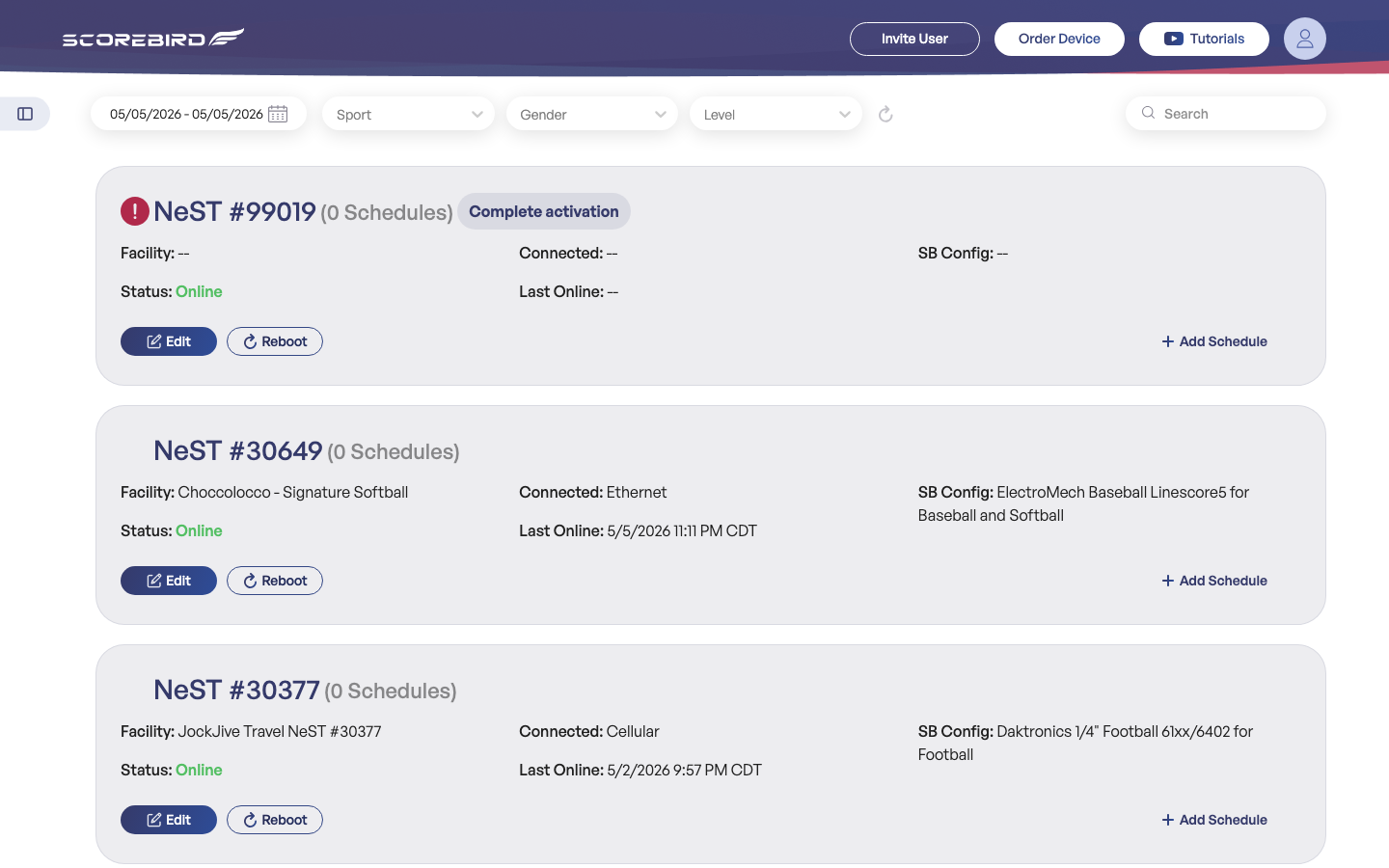
After a successful sign-in, you land on the Game Day screen. If your organization already has NeST devices registered, you will see device cards showing each unit's status, connectivity, and schedule count.
If the app appears empty, your account may not be linked to an organization yet — see the section below.
Joining an Existing Organization
If your facility is already set up in ScoreBird, an admin can invite you directly. If you need to request access yourself:
- Navigate to /my-requests (or ask your ScoreBird admin for the direct link).
- Submit an access request for your organization.
- Your organization's Admin or Super Admin receives the request and approves it.
- Once approved, you will see your organization's devices and data when you sign in.
Note: You can belong to multiple organizations. Each organization membership carries its own role — you might be an Admin in one org and a Member in another.
If Your Organization Is Already Set Up
If devices and schedules are already visible on Game Day, you are ready to use ScoreBird. Explore the left sidebar to navigate to Devices, Schedules, Teams, and Facilities.
Understanding the Interface
The web app has three main areas: the top header, the left sidebar, and the main content area.
Top Header
The header is visible on every page and contains the following controls:
| Button | What it does |
|---|---|
| Invite User | Opens a form to invite a new user to your organization by email |
| Order Device | Takes you to the NeST purchase flow at scorebird.com |
| Tutorials | Opens the ScoreBird video tutorial library in a new tab |
| Profile avatar (top-right) | Opens the account menu — access My Profile or sign out |
Left Sidebar
Click the ☰ (hamburger) button at the top-left to collapse or expand the left sidebar. Collapsing it gives more horizontal space to the main content area, which is useful on narrower screens.
The sidebar contains the primary navigation. Each item and its purpose:
| Nav Item | What it does |
|---|---|
| Game Day | Dashboard view of all NeST devices — status, connectivity, and active schedules at a glance |
| Devices | Full device list with registration, configuration, and reboot controls |
| Schedules | Create and manage game schedules assigned to devices |
| Overlay Builder | Design broadcast overlays that display live score data over video |
| Virtual Scoreboard | Configure and embed web-based scoreboards for websites and streaming |
| Teams | Manage the teams that appear in your schedules and overlays |
| Facilities | Manage venues and courts/fields within each venue |
| Users | Invite and manage user accounts within your organization (Admin and above) |
| Profile | View and edit your personal account information |
Main Content Area
The main content area fills the rest of the screen to the right of the sidebar. It displays the page selected in the sidebar. On the Game Day screen, this area shows NeST device cards. Each card displays:
| Card Field | Description |
|---|---|
| NeST serial number | Unique identifier for the physical device |
| Schedule count | Number of schedules currently assigned |
| Facility | The venue this device is associated with |
| Connected | Current connection type — Ethernet, Cellular, or WiFi |
| SB Config | Scoreboard make and model |
| Status | Online or Offline |
| Last Online | Timestamp of most recent activity |
Three action buttons appear on each device card: Edit (open device settings), Reboot (send a remote reboot command), and + Add Schedule (create a new schedule for this device).
User Roles
ScoreBird has three access roles. Your role is set per organization — if you belong to multiple organizations, you may have different roles in each.
Member — standard access
View schedules and read-only access to the organization's data. Cannot make changes to devices, users, or settings.
Admin — organization manager
Everything a Member can do, plus: manage teams, facilities, and schedules; invite and manage users within their organization.
Super Admin — platform administrator
Everything an Admin can do, plus: manage all organizations, approve user access requests, send system-wide notifications. Super Admins have access to all organizations they oversee.
Tip: If you need to perform an action and find it grayed out or missing, your role may not have permission for it. Contact your organization's Admin or Super Admin to request a role change.
Accessing Your Profile
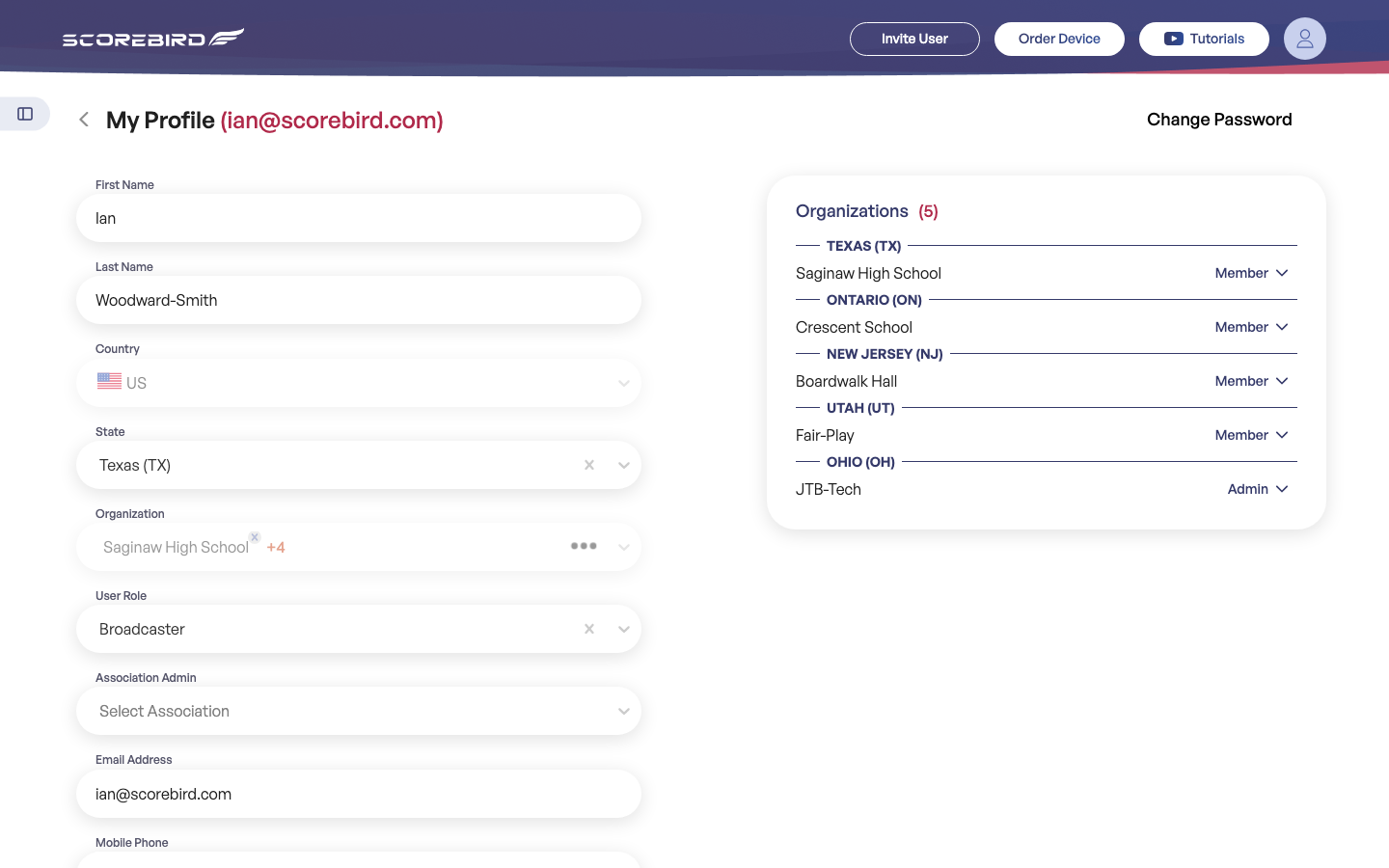
Your profile page shows your personal information and your membership status across all organizations.
- Click your profile avatar in the top-right corner of the header.
- Select My Profile from the dropdown menu.
Profile Fields
| Field | Description |
|---|---|
| First Name | Your first name |
| Last Name | Your last name |
| Country | Your country |
| State | Your state or province |
| Organization | Organizations you belong to |
| User Role | Your role (Broadcaster, Admin, etc.) |
| Association Admin | Whether you have association-level admin rights |
| Email Address | Your sign-in email |
| Mobile Phone | Your phone number |
Organization Memberships Panel
The right panel on your profile page shows Organizations with the count of organizations you belong to (for example, "Organizations (5)"). Each organization entry lists your role within it — for example, Member or Admin.
This is useful when you belong to multiple organizations and need to confirm which role you have in each one.
Changing Your Password
- On the My Profile page, click the Change Password button.
- Enter your current password, then enter and confirm your new password.
- Click Save to apply the change.
Note: Your new password applies to both the web app and the mobile app immediately.
Still need help?
Can't find what you're looking for? Our support team is here to help.
Contact Support →Ready to automate your scores?
NeST connects to your scoreboard and powers everything you just read about.