
Game Day
Game Day
Game Day is the default homepage of the ScoreBird Portal. It is your central hub for monitoring all NeST devices, managing schedules, and launching live scoring sessions across every facility you oversee.
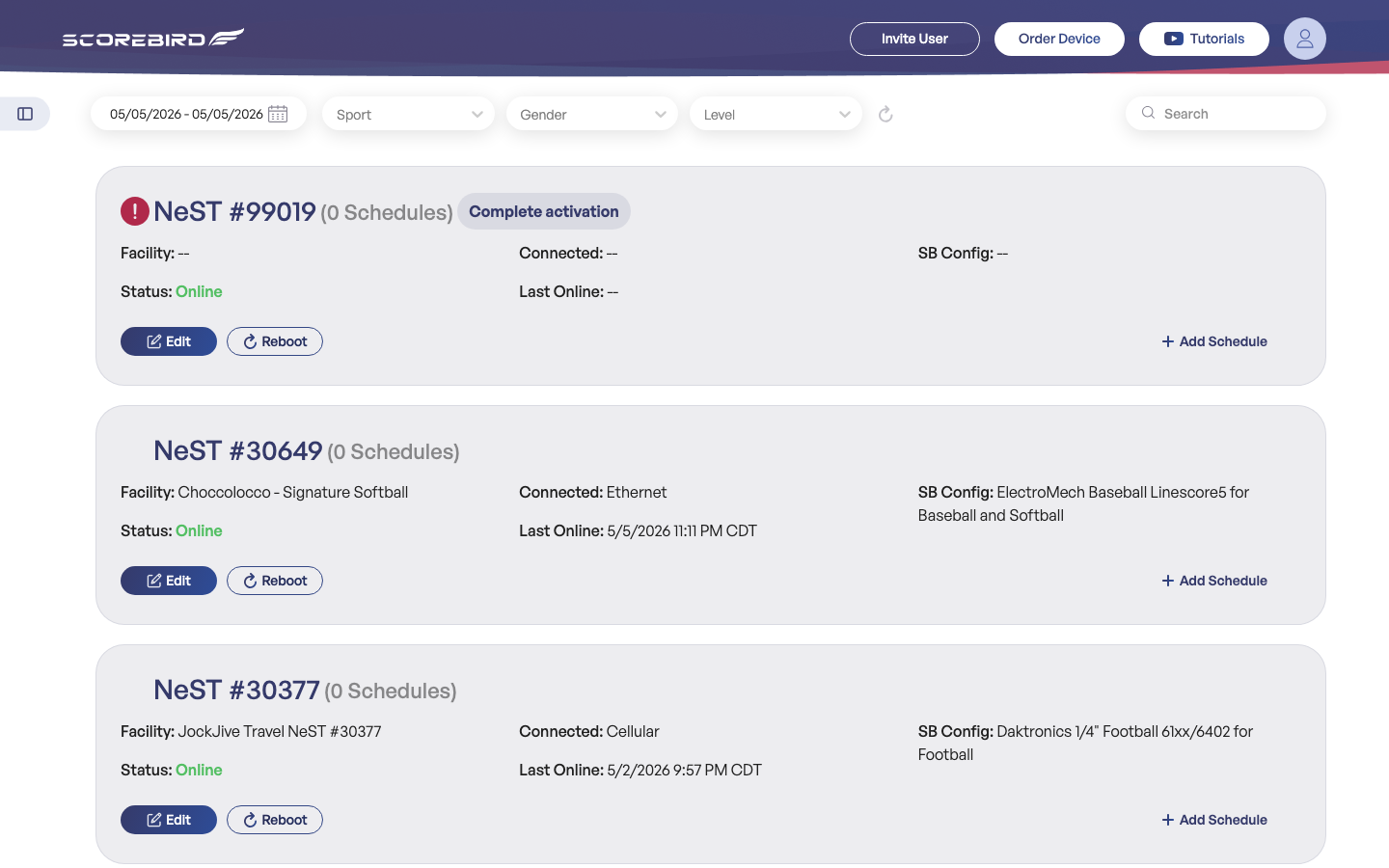
Understanding the Device Cards
Every NeST device in your account appears as a card on the Game Day screen. Cards update in real time via a persistent WebSocket connection — you do not need to refresh the page to see current status changes.
Each card displays the following information:
NeST # — The device's serial number, shown in the card header (e.g. "NeST #30649").
Schedule count — Number of schedules currently assigned to the device, shown next to the serial number (e.g. "(0 Schedules)").
Facility — The venue name associated with this device (e.g. "Checcoloco - Signature Softball").
Connected — How the device is connected to the internet: Ethernet, WiFi, or Cellular.
SB Config — The scoreboard make and model this device is configured to read (e.g. "ElectroMech Baseball Linescore5 for Baseball and Softball").
Status — Online (green) means the device is connected and actively streaming. Offline (red) means the device cannot be reached.
Last Online — The date and time the device last communicated with ScoreBird servers, shown in CDT.
The "Complete Activation" Badge
Devices that have not yet been fully set up display a Complete activation badge in the card header. These devices are not yet ready to score games. See Completing Device Activation for step-by-step instructions.
Online vs. Offline Status
- Online (green): The device is connected to the internet and able to send scoreboard data. Games can be scored from this device.
- Offline (red): The device cannot be reached. Check the network connection at the facility, or use the Reboot button to attempt a recovery.
Filtering Your View
When you manage multiple facilities or sports programs, the filter bar at the top of Game Day helps you focus on what matters right now.
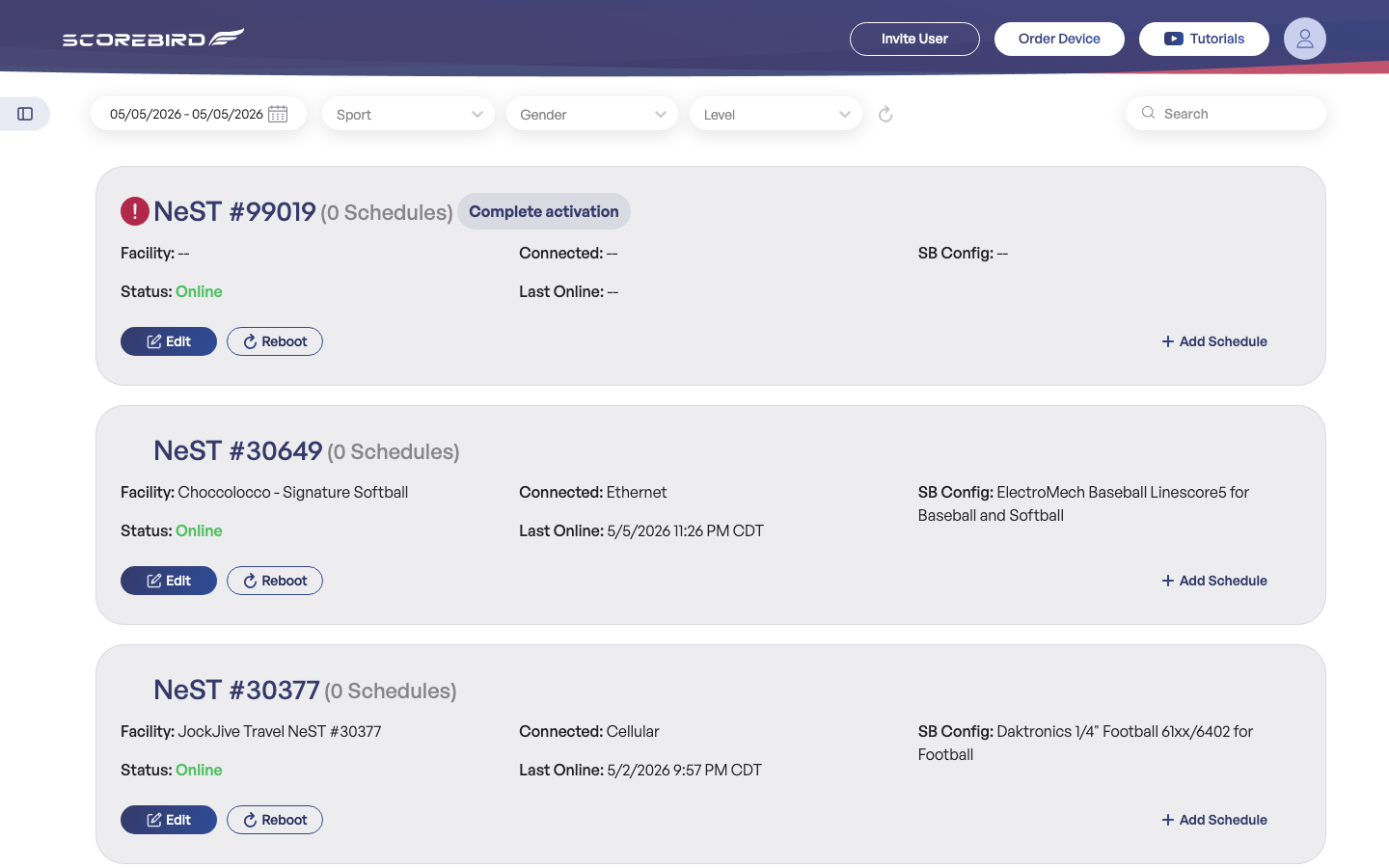
Date range picker — Shows devices with schedules for the selected date range. Defaults to today. Change it to view past or upcoming game days.
Sport — Narrows the view to a single sport (e.g. Baseball, Basketball, Football).
Gender — Filters by Boys, Girls, Men, Women, or Co-Ed.
Level — Filters by competitive level (e.g. Varsity, JV, Middle School).
Search — Find a specific device by team name, facility name, or NeST serial number.
Refresh — Manually polls the server for the latest device and schedule data. Real-time updates arrive automatically, but use this if you suspect a display issue.
Tip: Combine filters to isolate exactly what you need — for example, set Sport to "Basketball" and Level to "Varsity" before a tournament day to see only those devices.
Adding a Schedule to a Device
Each NeST device can have one or more schedules assigned to it. A schedule links a specific game or event to the device so ScoreBird knows which team data to associate with live scores.
- Locate the device card for the facility where the game will be played.
- Click + Add Schedule in the bottom-right area of the card.
- Complete the schedule form with the sport, teams, date, and time.
- Save the schedule — it appears under the device card immediately.
Tip: For full details on creating and managing schedules, see the Schedules section of this manual.
Starting a Live Game
Once a schedule is assigned to an Online device, you can begin scoring in a few steps.
- Locate the device card for your facility on the Game Day screen.
- Confirm that Status shows Online (green). If the device is offline, scoring is not possible until connectivity is restored.
- Expand the schedule list on the device card by clicking the scheduled game entry.
- Click Score (appears in the top-right of the schedule list) to open the live scoring modal.
- Enter scores as play progresses. Each update is broadcast immediately to all connected overlays and virtual scoreboards.
- When the game ends, close the scoring modal. The final score remains available in your game history.
Tip: The Score button only appears when a schedule is attached to the device. If you do not see it, verify that a schedule has been added using + Add Schedule.
Editing a Device from Game Day
You can open a device's configuration directly from its card without navigating to the Devices screen.
- Find the device card you want to update.
- Click Edit.
- The device configuration panel opens. From here you can update the facility assignment, scoreboard config, and network settings.
- Save your changes. The card on Game Day reflects the update immediately.
Rebooting a Device
If a device shows as Offline or has stopped sending data, a reboot often restores connectivity.
- Locate the device card.
- Click Reboot.
- Confirm the reboot when prompted.
Note: Reboot takes 30–60 seconds to complete. The device status will briefly show Offline while it restarts. If the device does not come back Online after 90 seconds, check the physical network connection at the facility or contact support at support@scorebird.com.
Still need help?
Can't find what you're looking for? Our support team is here to help.
Contact Support →Ready to automate your scores?
NeST connects to your scoreboard and powers everything you just read about.