
Overlay Builder
Overlay Builder
The Overlay Builder generates a URL that you add to your broadcast software as a Browser Source. Once added, the overlay appears on top of your video feed and updates automatically — every score change on the physical scoreboard appears on your broadcast within seconds, with no manual intervention required.
Navigate to Overlay Builder in the left sidebar to get started.
Choosing a Source
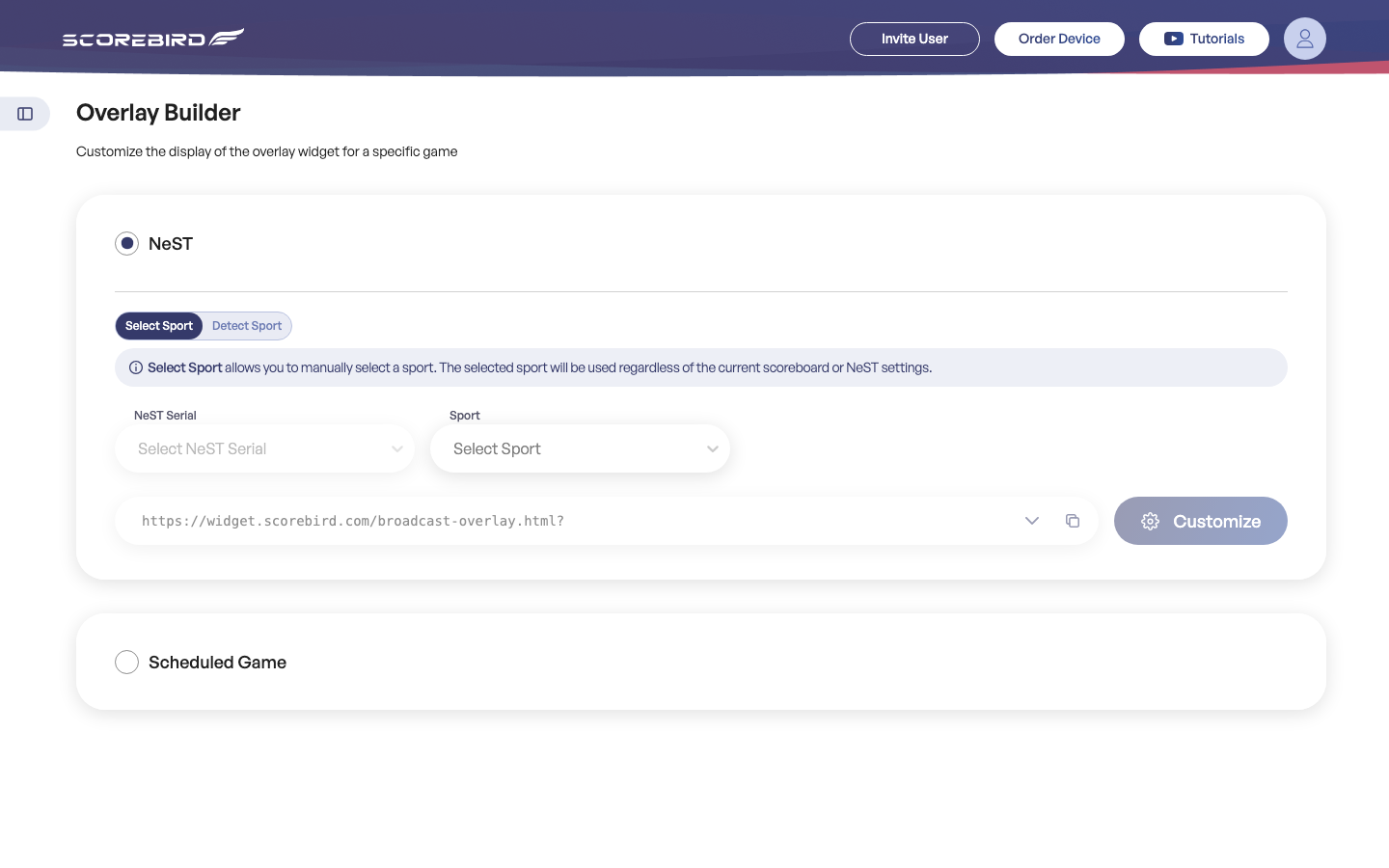
The first step is telling the overlay where to get its live data. Two source options appear as radio buttons at the top of the page.
| Source | How it works | When to use it |
|---|---|---|
| NeST | Reads live data directly from a NeST device in real time | Best for games in progress — data flows directly from the scoreboard |
| Scheduled Game | Ties the overlay to a specific scheduled game record | Use when you want the overlay linked to a particular game entry in your schedule list |
NeST mode is the default and the most common choice. It connects the overlay directly to a device's live output, so the overlay is active any time that NeST is scoring a game.
Scheduled Game mode is useful when you have multiple games at the same facility across a day and want each overlay URL to correspond to a specific game record rather than the device as a whole.
Sport Detection
After selecting your source, choose how the overlay determines which sport it is displaying. Two tabs appear: Select Sport and Detect Sport.
Select Sport
You manually choose the sport from a dropdown menu. This overrides whatever sport is configured on the physical scoreboard or in the NeST settings. Use this when you know the sport in advance and want to lock the overlay to it regardless of what the scoreboard is doing.
Detect Sport
ScoreBird reads the sport setting directly from the NeST device and scoreboard configuration and selects the appropriate display template automatically. No manual selection is needed. This is the recommended mode for facilities that host multiple sports, because the overlay adapts as the sport changes on the board.
Tip: Use Detect Sport if your facility hosts multiple sports. Use Select Sport if the auto-detection picks the wrong sport.
Generating Your Overlay URL
Once you have chosen a source and detection mode, the overlay URL is generated automatically. Follow these steps to get your URL:
- Select your source: click NeST or Scheduled Game.
- Choose your sport detection mode: click the Select Sport or Detect Sport tab.
- Select your NeST Serial from the dropdown. The dropdown lists all NeST devices registered to your organization.
- If you are using Select Sport mode, choose the Sport from the sport dropdown that appears below the NeST Serial field.
- The overlay URL generates automatically and appears in the URL output field — it begins with
https://widget.scorebird.com/broadcast-overlay.html?... - Click the copy icon (clipboard) next to the URL field to copy it to your clipboard.
Adding the Overlay to OBS
OBS Studio is the most common broadcast software used with ScoreBird overlays. The overlay is added as a Browser Source on your scene.
- In OBS, click the + button under the Sources panel.
- Select Browser from the source type list.
- Give the source a name (for example, "ScoreBird Overlay") and click OK.
- Paste your overlay URL into the URL field.
- Set Width to
1920and Height to1080to match a standard 1080p stream resolution. Adjust these values if your stream uses a different resolution. - Click OK.
- The overlay layer appears in your scene. Position and resize it as needed using the standard OBS transform controls.
Tip: For other broadcast software (vMix, Streamlabs, TriCaster), see the integration guides in the Broadcast Overlays section of this documentation.
Customizing the Overlay
The overlay can be customized to match your school's or team's branding. Customization is saved to the NeST device record and persists across all overlay URLs that reference that device.
- Click the Customize button (gear icon) on the Overlay Builder screen.
- The customization panel opens. Available options include:
- Home team name — override the team name shown on the overlay
- Away team name — override the opponent name
- Primary and secondary colors — set hex values to match your school colors
- Logo upload — upload a team or organization logo to display on the overlay
- The preview updates in real time as you make changes — you can see exactly how the overlay will look before saving.
- Click Save to apply the customization. Changes take effect immediately for all active overlay sessions using this NeST device.
Note: Customizations apply to the specific NeST device you selected when generating the URL. If you generate overlay URLs for multiple devices, customize each one separately.
Still need help?
Can't find what you're looking for? Our support team is here to help.
Contact Support →Ready to automate your scores?
NeST connects to your scoreboard and powers everything you just read about.