
Virtual Scoreboard
Virtual Scoreboard
The Virtual Scoreboard is a web-based score display that updates live as the physical scoreboard changes. You can embed it on your school website, a conference portal, a digital display, or a broadcast stream — anywhere that accepts a URL, JavaScript snippet, or iFrame. One virtual scoreboard can serve multiple surfaces simultaneously.
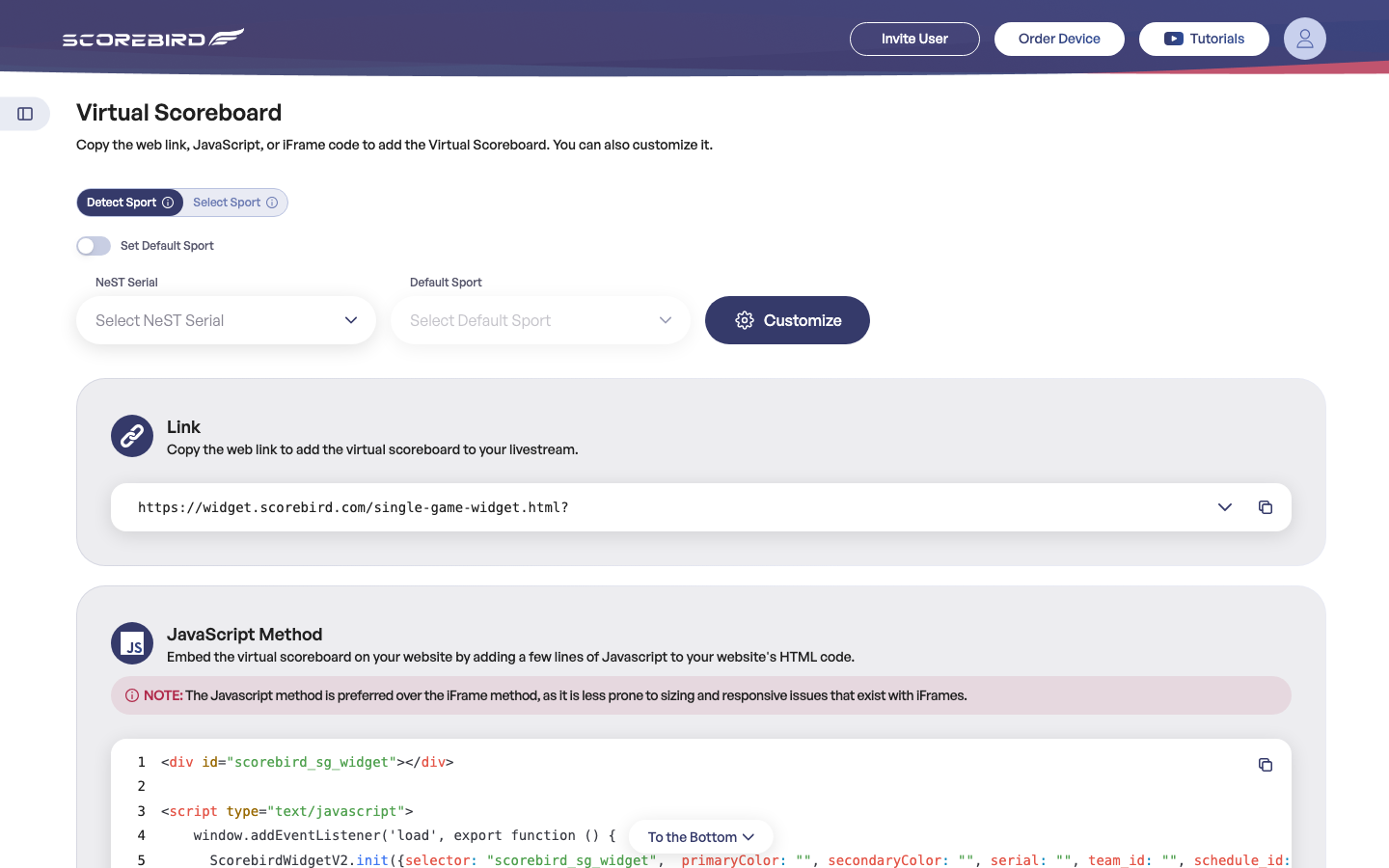
Navigate to Virtual Scoreboard in the left sidebar to get started.
Choosing a Sport Source
At the top of the page, two tabs control how the virtual scoreboard determines which sport to display: Detect Sport and Select Sport.
| Mode | How it works | When to use it |
|---|---|---|
| Detect Sport | Reads the sport setting directly from the NeST device and scoreboard configuration | Recommended for most facilities — the widget adapts as the sport on the board changes |
| Select Sport | You manually choose the sport | Use when auto-detection picks the wrong sport or you want to lock the display to a specific sport |
Set Default Sport
The Set Default Sport toggle appears below the source tabs. When enabled, a Default Sport dropdown appears — choose the sport that should display when no game is actively being scored. This keeps the virtual scoreboard looking correct between games rather than showing a blank or generic state.
Getting Your Embed Code
- Select your NeST Serial from the dropdown. The list shows all NeST devices registered to your organization.
- Choose Detect Sport or Select Sport at the top of the page.
- If you selected Select Sport, choose the sport from the Sport dropdown that appears.
- Optionally, enable Set Default Sport and select the default sport from its dropdown.
- Three embed options appear — choose the right one for your use case (see the table below).
- Click the copy icon on your chosen embed method to copy the code or URL to your clipboard.
| Embed Method | Best for |
|---|---|
| Link | Opening the scoreboard directly in a browser, or adding it as a Browser Source in OBS or similar software |
| JavaScript Method | Embedding on a school website or conference portal (recommended over iFrame — better sizing and responsiveness) |
| iFrame | Website environments that block JavaScript or have strict content security policies |
Note: ScoreBird recommends the JavaScript method for website embeds. iFrames can have sizing and responsive layout issues that the JavaScript method avoids.
Adding to Your Website (JavaScript Method)
The JavaScript method embeds the live scoreboard directly into your web page with full control over sizing and colors.
- Open the HTML of the page where you want the scoreboard to appear.
- Add a container
divwhere the scoreboard should render:<div id="scorebird_sg_widget"></div> - Copy the full script tag from the JavaScript Method section in the Virtual Scoreboard screen and paste it immediately after the
div. - The
primaryColorandsecondaryColorparameters in the script accept hex color values — set them to match your school's branding (for example,"#003366"for navy blue). - The
serialparameter is pre-filled with your NeST serial number — do not change it. - Optionally, set
team_idto pin the widget to a specific team, orschedule_idto pin it to a specific scheduled game. - Save and publish your page. The scoreboard appears live whenever a game is active on that NeST device.
Tip: Use
primaryColorandsecondaryColorto match your school's colors (hex values, for example"#003366").
The JavaScript snippet follows this pattern:
window.addEventListener('load', function() {
  ScorebirdWidgetV2.init({
    selector: "scorebird_sg_widget",
    primaryColor: "",
    secondaryColor: "",
    serial: "",
    team_id: "",
    schedule_id: ""
  });
});
The selector value must match the id attribute on your container div. Do not change selector unless you also rename the div id to match.
Adding to a Livestream
The Link embed method produces a direct URL you can use as a Browser Source in any streaming software that supports them.
- Copy the Link URL from the Virtual Scoreboard screen — it begins with
https://widget.scorebird.com/single-game-widget.html? - In OBS Studio, click + under the Sources panel and choose Browser.
- Paste the URL into the URL field.
- Set the dimensions based on how you want to display it:
- For a horizontal ticker across the bottom of the screen:
1920wide ×200tall - For a compact side panel or corner scoreboard:
300wide ×400tall
- For a horizontal ticker across the bottom of the screen:
- Click OK and position the source on your scene as needed.
The same URL works in vMix, Streamlabs, TriCaster, and any other broadcast tool that supports Browser Sources or web page inputs.
Customizing the Appearance
Customization options let you match the virtual scoreboard to your school's visual identity. Like overlay customization, these settings are saved to the NeST device record and apply across all embed methods using that device.
- Click the Customize button (dark blue, gear icon) on the Virtual Scoreboard screen.
- The customization panel opens with the following options:
- Primary color — main brand color (used for headers, team names, score backgrounds)
- Secondary color — accent color (borders, highlights)
- Logo — upload a team or organization logo
- Layout — choose from available display layout styles
- The preview updates live as you adjust settings.
- Click Save to apply. Customization takes effect immediately across all active embeds using this NeST serial — the Link URL, JavaScript embed, and iFrame all reflect the saved appearance.
Note: If you change the NeST Serial selected on the Virtual Scoreboard screen, you are working with a different device's settings. Each NeST device has its own customization record.
Web Tickers
A web ticker displays a scrolling horizontal feed of all your district's live and final scores on any web page — ideal for athletic department homepages, conference portals, and digital signage. Embed it using a JavaScript snippet or an iFrame.
JavaScript Parameters (Horizontal Ticker)
selector — String, Required. The id of the container div where the ticker renders.
district — String, Optional. ScoreBird district identifier — limits the ticker to schedules in that district. One of district or association is required.
association — String, Optional. ScoreBird association identifier — limits the ticker to schedules in that association. One of district or association is required.
level — String, Optional. Limit the ticker to a specific level (e.g. varsity, freshman).
sublevel — String, Optional. Limit the ticker to a specific sublevel (e.g. blue, A-Team).
live_final_only — Boolean, Optional. When true, shows only live and final schedules — upcoming games are excluded.
auto_navigate_timeout — Integer, Optional. Milliseconds before the next set of schedules animates in.
sport — String, Optional. Limit to a single sport. Accepted values: basketball, baseball, football, softball, volleyball, wrestling, soccer, field hockey, lacrosse, ice hockey.
all_sports — Comma-separated String, Optional. Exhaustive list of sports to show. Use when you want to display a specific subset of sports rather than all.
Note: The vertical ticker uses the same parameters except
live_final_onlyandauto_navigate_timeout, which do not apply. The iFrame version uses the same parameters exceptselector, which is not applicable to iFrames.
School Schedules Embed
The School Schedules embed displays a team's full season schedule on any web page — useful for school websites and athletic department portals that want a live, automatically updated schedule rather than a manually maintained list.
JavaScript Parameters
selector — String, Required. The id of the container div where the schedule renders.
school_id — String, Required. The unique ScoreBird identifier for the school. Contact support@scorebird.com to obtain your school ID.
gender — String, Optional. Filter the schedule by gender.
level — String, Optional. Filter by level (e.g. varsity, freshman).
sport — String, Optional. Filter by sport.
Note: The iFrame version uses the same parameters except
selector.
District / Multi-School Scoreboard Embed
The District Scoreboard embed displays live and final scores across your entire district or association on a single web page — useful for conference websites, local news portals, and any page that needs a broad view of all active games.
JavaScript Parameters
selector — String, Required. The id of the container div where the scoreboard renders.
tag — String, Required. A ScoreBird-generated identifier representing the list of schools to include. Contact support@scorebird.com to get your tag.
max_schedules — Integer, Optional. Maximum number of schedules to display at once.
partner — String, Optional. ScoreBird integration partner identifier. Provided by ScoreBird — contact support if you are embedding as an integration partner.
primary_color — String, Optional. Main accent color in hex format (e.g. #FF0000).
Note: The
tagandpartnervalues are generated by ScoreBird and cannot be self-configured. Contact support@scorebird.com to have these created for your district or association. The iFrame version uses the same parameters exceptselector.
Still need help?
Can't find what you're looking for? Our support team is here to help.
Contact Support →Ready to automate your scores?
NeST connects to your scoreboard and powers everything you just read about.