
Teams & Facilities
Teams & Facilities
Teams and Facilities are the organizational backbone of ScoreBird. Teams give every schedule a named roster entry — the data that powers overlays, virtual scoreboards, and score feeds. Facilities define your physical venues and create the critical link between a venue and the NeST device installed there. Setting both up correctly before your first game day makes everything downstream easier.
Managing Teams
The Teams List
Navigate to Teams in the left sidebar to open the Teams screen. The screen displays all teams in your organization in a sortable, searchable table.
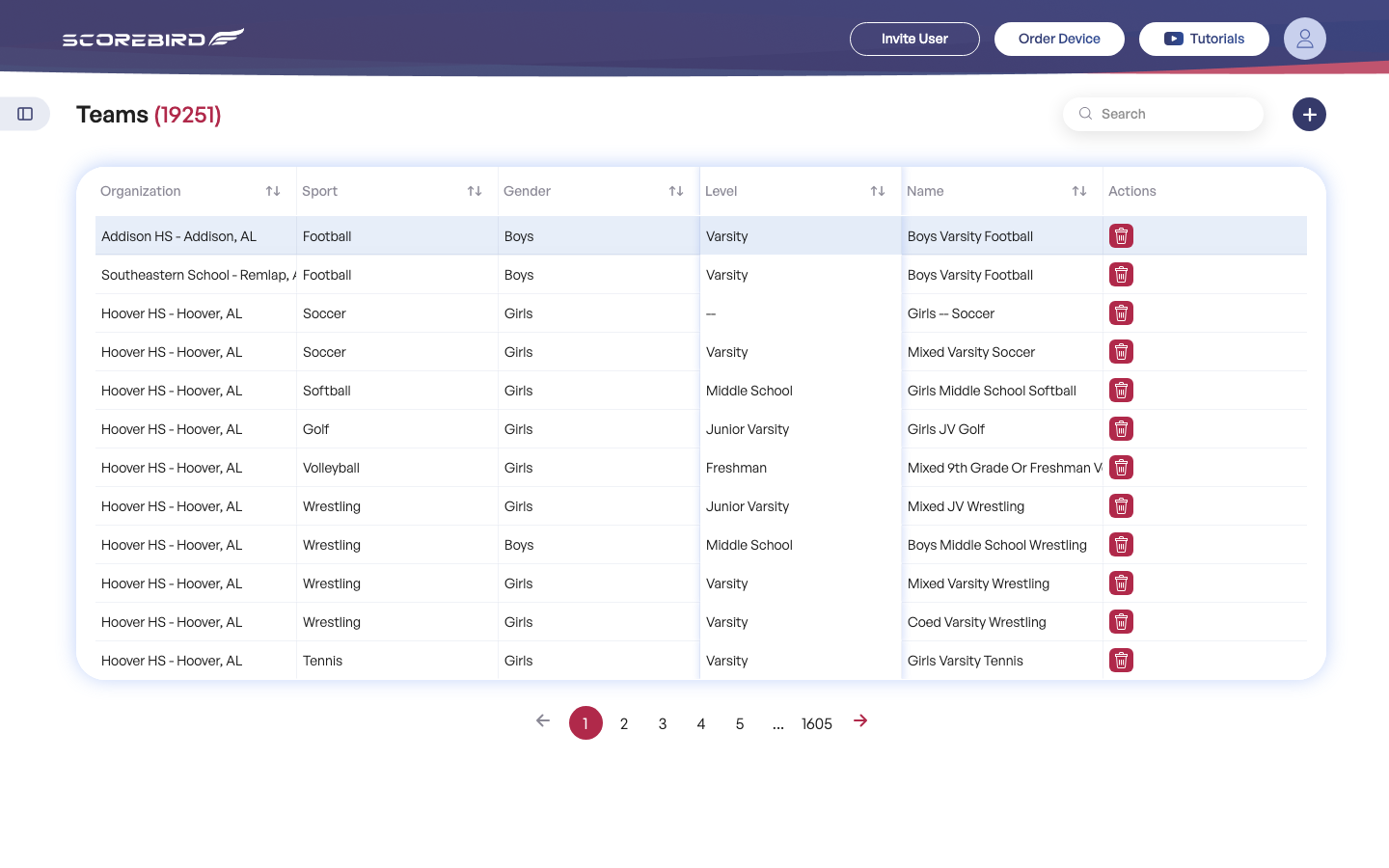
| Column | Description |
|---|---|
| Organization | The school or club this team belongs to. |
| Sport | The sport the team competes in. |
| Gender | Boys / Girls / Men's / Women's / Co-ed. |
| Level | Competitive level — Varsity, JV, Freshman, or Other. |
| Name | The full team display name (e.g. "Eagles Varsity Basketball"). |
| Actions | Edit (pencil) and Delete (trash) icons. |
Use the search bar (top-right) to filter teams by any column value. Click any column header to sort. The table paginates automatically when your roster grows.
Tip: Create teams before building schedules. The schedule form pulls from this list, so a team that does not exist here will not appear as an option.
Adding a Team
- Click the blue + button (top-right of the Teams screen).
- Fill in all required fields in the Add Team form.
- Click Save.
The new team appears in the table immediately.
School (required) — The organization this team belongs to. Choose from the organizations in your account.
Team Name (required) — The display name used in schedules and overlays (e.g. "Eagles Varsity Basketball").
Sport (required) — The sport this team plays. Determines which scoreboard data fields are available at game time.
Gender (required) — Boys / Girls / Men's / Women's / Co-ed. Used for filtering on Game Day and in schedule reports.
Level (required) — Varsity / JV / Freshman / Other. Helps separate teams when multiple levels share a facility.
School Year (required) — The academic year this team is active (e.g. 2025–2026).
Sport Season (required) — Fall / Spring / Summer. Used to group schedules by season.
Coach (recommended) — Assign a user from your organization as head coach. The assigned coach can monitor game-day scoring and receive schedule notifications.
Editing and Deleting Teams
To edit a team: Click the pencil icon in the Actions column for that row. The same form used during creation opens with the existing values pre-filled. Make your changes and click Save.
To delete a team: Click the trash icon in the Actions column, then confirm the deletion when prompted.
Note: Deleting a team does not delete its schedules, but those schedules will no longer be associated with a team. Review and update any affected schedules after removing a team.
Managing Facilities
What Is a Facility?
A Facility is a physical venue — a gymnasium, stadium, field, or natatorium — where games are played. Every NeST device is assigned to exactly one Facility. The Facility → Device relationship is how ScoreBird knows which scoreboard hardware to read for a given venue. Without this link, game-day scoring cannot route data from the right device to the right schedule.
Facilities are also used to label device cards on the Game Day screen, so descriptive facility names make it easy to identify venues at a glance.
The Facilities List
Navigate to Facilities in the left sidebar. The table lists every facility in your organization.
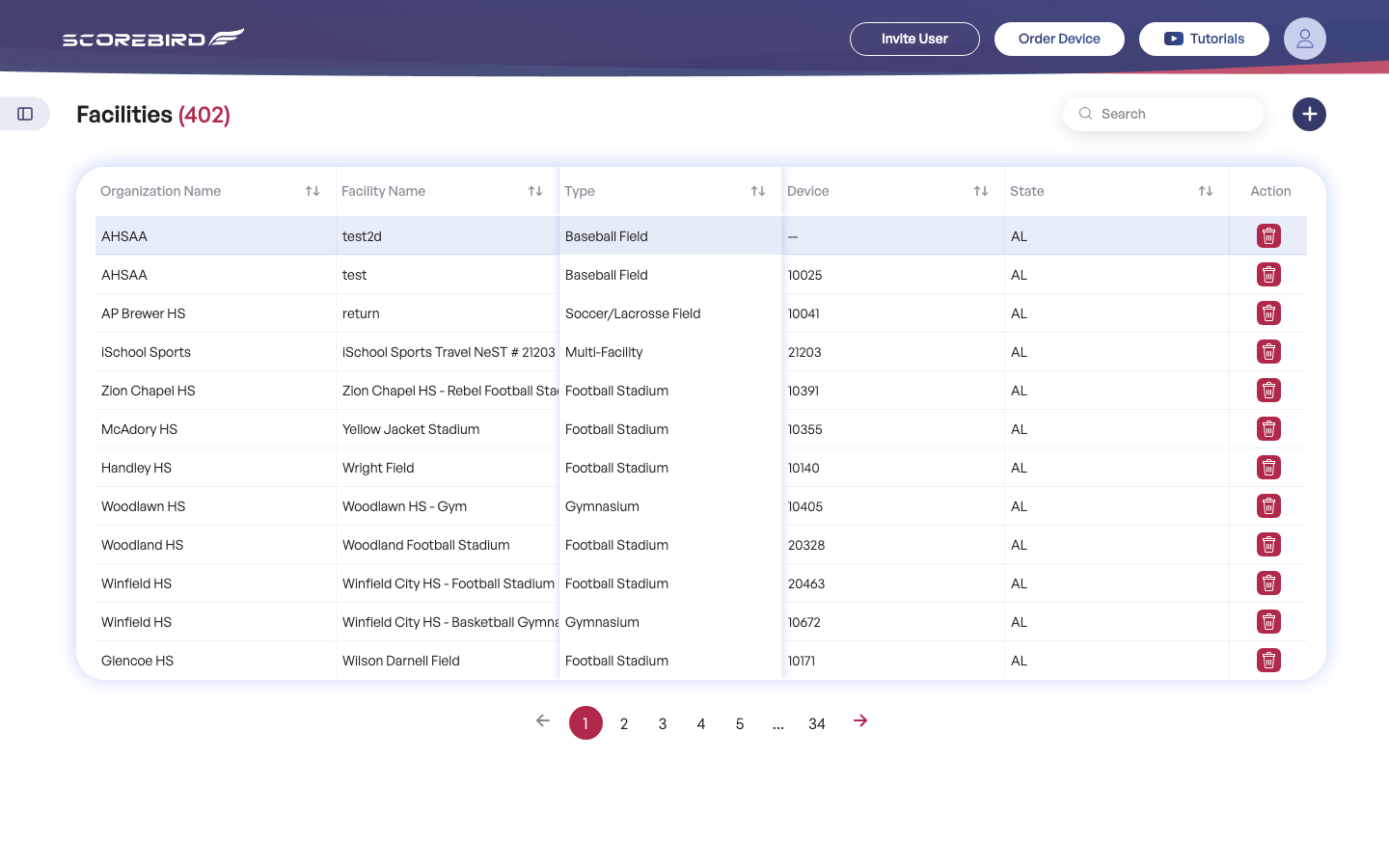
| Column | Description |
|---|---|
| Organization Name | The school or club that owns this venue. |
| Facility Name | The venue display name. |
| Type | Facility type: Baseball Field, Football Stadium, Gymnasium, Soccer/Lacrosse Field, Multi-Facility, etc. |
| Device | The NeST device number assigned to this facility, if any. |
| State | The US state where the facility is located. |
| Action | Delete (trash) icon. Click the row to open the full edit view. |
Adding a Facility
- Navigate to Facilities in the sidebar.
- Click the blue + button (top-right).
- Complete the form using the field reference below.
- Click Save.
Facility Name (required) — A clear, descriptive name for the venue (e.g. "Main Gymnasium" or "Varsity Football Stadium"). Appears on Game Day device cards.
School (required) — The organization that owns or operates this facility.
Facility Type (required) — The venue category: Stadium, Field, Gymnasium, Natatorium, or another applicable type.
Sport(s) — The sport or sports played at this facility. Multi-select — choose all that apply.
At School Location — Indicates whether this facility is located on the school's campus. Affects some scheduling and routing options.
Internet Type — The connectivity method used by the NeST device at this venue: WiFi, Ethernet, or Cellular.
Scoreboard Manufacturer — The brand of the scoreboard installed at this facility (e.g. Daktronics, ElectroMech, Nevco).
Scoreboard Model — The specific model of the scoreboard. The model dropdown populates based on the selected manufacturer.
Assigned Device — The NeST serial number installed at this facility. This field can be set during creation or added later by editing the facility.
Tip: The Scoreboard Manufacturer and Scoreboard Model fields here are for facility reference. The NeST device's active scoreboard configuration is managed separately in the Devices section. Both should match for clarity, but the device setting is what controls data parsing.
Assigning a NeST Device to a Facility
Assigning a device is the step that activates the Facility → Device relationship. Until a device is assigned, the facility exists in ScoreBird but cannot score live games.
- From the Facilities list, click the pencil icon for the facility you want to configure.
- Locate the Assigned Device field in the edit form.
- Select the NeST serial number from the dropdown. The dropdown shows all devices in your account that are not already assigned to another facility.
- Click Save.
Once assigned, the Game Day screen shows this device under the facility's name, and the Status column in the Facilities list reflects the device's live connectivity state.
IT / Installer: The device assignment is the critical link between hardware and scheduling. Verify this is set correctly before a game day. If a device is not showing up in the dropdown, confirm it has been activated in the Devices section and is not already assigned elsewhere.
Editing and Deleting Facilities
To edit a facility: Click the pencil icon in the Actions column. Any field — including the Assigned Device — can be updated. Click Save when finished.
To unassign a device: Open the facility for editing, clear the Assigned Device field, and click Save. The device becomes available to assign to a different facility. The facility remains in your list without a device.
To delete a facility: Click the trash icon and confirm. Deleting a facility does not delete the NeST device that was assigned to it, but the device loses its facility association and will appear unassigned on the Game Day and Devices screens.
Still need help?
Can't find what you're looking for? Our support team is here to help.
Contact Support →Ready to automate your scores?
NeST connects to your scoreboard and powers everything you just read about.