
Users & Access
Users & Access
ScoreBird uses role-based access so each person in your organization has the right level of control — nothing more, nothing less. Coaches and operators can monitor games without accidentally changing facility configurations. Administrators can manage the full platform. Understanding roles before you start inviting people saves cleanup work later.
User Roles
Every ScoreBird user is assigned one role per organization. A user can belong to multiple organizations and hold a different role in each.
Member — Coaches, scoreboard operators, broadcast technicians
View schedules and live game scores. Monitor device status.
Admin — Athletic directors, facility managers, IT coordinators
All Member capabilities, plus: manage teams, facilities, users, and schedules within their organization.
Super Admin — ScoreBird staff, multi-school administrators
All Admin capabilities, plus: manage all organizations, approve user access requests, and receive system notifications.
Note: Super Admin is not a role you assign yourself. It is granted by ScoreBird to accounts that need cross-organization oversight. Contact support@scorebird.com if your account requires this level of access.
Inviting a User
You can invite a new user from the global page header or from the Users screen. The flow is identical either way.
- Click Invite User in the top header (or navigate to Users in the sidebar and click Invite User from there).
- Enter the user's email address.
- Select their Role — Member or Admin.
- Select which Organization they are joining. If you manage multiple organizations, confirm you have selected the correct one.
- Click Send Invite.
- The user receives an email with a link to create their ScoreBird account.
Note: Invited users must complete sign-up using their invitation link before they appear as active in your Users list. Until sign-up is complete, their entry may show as pending. Invite emails occasionally land in spam — ask the user to check if the email does not arrive within a few minutes.
Managing Existing Users
Navigate to Users in the left sidebar. The screen shows a table of all users in your organization.
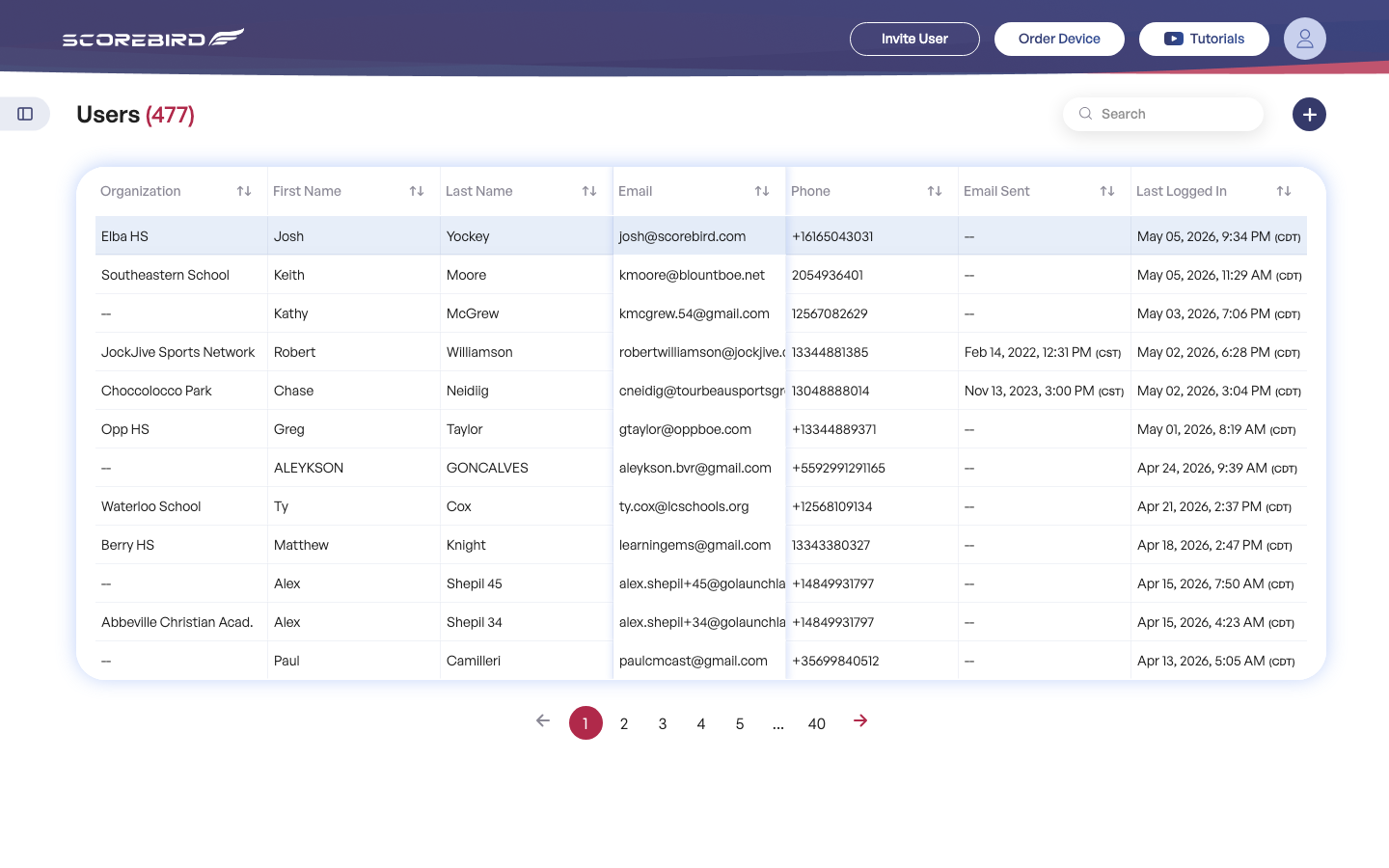
| Column | Description |
|---|---|
| Organization | The organization this user belongs to. |
| First Name | The user's first name. |
| Last Name | The user's last name. |
| The email address associated with their account. | |
| Phone | The user's phone number, if provided. |
| Email Sent | The date the invitation email was sent to this user. |
| Last Logged In | The date and time this user last signed in to ScoreBird. |
Changing a User's Role
- Click the pencil icon in the Actions column for the user you want to update.
- Change the Role dropdown to the new role.
- Click Save.
The change takes effect immediately. If you are downgrading an Admin to Member, they lose management access as soon as you save.
Removing a User
- Click the trash icon in the Actions column for the user you want to remove.
- Confirm the removal when prompted.
Removing a user from an organization revokes their access to that organization's data, devices, and schedules. If the user belongs to multiple organizations, their access to the other organizations is not affected.
Tip: Removing a user does not delete their ScoreBird account. They can still sign in and access any other organizations they belong to. To fully deactivate an account, contact support@scorebird.com.
Approving Access Requests
Admins and Super Admins only.
Users can request to join an organization directly from their ScoreBird account, without needing an invitation. When a request arrives, organization Admins are notified.
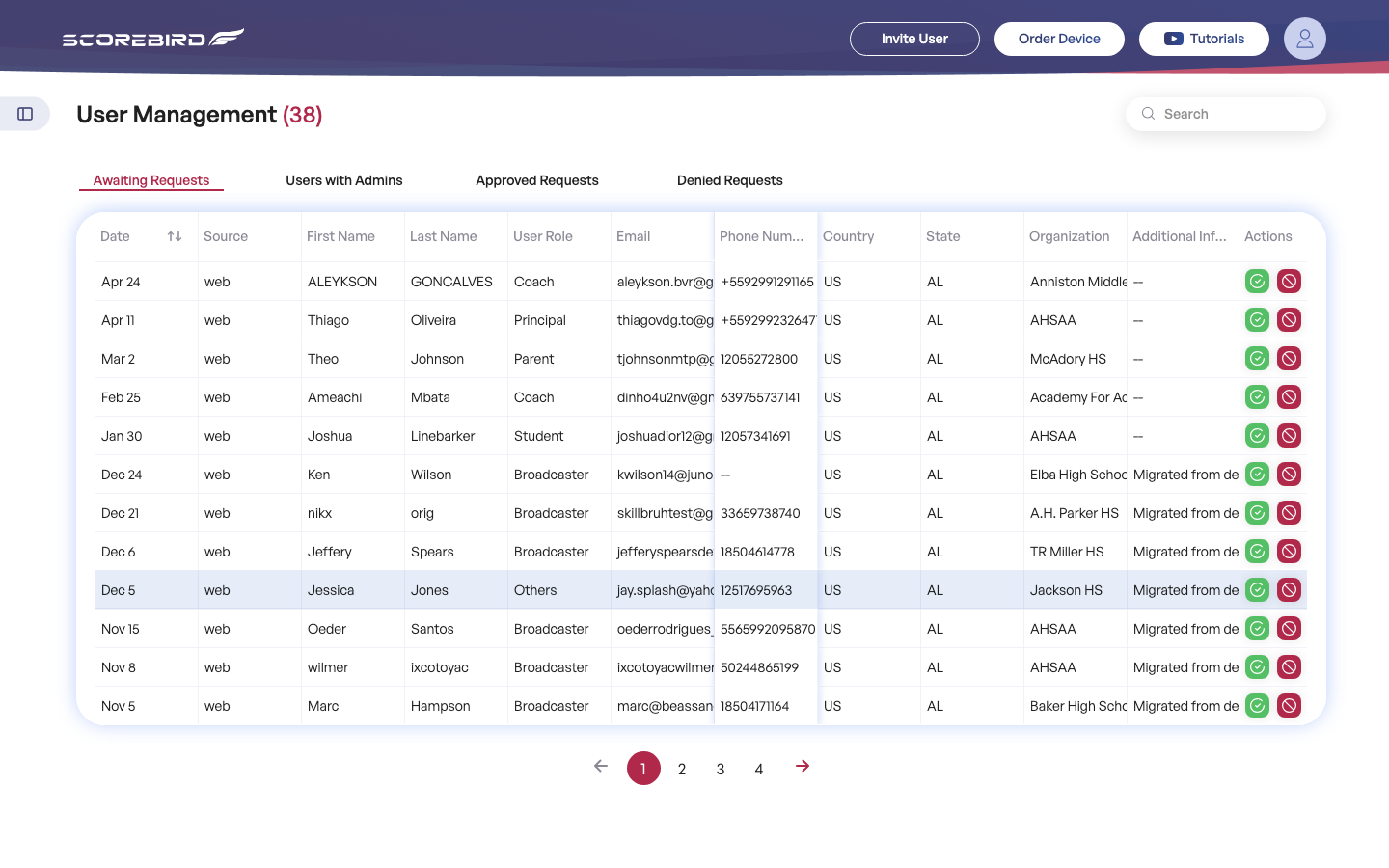
- Navigate to User Management in the sidebar.
- Click the Awaiting tab to see all pending access requests.
- Review each request — the requestor's name and email are shown.
- Click Approve to grant access at the Member role, or Deny to reject the request.
Approved users become active immediately and appear in the standard Users table. Denied users receive a notification that their request was not approved.
Note: Approved users are added at the Member role by default. If they need Admin access, edit their role after approving.
My Requests (Non-Admins)
If you need access to an organization you are not currently a member of, you can submit a request rather than waiting for an invitation.
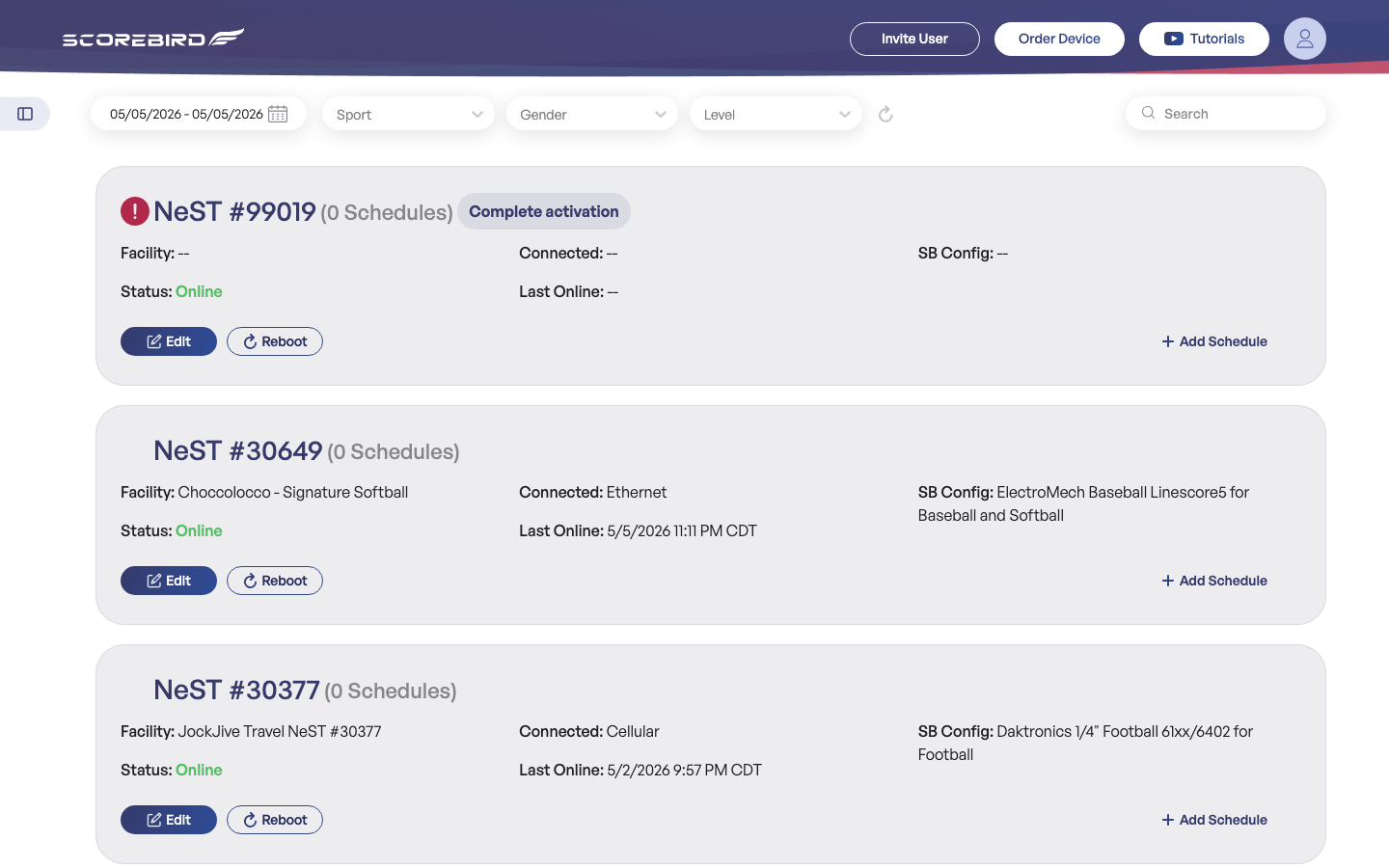
- Navigate to My Requests (
/my-requests) in the sidebar. - Click Request Access.
- Search for the organization by name.
- Select the organization and submit the request.
Your request will show one of three statuses:
| Status | Meaning |
|---|---|
| Pending | The organization's Admin has not yet acted on the request. |
| Approved | You have been added to the organization as a Member. |
| Denied | The Admin declined the request. |
You can resend a pending request if you have not heard back, or delete it if you no longer need access. Once approved, the organization appears in your profile's organization list and in your sidebar navigation.
Still need help?
Can't find what you're looking for? Our support team is here to help.
Contact Support →Ready to automate your scores?
NeST connects to your scoreboard and powers everything you just read about.